
AI help
If you want it, ask an AI model about your text or have it suggest edits, which arrive as tracked changes for you to accept or discard.
Jerome is complete without AI, and AI is off until you turn it on. Nothing is sent anywhere unless you have turned it on, chosen a service and confirmed each request.
Turn it on
AI is turned on in two places, so it is never on by accident.
- For Jerome: open Settings › AI and move Use AI features to Yes. Jerome asks if you are sure, then explains what is sent and asks you to confirm.
- For a project: open the project’s Workspace settings › AI and switch on Use AI in this project. Every project starts with it off.
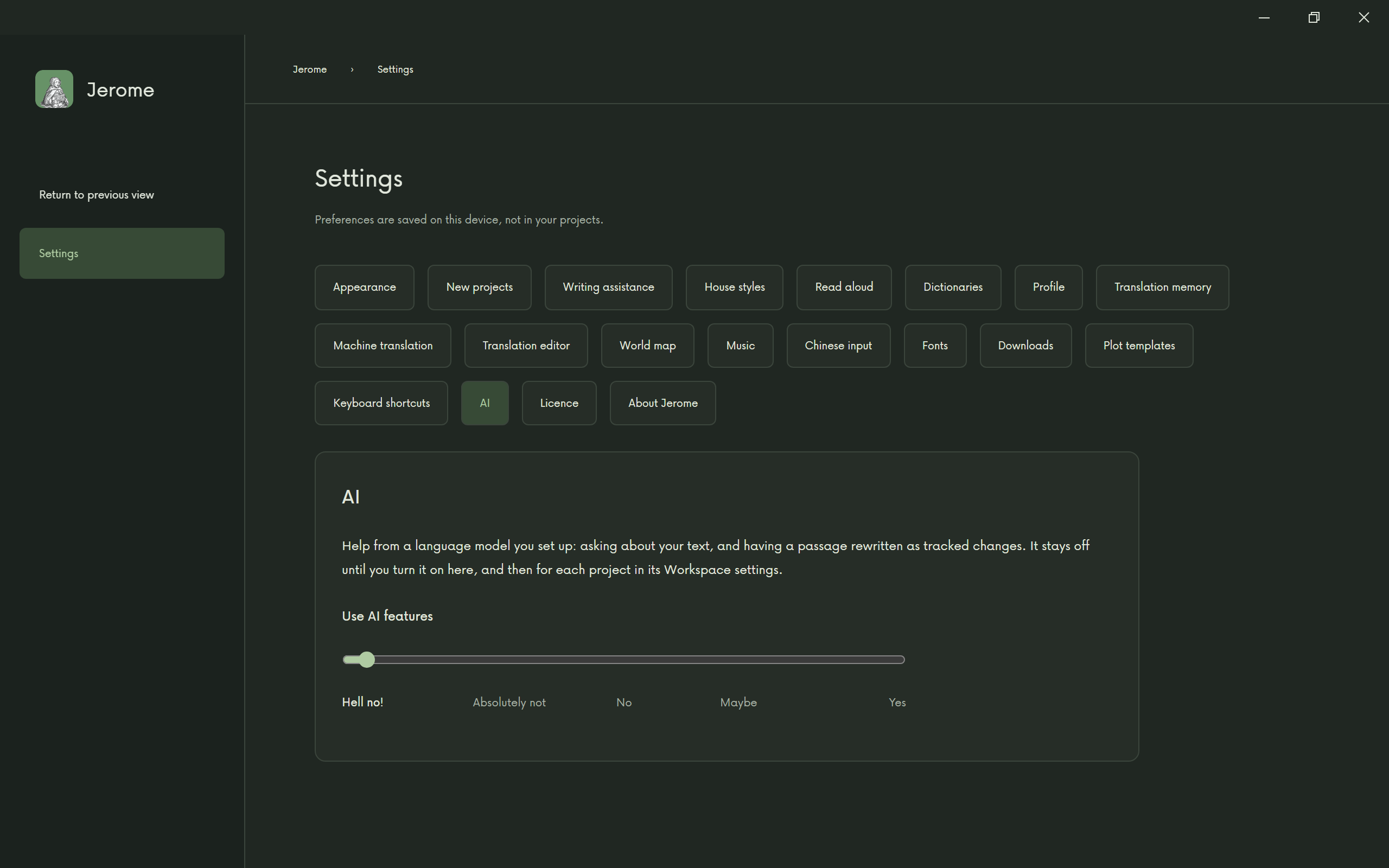
Choose a service
Under Service, choose where the model runs:
- Local server: a model running on your own computer, in a program such as LM Studio or Ollama. Your text stays on your computer, and it works offline.
- A provider: Anthropic (Claude), OpenAI, Mistral, Google Gemini or DeepSeek. You need an account and an API key of your own from the provider; Get an API key takes you to their page. Jerome keeps the key in your system’s secure store. Any charges are between you and the provider.
Find models lists the models you can use, and Test connection checks that everything works.
Ask and Edit
In a project with AI on, the inspector has an AI tab. Under What to do, choose:
- Ask: a question about your text, such as whether a scene is clear or what a character would say.
- Edit: an instruction, such as “tighten this paragraph”. The model’s answer arrives in the text as tracked changes by “AI editor”, one for each changed word or phrase. Accept or discard them as you would anyone else’s. Nothing is replaced silently.
What is sent chooses what the model sees: no text, the selection, the paragraph at the cursor or the open document, and, if you like, your characters, locations and plot.
Nothing leaves without you
Before every request, Jerome asks: “Send this to …?”. Show what will be sent shows you exactly what will go. Only Send sends it.
To stop using AI, move the slider in Settings › AI back. Jerome then deletes your API keys and conversations.