
Getting started
Install Jerome, activate it, start your first project and find your way around the workspace.
Install and activate
- Download the installer for your computer from the Download page and run it. The Windows setup has a page called Optional downloads: tick what you want, such as a language pack or the World map. The pack for your computer’s language starts ticked, and nothing is downloaded during the setup itself.
- Open Jerome. The first time, it shows Activate Jerome.
- Paste the licence key from your purchase email into Licence key and choose Activate.
If you ticked anything in the Windows setup, Jerome then opens Settings › Downloads and fetches it, showing the progress of each item. You can cancel there, and if you close Jerome first, what is left carries on the next time it starts. On any computer, you can download the same things from that page at any time.
Activation needs an internet connection once. After that Jerome works offline for as long as you like, with no time limit: when it can reach the internet it confirms the key quietly as it starts, and when it cannot it simply carries on. If you cannot find your key, see Retrieve my key.
The Projects page
Jerome opens on Projects, a list of the projects you have opened recently, newest first. You can filter it by project type or by language. Remove from recent projects only takes a project off the list; it never deletes it.
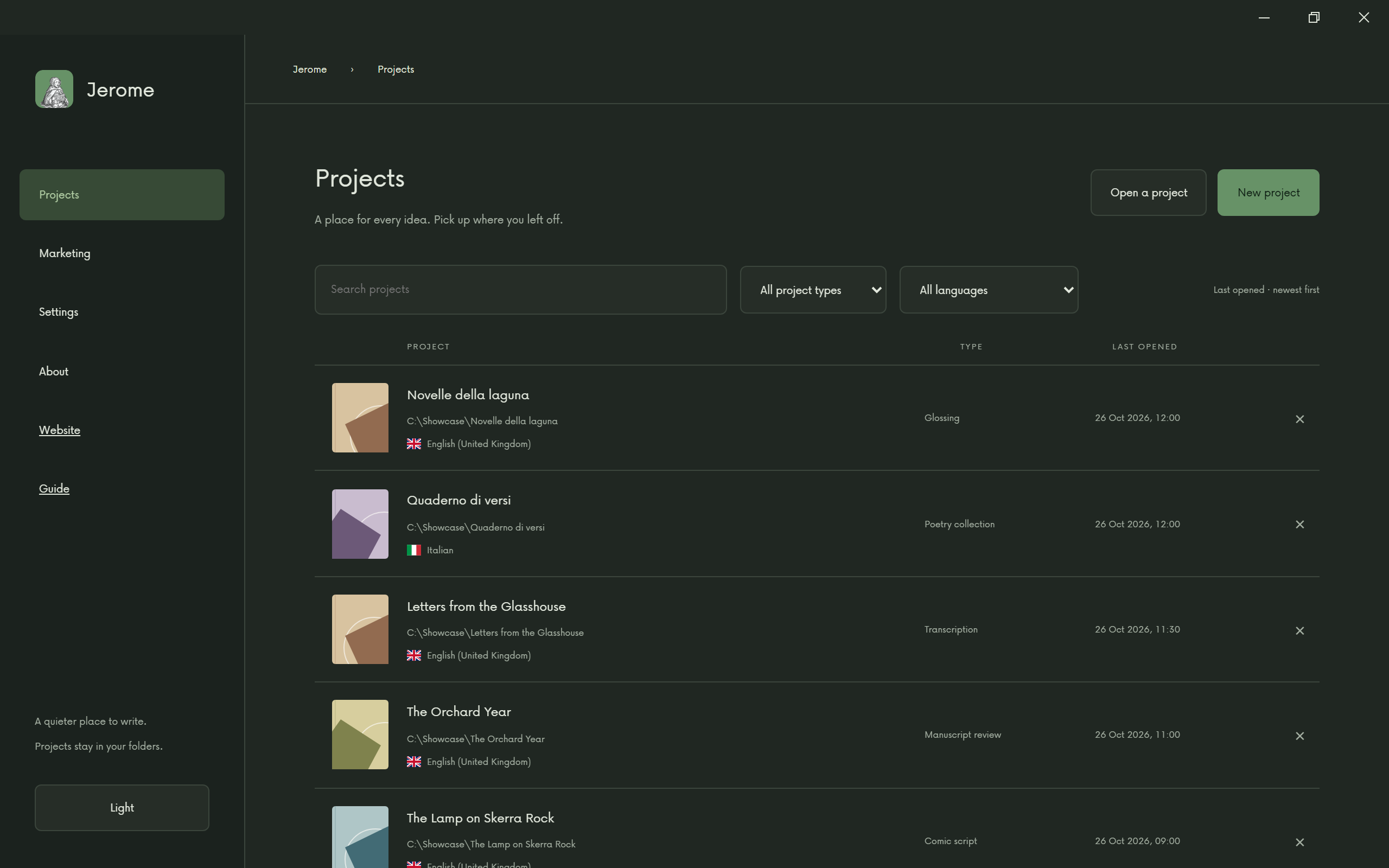
Each project is an ordinary folder on your computer. You can keep it wherever you like, back it up and copy it as you would any other folder. To open one that is not in the list, choose Open a project and pick its folder.
Start a new project
Choose New project. Everything is in one dialog:
- Project name.
- Project type: the kind of writing. It is fixed once the project is made.
- Authored language: the language you write in.
- Parent folder location: where the project’s folder goes. The dialog shows the folder it will create.
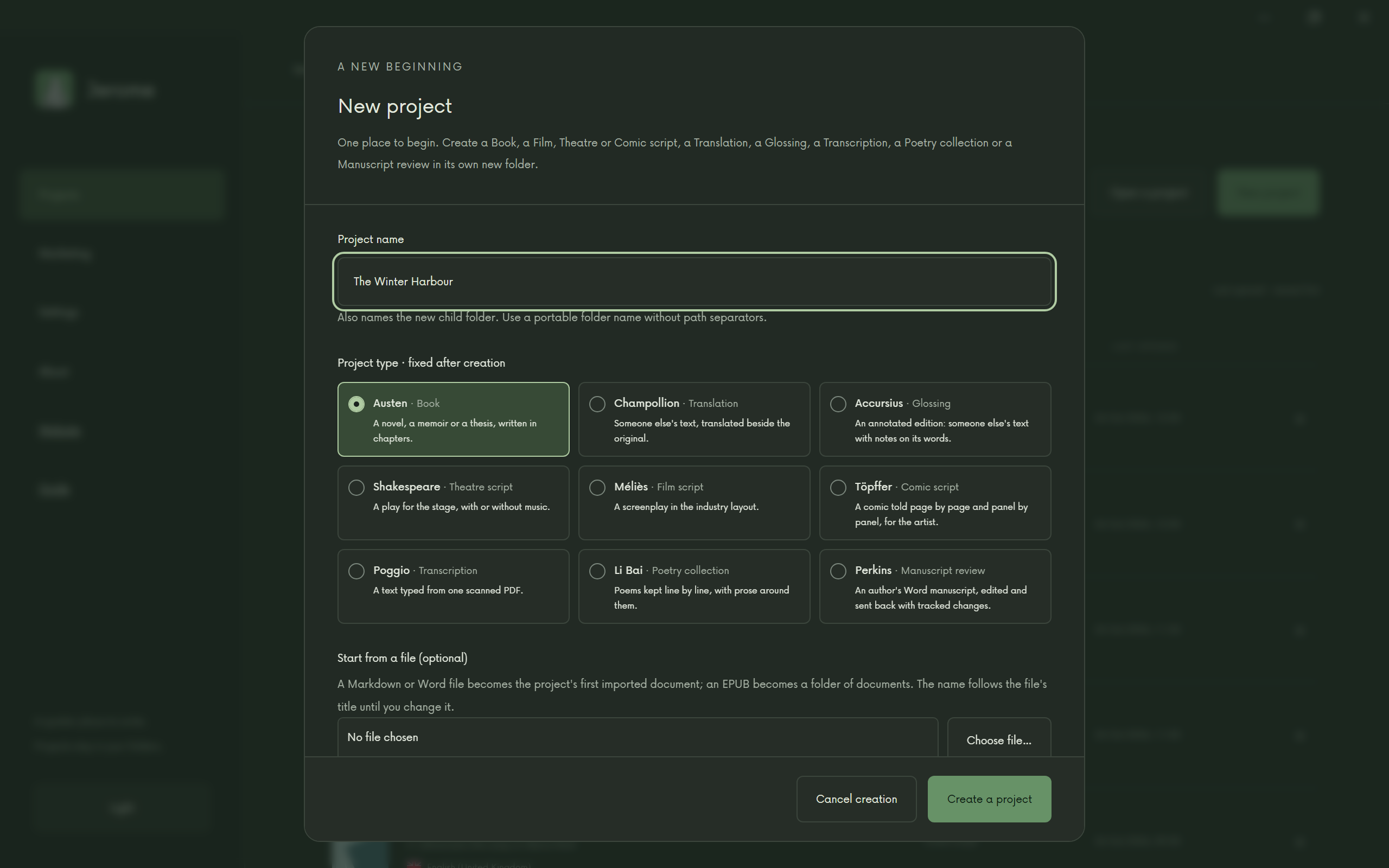
Each type’s card carries the name of someone who did that kind of work well, such as Austen for a Book or Champollion for a Translation. The project types are:
| Type | For |
|---|---|
| Book | A novel, a memoir or a thesis, written in chapters |
| Translation | Translating a text, its source beside your translation |
| Glossing | An annotated edition of someone else’s text |
| Theatre script | A stage play, or a musical with With music (a musical) switched on |
| Film script | A screenplay |
| Comic script | Pages, panels, captions and balloons |
| Transcription | Typing out a scanned PDF shown beside the text |
| Poetry collection | Poems, line by line |
| Manuscript review | Editing an author’s Word file and sending it back |
Some types ask for one more thing in the same dialog: a Translation asks for its source language and texts, a Transcription for the PDF to transcribe, and so on. A Book or a script can start from a file you already have, with Start from a file (optional).
The workspace
A project opens in its workspace.
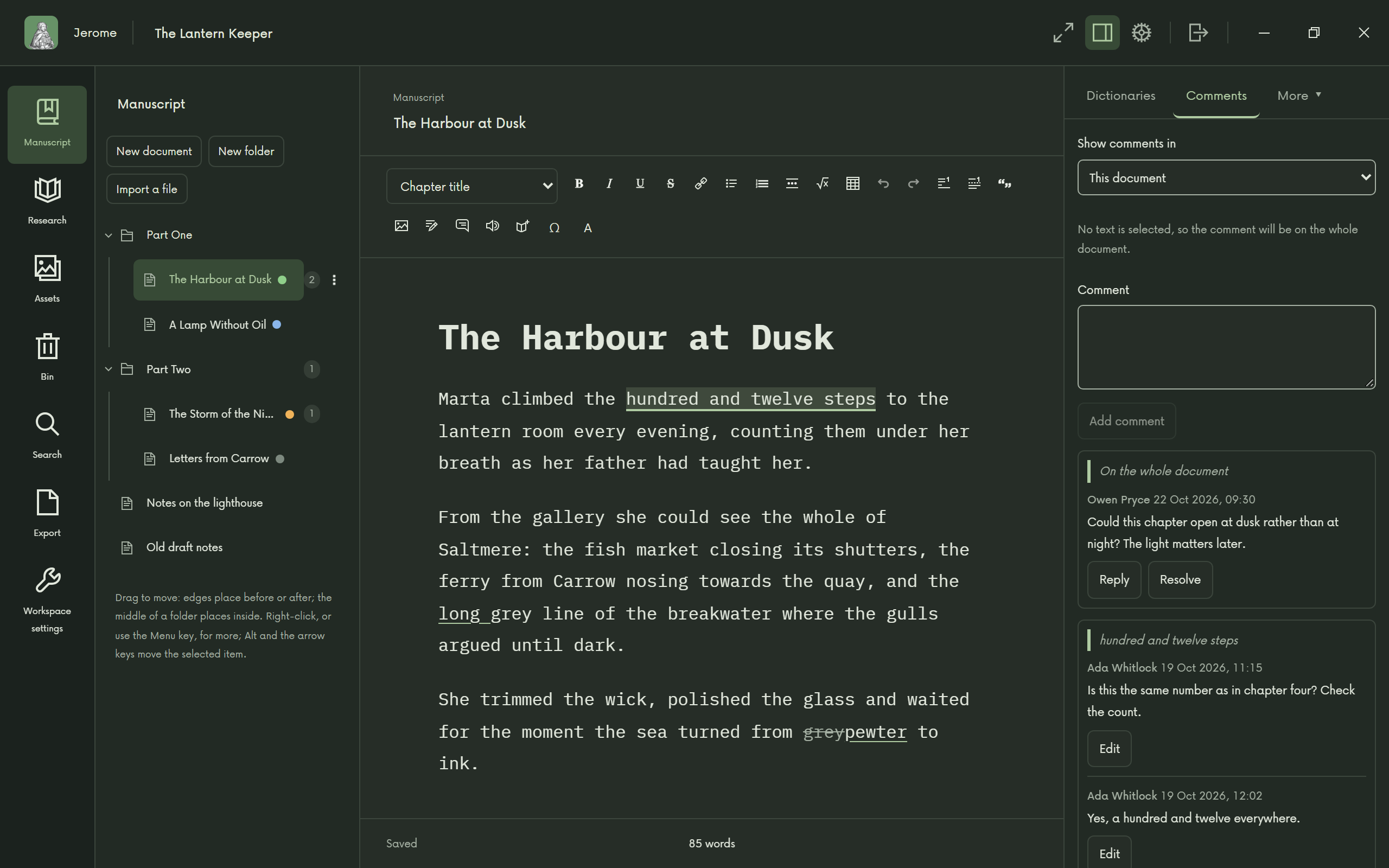
- The rail, at the far left, switches the left panel between the binder, Research, Assets, the Bin, Search, Export and Workspace settings.
- The binder lists the project’s documents and folders: chapters, scenes, poems.
- The page in the middle is where you write.
- The inspector, on the right, holds tabs such as Comments, Changes, Notes, Details and Dictionaries. It starts closed; open it with the button in the top bar.
The top bar also has the focus mode button, Workspace settings (for this project), Settings (for Jerome itself) and Close.
Saving
There is no Save button to remember. Jerome saves a couple of seconds after you stop typing, and again whenever you switch documents or close the project. The status bar shows Saved when it is done. If you want to be sure, press Ctrl+S.
Useful shortcuts
| What | Windows and Linux | Mac |
|---|---|---|
| Save now | Ctrl+S | Cmd+S |
| Search the whole project | Ctrl+Shift+F | Cmd+Shift+F |
| Show or hide the inspector | Ctrl+Alt+I | Cmd+Option+I |
| Look up the selected word | Ctrl+Shift+K | Cmd+Shift+K |
| Bold, italic, underline | Ctrl+B, Ctrl+I, Ctrl+U | Cmd+B, Cmd+I, Cmd+U |
| Heading level 1 to 6 | Ctrl+Alt+1 to 6 | Cmd+Option+1 to 6 |
| Insert a special character | Ctrl+Shift+U | Cmd+Shift+U |
| Read aloud, pause and resume | F9 | F9 |
| Add a footnote | Ctrl+Alt+F | Ctrl+Option+F |
| Add an endnote | Ctrl+Alt+D | Ctrl+Option+D |
| Find | Ctrl+F | Cmd+F |
| Find and replace | Ctrl+H | Cmd+Option+F |
| Comment | Ctrl+Shift+M | Cmd+Shift+M |
| Accept the change at the caret | Ctrl+Shift+A | Cmd+Shift+A |
| Discard the change at the caret | Ctrl+Shift+D | Cmd+Shift+D |
| Rename in the binder | F2 | F2 |
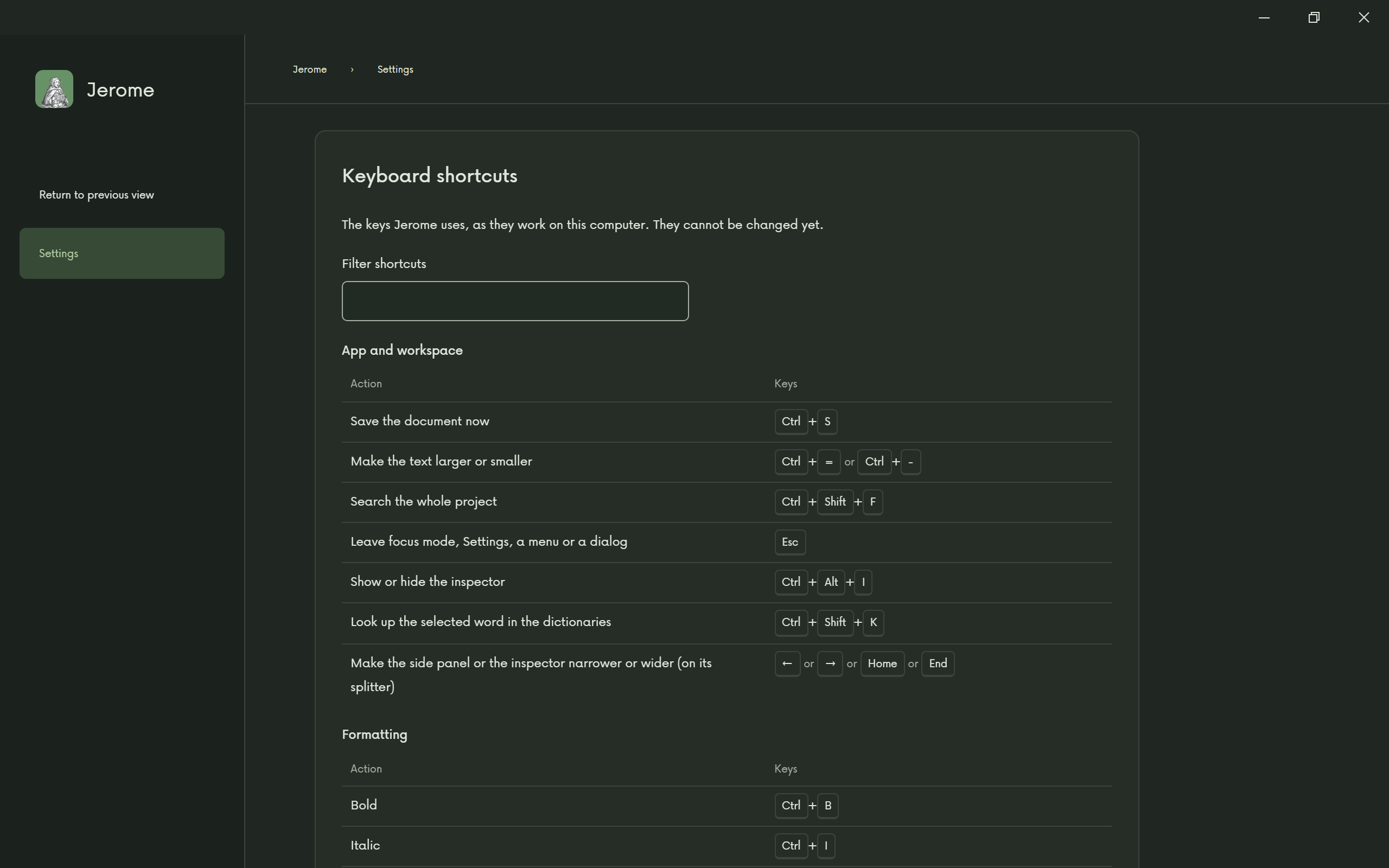
Every shortcut is listed in Settings › Keyboard shortcuts.
Next
Before you rely on Jerome away from a connection, read Before you go offline.
When the writing is done, Export in the rail makes Word and other files, and for prose projects an EPUB, a typeset PDF, a cover and an audiobook: see Import and export. For a trailer or a website, Marketing is on the Projects page: see Marketing.