
Planning
If you like to plan the work itself, keep kanban boards, to-do lists and schedules beside your project.
Plan is for the work around the writing: what to do this week, what is waiting on someone else, when the drafts are due. It is hidden until you want it.
Turn it on
Open Settings › Appearance and switch on Show Plan. A Plan button appears in the rail, after Research. Switching it off again only hides it: nothing is deleted.
Make a plan
In Plan, choose New item, give it a name and choose its Kind. The kind cannot be changed later.
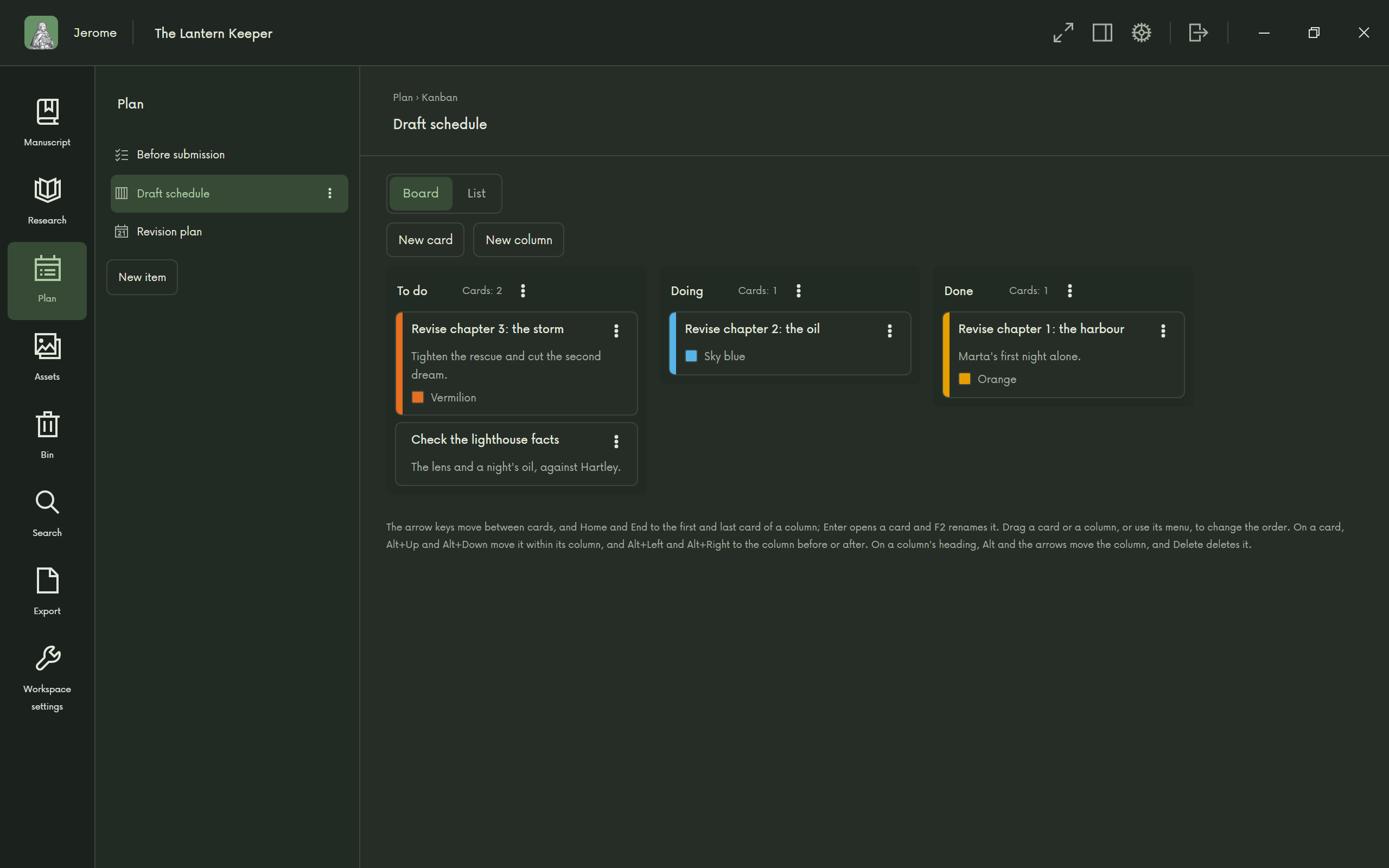
- Kanban: cards in columns, which start as To do, Doing and Done. Move cards along as the work moves. Show it as a Board or a List.
- Todo list: items with a Due date, subtasks, Tags and Notes. Filter by tag and Hide done keep the list short.
- Gantt chart: a schedule of tasks, groups of tasks and milestones, by Days, Weeks or Months. Go to today brings you back to now.
The Eisenhower matrix
A todo list can also be shown as a Matrix. Mark each item Urgent, Important, both or neither, and it takes its place in one of four squares:
| Urgent | Not urgent | |
|---|---|---|
| Important | Do | Schedule |
| Not important | Delegate | Drop |
Good to know
- Cards, items and tasks open in a dialog of their own, and everything saves as you go.
- Plans stay out of the project’s search, exports and AI help.
- Deleting a plan is permanent: Jerome asks first, and it does not go to the Bin.
- The keys for Gantt charts and todo lists are listed in Settings › Keyboard shortcuts.