
Import and export
Bring in what you have already written, send your work out as Word, Markdown, PDF or Final Draft files, and make a finished book with an EPUB, a typeset PDF, a cover and an audiobook.
Bringing work in
Jerome reads:
| File | Into |
|---|---|
| Word (.docx) | Books, transcriptions and glossed texts |
| Markdown (.md) | Books, transcriptions and glossed texts |
| EPUB | Books (one document per chapter), transcriptions and glossed texts |
| Fountain (.fountain) | Film scripts, plays and musicals |
| Final Draft (.fdx) | Film scripts |
There are two ways in:
- When you start a project: in the New project dialog, Start from a file (optional) makes a new Book or script from a file you have.
- Into a project you have: Import a file above the binder, or Import file here in a folder’s menu to put it in that folder.
Pictures, footnotes, and a Word file’s tracked changes and comments come in with the text. When it has finished, Jerome shows an Import report of anything it could not bring across. EPUBs protected against copying cannot be read.
A Translation takes its source texts when you make it (see Translation), and a Manuscript review its Word file (see Reviewing a manuscript).
Sending work out
Open Export in the rail. The left panel lists its sections, and the one you choose opens as a page of its own in place of the text; Jerome remembers on this computer which one you last had open in each project. To go back to the text, choose Manuscript in the rail. Below 800 pixels wide, the sections are listed at the top of the page.
What Export offers depends on the project. Books, translations, transcriptions, glossed texts, poetry and manuscript reviews have a first section of ordinary files, and then Book design, EPUB, PDF, Cover and Audiobook (see Making a book). Scripts and comics have only the first section.
Books, translations, transcriptions, glossing and poetry
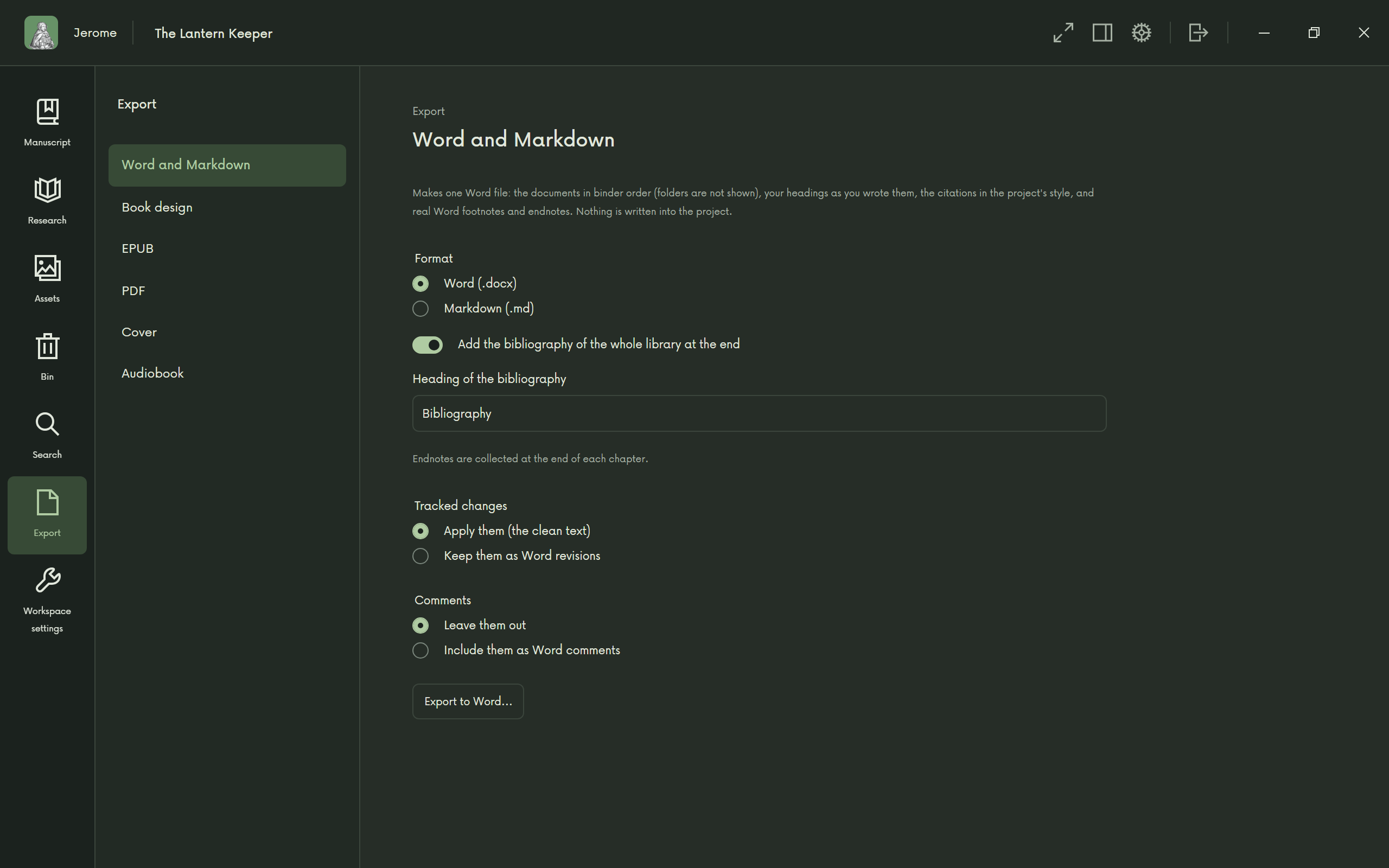
The first section is Word and Markdown (Word, Markdown and PDF for poetry). Choose the Format:
- Word (.docx): one file for the whole book, each document starting on a new page, with real footnotes and endnotes. Choose whether tracked changes are applied, for a clean text, or kept as Word revisions, and whether comments are left out or kept as Word comments. You can add the bibliography at the end.
- Markdown (.md): one file, or a file for each document in a new folder.
A poetry collection can also be exported as a PDF.
Scripts and comics
The section is named for what it writes:
- Film scripts: PDF and Final Draft, PDF in the industry layout and Final Draft (.fdx).
- Plays and musicals: PDF.
- Comic scripts: PDF and Word.
Manuscript reviews
In Word and PDF, the manuscript goes back as a Word file with your changes and comments: see Reviewing a manuscript.
Making a book
Books, translations, transcriptions, glossed texts, poetry and manuscript reviews can also become a finished book: an EPUB, a typeset PDF for print, a cover and an audiobook. Each is a page of its own in Export, in that order after Book design, which they all draw on. Poetry and manuscript reviews keep their plain PDF in the first section, so their PDF page is called Typeset PDF.
Some of this needs downloads you choose in Settings › Downloads: see Before you go offline. A page that lacks one says so, with a button to go there. The book is made from the documents as they are saved, so the open document is saved first.
Book design
Book design holds what the book looks like, in tabs. Every change is saved as you make it, in a manuzio folder inside the project. The first time you open it, Jerome starts from the project’s name and language, with your name from Settings as the author.
- Metadata: title, subtitle, language, contributors, description, dedication, colophon, publisher, rights and ISBNs. A mistyped ISBN is explained but still saved.
- Page: size and margins, paper, spine, and a live drawing of two facing pages with KDP’s minimum margins as guides.
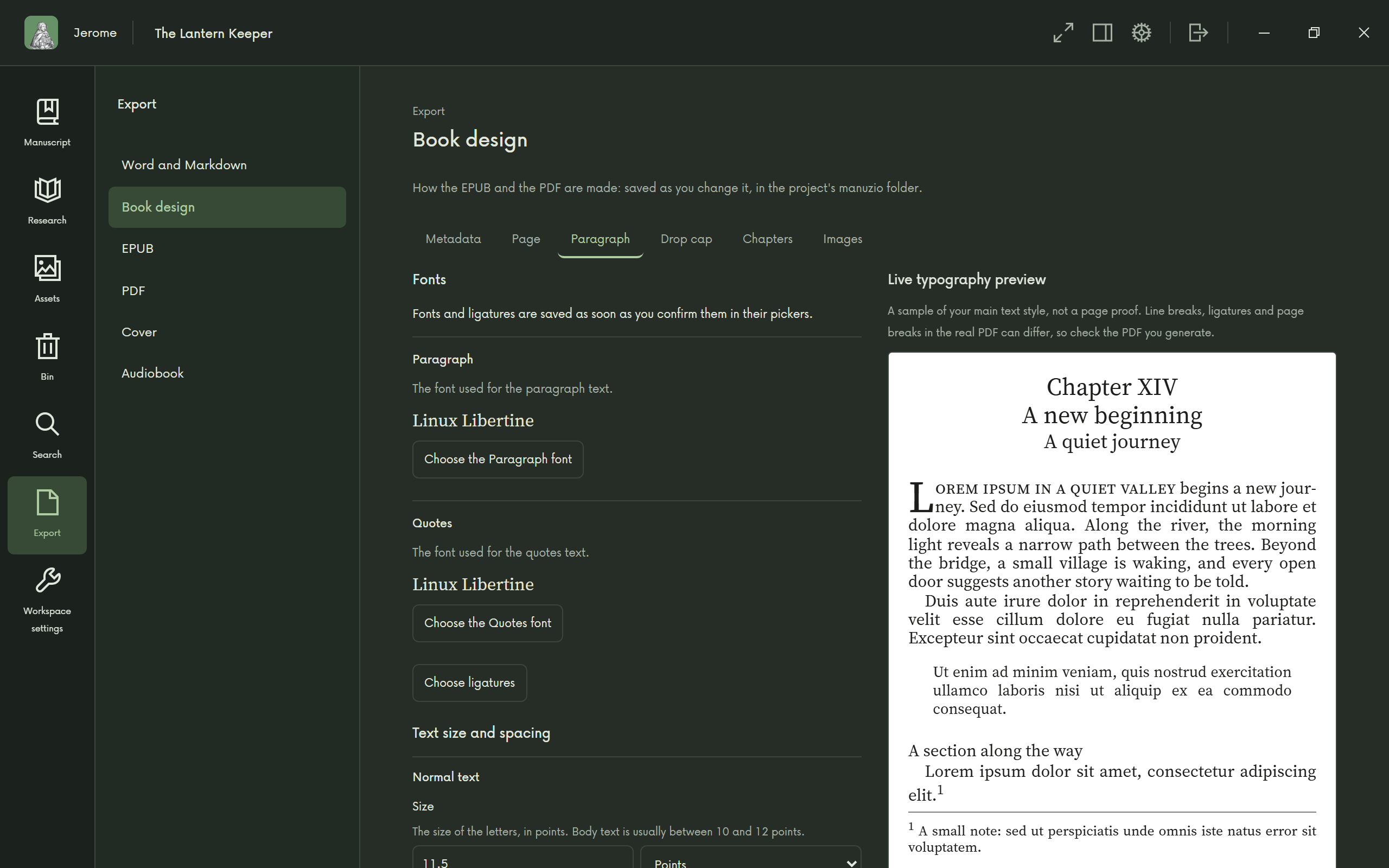
- Paragraph: the fonts, ligatures and text sizes, beside a live sample of the text.
- Drop cap: the large first letter of a chapter.
- Chapters: where the main text and the back matter begin, the heading fonts, how a chapter opens, running headers, endnotes and the table of contents. The list of chapters comes from the last conversion: each Heading 1 starts a chapter, and a document without one starts a chapter under its binder title.
- Images: a logo, the scene separator (a built-in design or your own PNG), and each picture’s description, credit and place on the page, once a conversion has found them.
Choosing a font opens a list of the fonts installed on this computer and those from Settings › Downloads; where the same face is in both, the installed one is used. Type part of a name to filter. Each name is drawn in its own font, a downloaded one as it comes into view, and marks show which of its seven styles (regular, italic, bold, bold italic, light, medium, black) the family has. A font is saved when you press Confirm. Chapter, subtitle and section fonts can leave their size to the book’s text size with Automatic.
EPUB and PDF
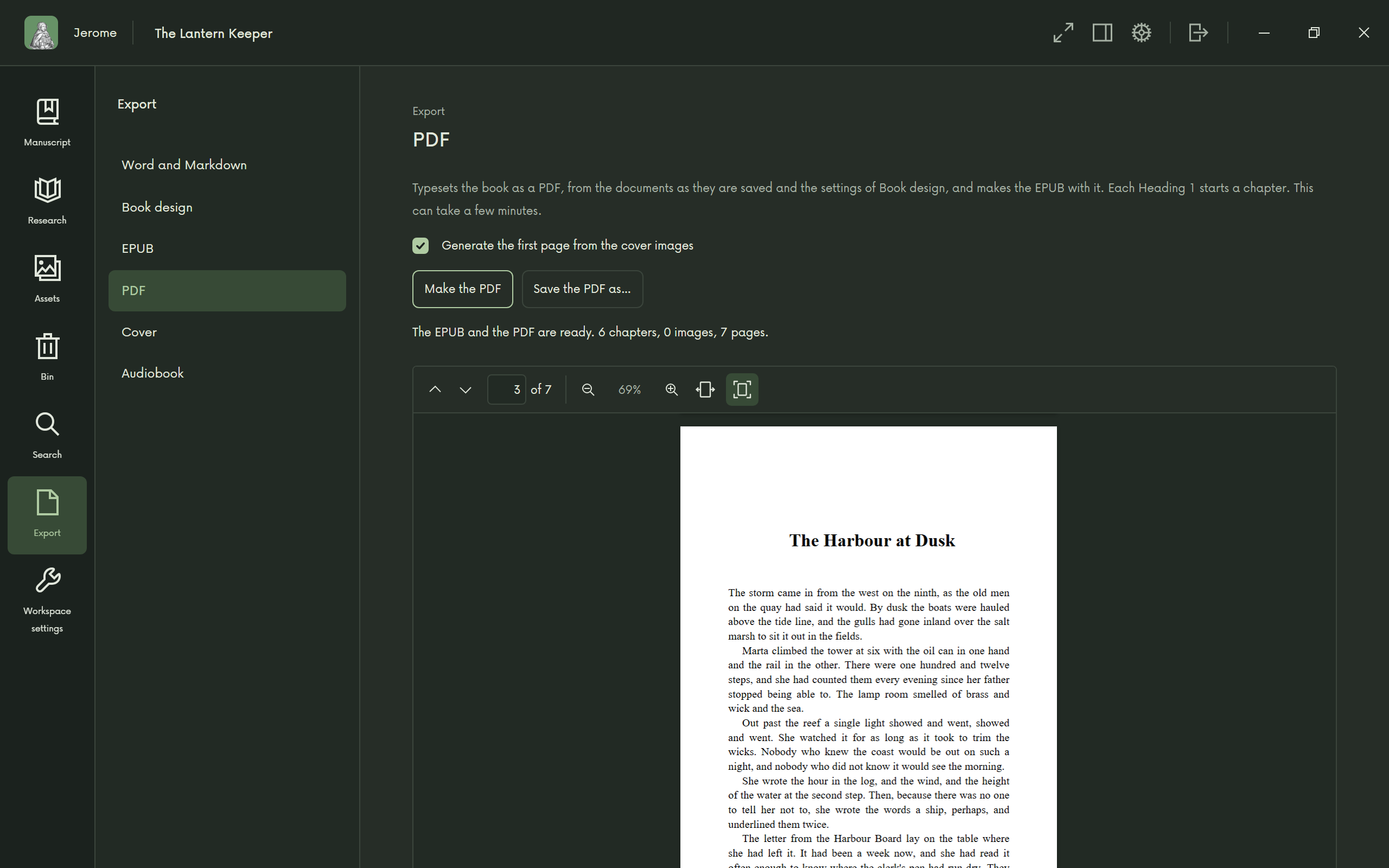
EPUB makes the ebook. PDF typesets the book, which can take a few minutes, makes the EPUB with it, and shows the result below. A bar shows how far it has come; you can go elsewhere in the project and come back to it, or press Cancel conversion, which leaves the files you had. Afterwards the page says how many chapters, images and pages there are, and lists anything to look at, such as characters the chosen fonts lack. Save as puts a copy where you choose.
The PDF needs the typesetter and its files from Settings › Downloads. An EPUB needs no downloads, unless its design uses a font that is only there.
Cover
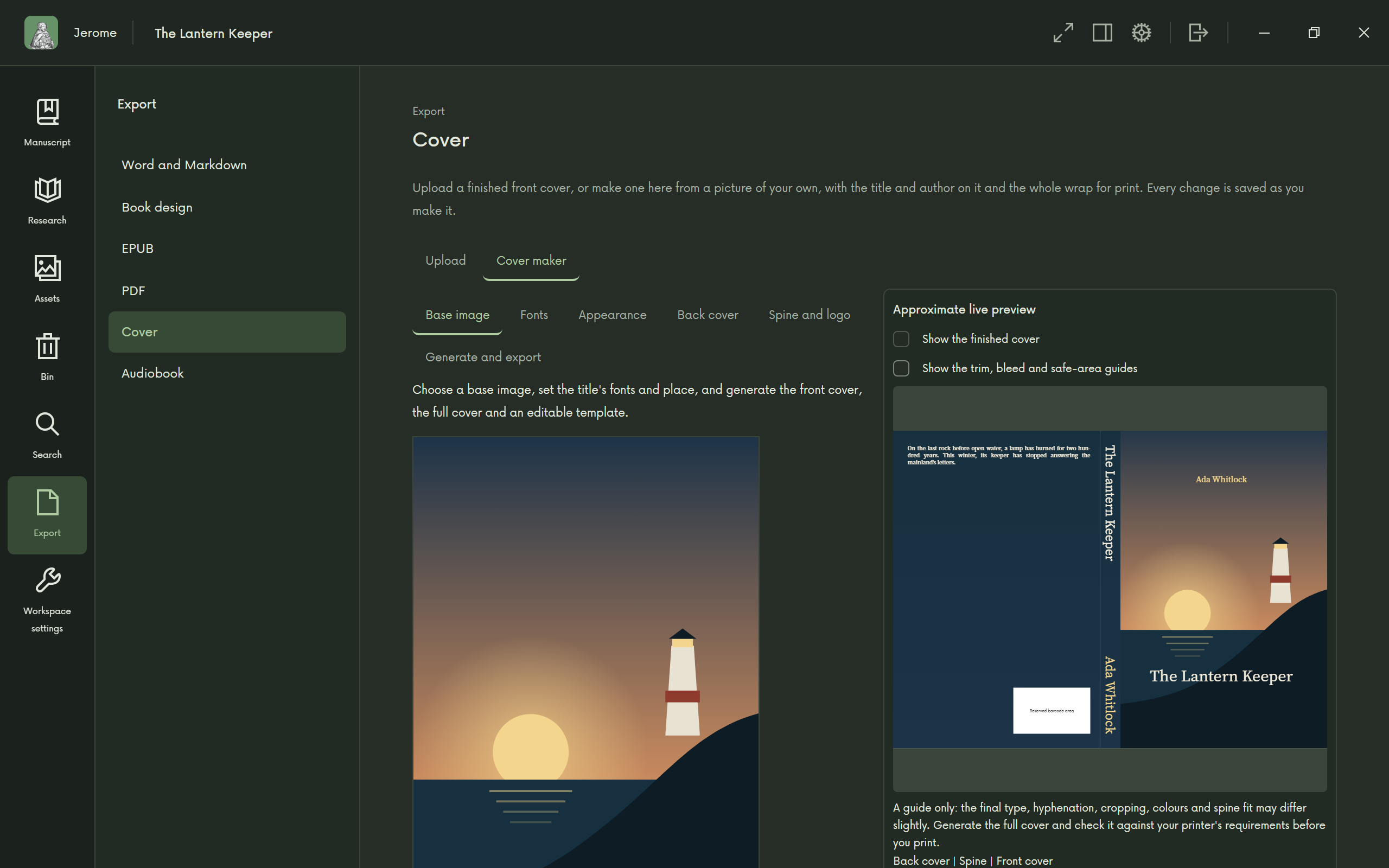
Cover has two tabs. Under Upload, give the book a finished front cover made elsewhere, as a JPG or PNG. Under Cover maker, make one from your own picture, with a live preview of the whole wrap beside the settings. Changes are saved as you make them.
- Base image: the picture the title and author go on.
- Fonts: the title, subtitle and author fonts, with their size and colour, and how far down the cover each sits. Long text wraps at the cover’s safe area, on the cover as in the preview; a single word too wide for it is outlined in red, and the cover can’t be made until you shorten it or lower the size.
- Appearance: a colour over the picture, and a border around the text.
- Back cover: a picture, one colour or a gradient, and the font of the text, which is the Description from Book design › Metadata.
- Spine and logo: what the spine says and in what order, and where the logo from Book design › Images goes. Spine text needs at least 80 pages.
- Generate and export: choose the files to make, then save each where you like: the front cover (JPG), the full cover for print (PDF and JPG) and an OpenRaster template with its layers apart, for GIMP or Krita. Make this the finished cover uses the front you made as the book’s cover.
The full cover’s spine depends on the book’s length, so it needs a page count: if there is none, the page tells you to make the PDF first, with a button to go there. Compare the result with your printer’s template before you upload it. Cover text has no shaping for scripts such as Arabic or Devanagari, and no fallback to another font, so look at what comes out and at anything the page lists to look at. A cover can’t be made while the same book is being converted, or the other way round.
Audiobook
Audiobook reads the project aloud with a voice that runs on your computer, and makes a ZIP of numbered MP3 files, one for each chapter. Nothing is sent anywhere. It needs the speech model and FFmpeg, which you download once in Settings › Downloads. It reads the text as saved: each Heading 1 starts a chapter, and a document without one starts a chapter with its title in the binder. Comments, notes, pictures and formulas are left out. Projects in Japanese, Ukrainian and Bulgarian cannot be narrated yet, and the page says so.
Set the Speed, the pauses after a chapter’s heading and between chapters, and the Voice.
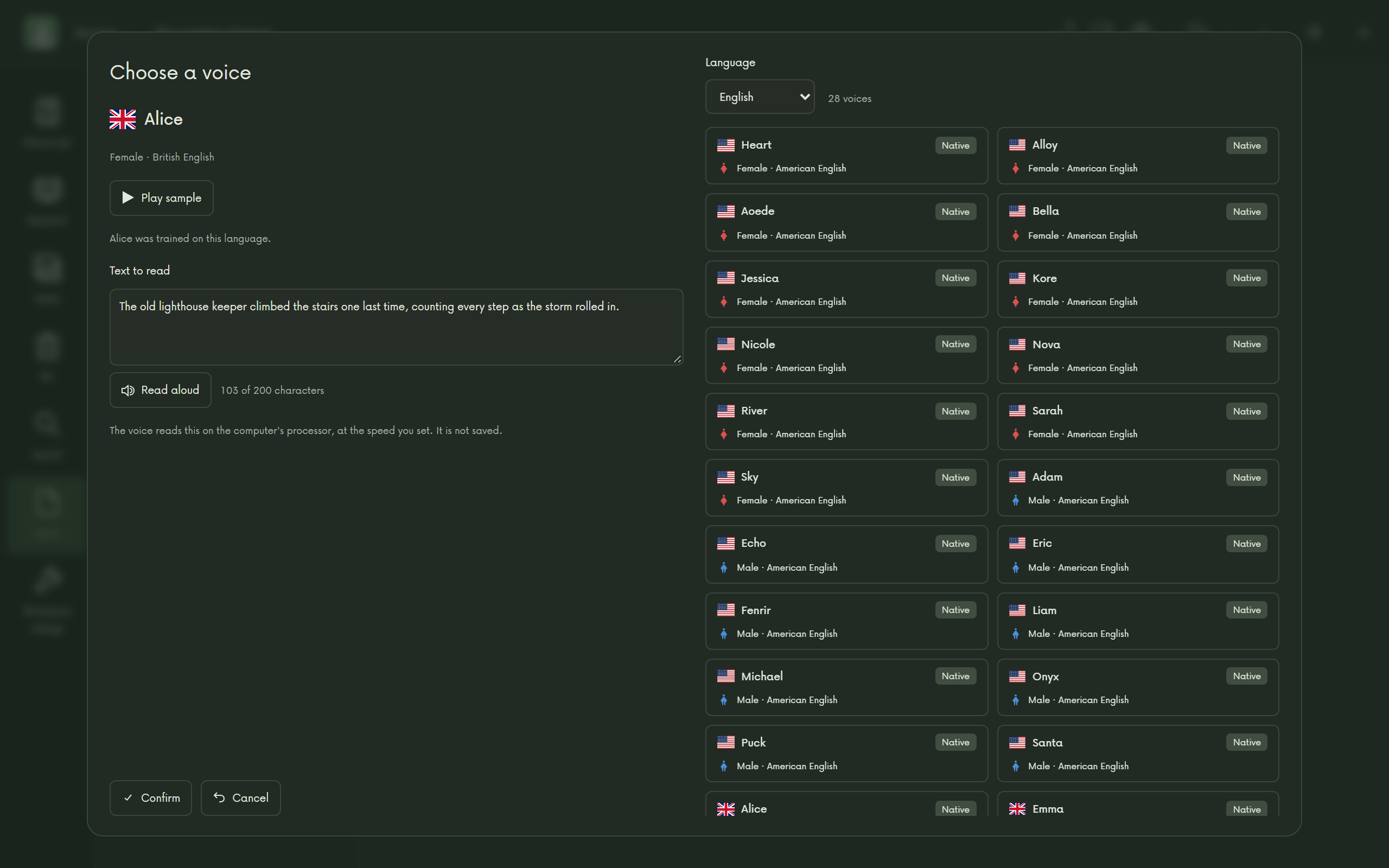
Choose a voice… opens the voice dialog, which a trailer uses too. It lists the voices, on the project’s language when voices are trained on it, with those marked Native first; the Language list shows others. Choosing a voice plays its recorded sample, with no downloads. Another language’s voice reads with your language’s rules and its own accent. If the speech model is there, change the sentence and choose Read aloud to hear the voice read it. Confirm keeps the voice; Cancel keeps the one you had.
Two choices are about where the audiobook will go:
- Retail-ready files follow the technical rules audiobook stores usually publish, and add a
retail-check.txtreport to the ZIP that shows what was measured. Stores differ, and some accept human narration only. - Label the voice as AI starts the audiobook with a short spoken notice that the voice is artificial, and tags every MP3. It is off until you turn it on; check the rules of where you publish.
Choose Narrate. Progress shows chapter by chapter, and the run goes on if you leave the page. Cancel narration keeps the chapters finished so far: narrating again with the same text and settings continues from them, and anything else starts over. Long books take a while on the computer’s processor. If the graphics card can run narration and you have downloaded its runtime in Settings › Downloads, tick the box to use it for that run.
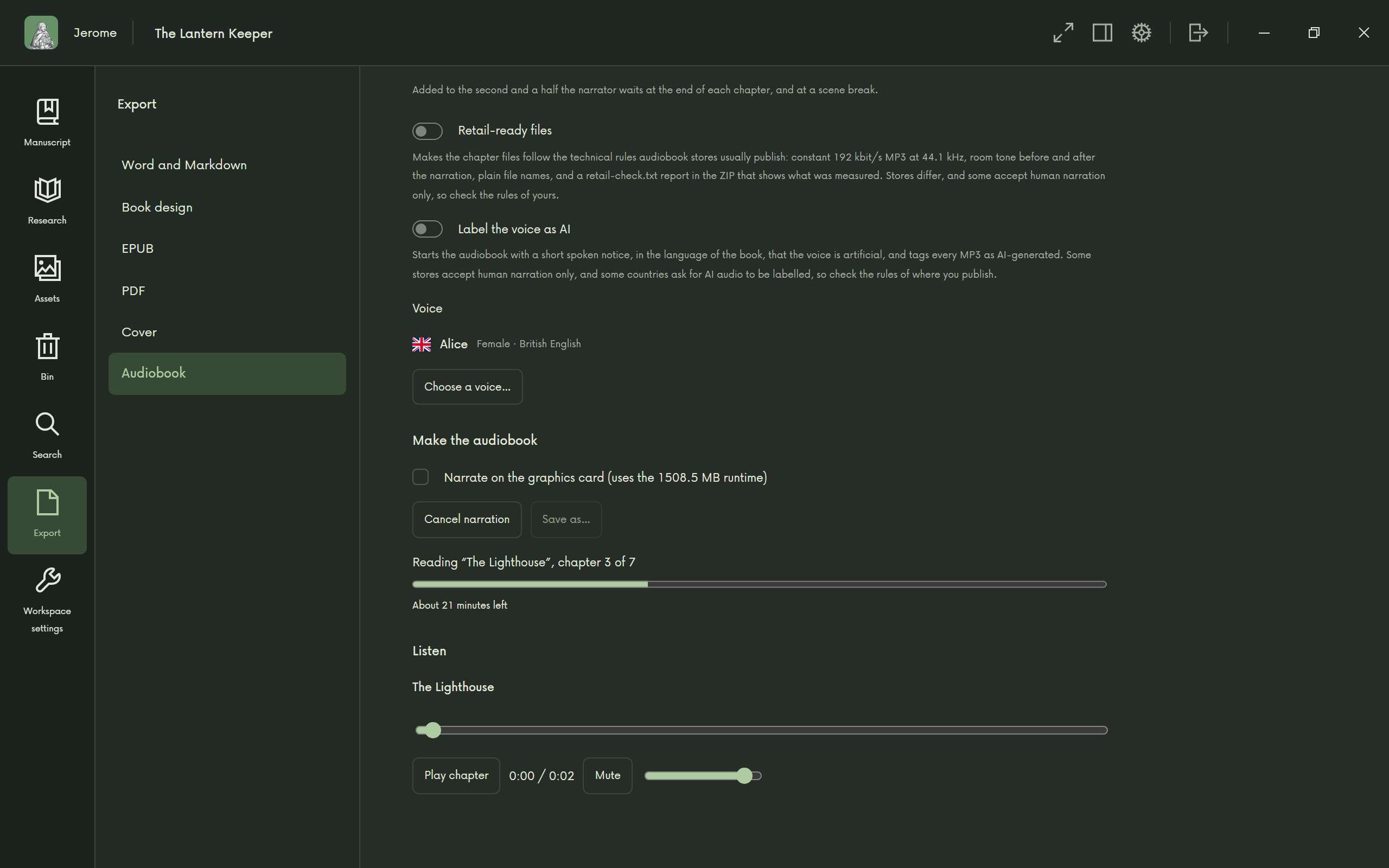
Under Listen you can hear the first chapter with text as soon as it is finished. Save as… copies the finished ZIP where you choose. The settings are in the project’s manuzio folder and travel with it; the generated files are in manuzio/out, and can be deleted and made again.
Pending changes and open comments
If changes are still waiting for a decision, or comments are still open, in what you are exporting, Jerome tells you before it exports, such as “3 changes are waiting for a decision and 2 comments are open in what you’re exporting.”, and says what will happen to them. Choose Export anyway, or Review changes to deal with them first. In an EPUB and a typeset PDF, Jerome asks the same, but the changes are in the text as it stands and comments are left out; there is no choice of Word revisions.
Research
Each section of Research has its own Export button, for a Word document or a PDF. The bibliography also exports as BibTeX, RIS or CSL-JSON, for other reference managers.