Research
Keep your characters, places, timelines, plot, notes and sources with the project, and use them as you write.
Research, in the rail, is part of every project. It has six sections, chosen at the top of its panel: Bibliography, Characters, Locations, Timelines, Plot and Notes. Each has its own list on the left; an item opens in place of the page.
Rename an item with F2, and right-click it for its menu. A deleted item goes to the Bin, with Undo for a moment afterwards. Every section can be exported as a Word document or a PDF with its Export button.
To turn a name in your text into a character or a location, select it and choose Add to Research in the toolbar (Ctrl+Alt+R).
Characters
A character has a name, Other names (nicknames, titles, one per line), a one-line Description, an Image from the project and notes of any length. Mentioned in lists the documents that use the name. Characters can be grouped in folders.
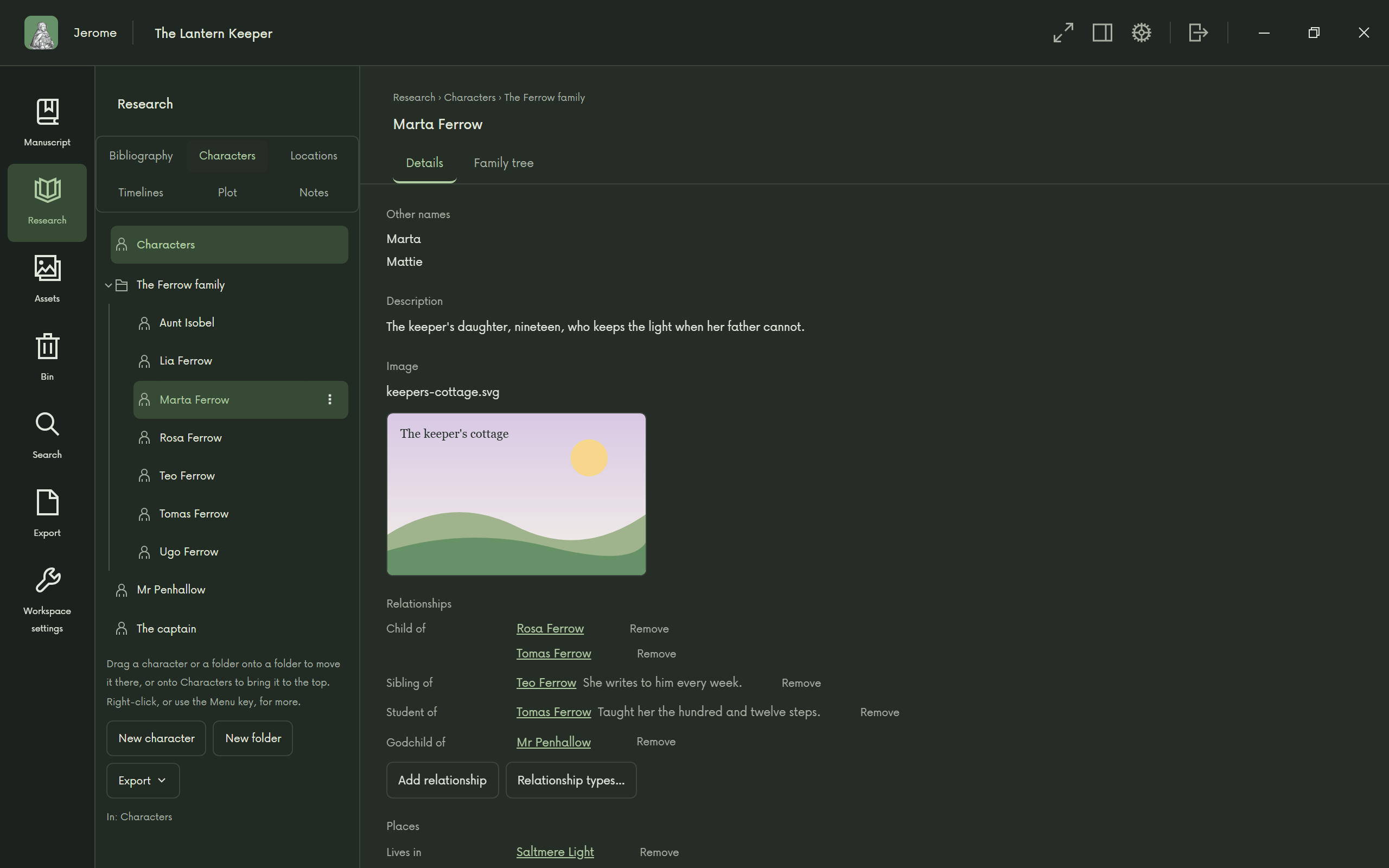
Add relationship links two characters: parent and child, spouse, partner, sibling, friend, rival, enemy, mentor and student, employer and employee, ally. Relationship types… adds your own. Add place links a character to a location: where they live, were born, work, rule or died.
The family tree
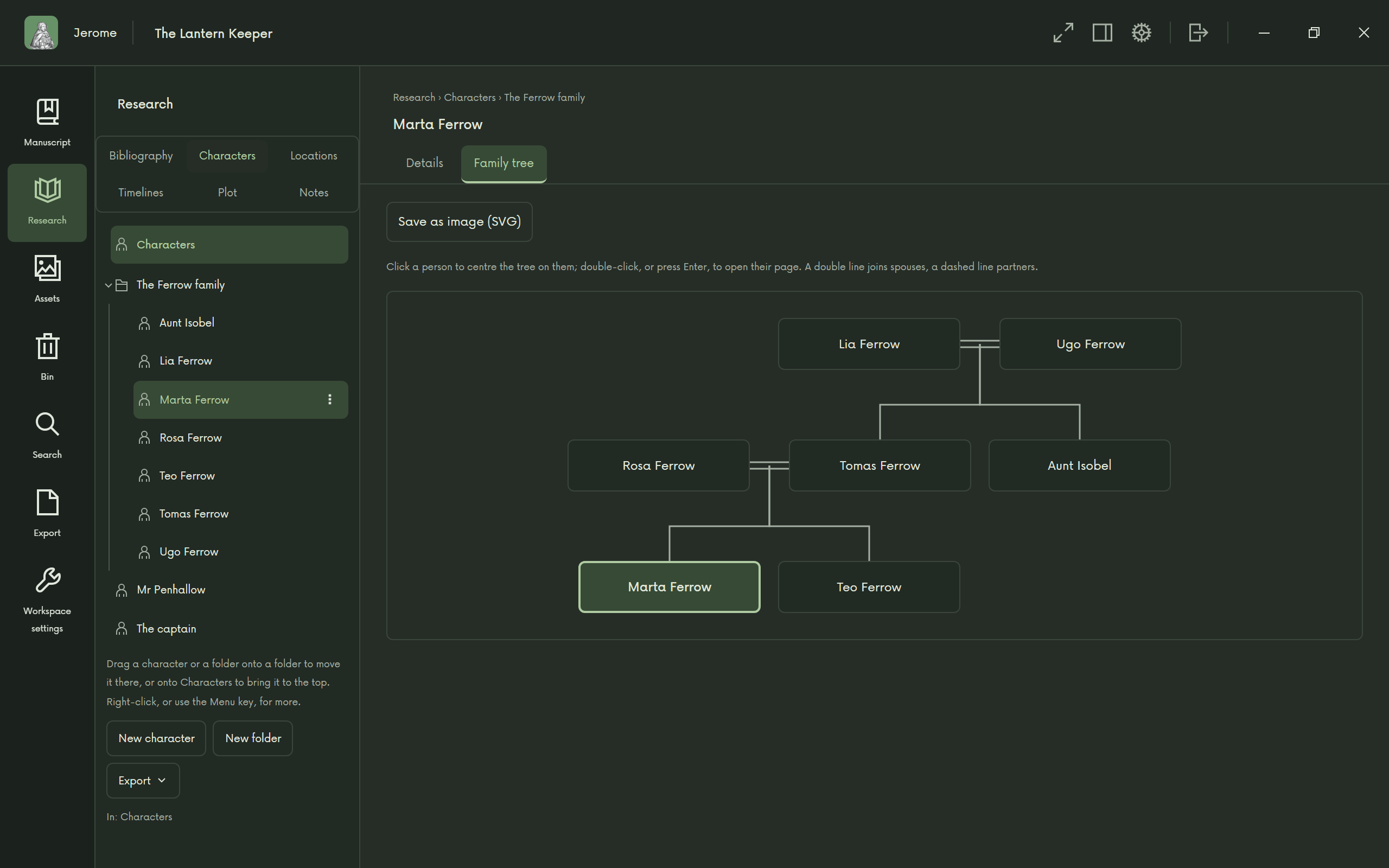
A character’s Family tree tab draws two generations up and two down from their parents, children, spouses, partners and siblings. Click a person to centre the tree on them; double-click to open their page. Save as image (SVG) keeps a copy.
Locations and maps
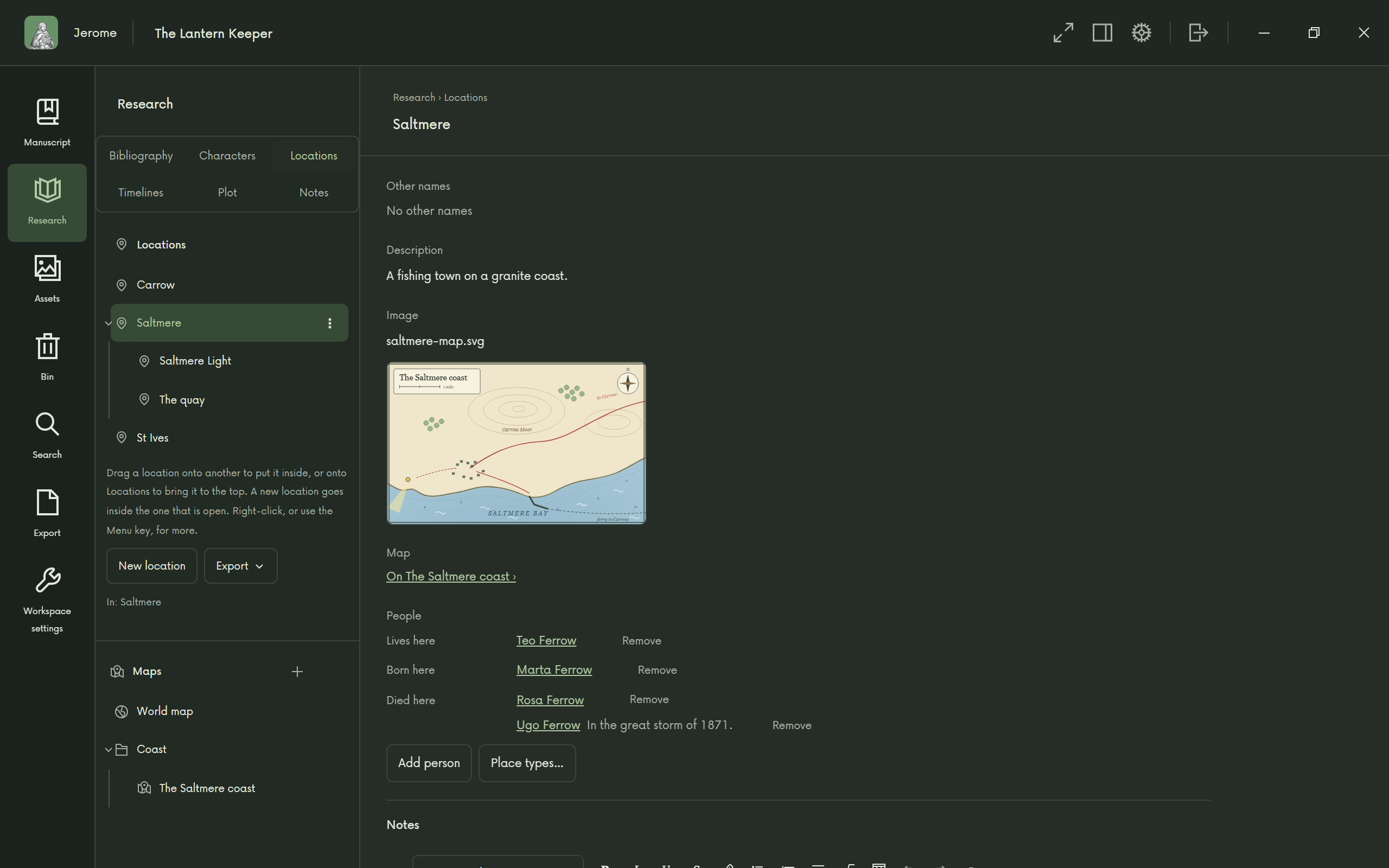
Locations nest inside each other, as a house sits in a village and a village in a county. A location has the same fields as a character, plus its Map and the People linked to it.
Your own maps
Under the locations is the list of Maps. New map takes a picture or a PDF from the project, such as a hand-drawn map or a scanned atlas page. On a map’s page, Place a location drops a pin for one of your locations; drag it to move it, or use its menu. Each location has one pin.
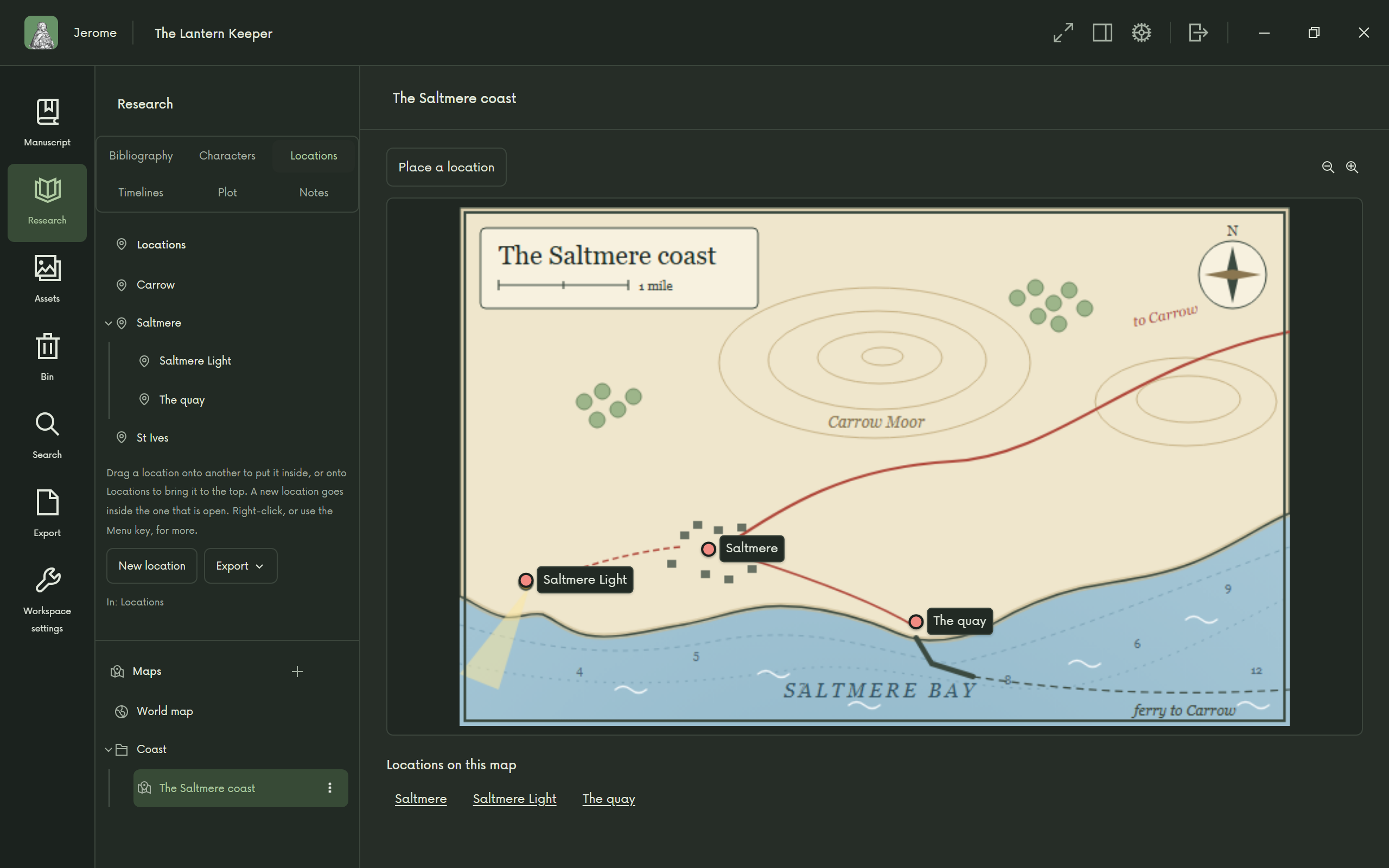
The World map
The World map is first in the list once you have downloaded it (see Before you go offline). It shows land, water, relief, rivers, borders, regions, major roads, railways and towns, but not streets. Find a place searches it by name, without a connection; choose Link to… on the search pin to pin one of your locations there. Two locations on the World map show the Distance between them, as the crow flies.
Timelines
When you make a timeline, choose its kind:
- New sequence timeline: named steps, such as Act 1, Act 2.
- New dated timeline: calendar dates, BCE or CE, with an optional month and day, and “c.” for an approximate one.
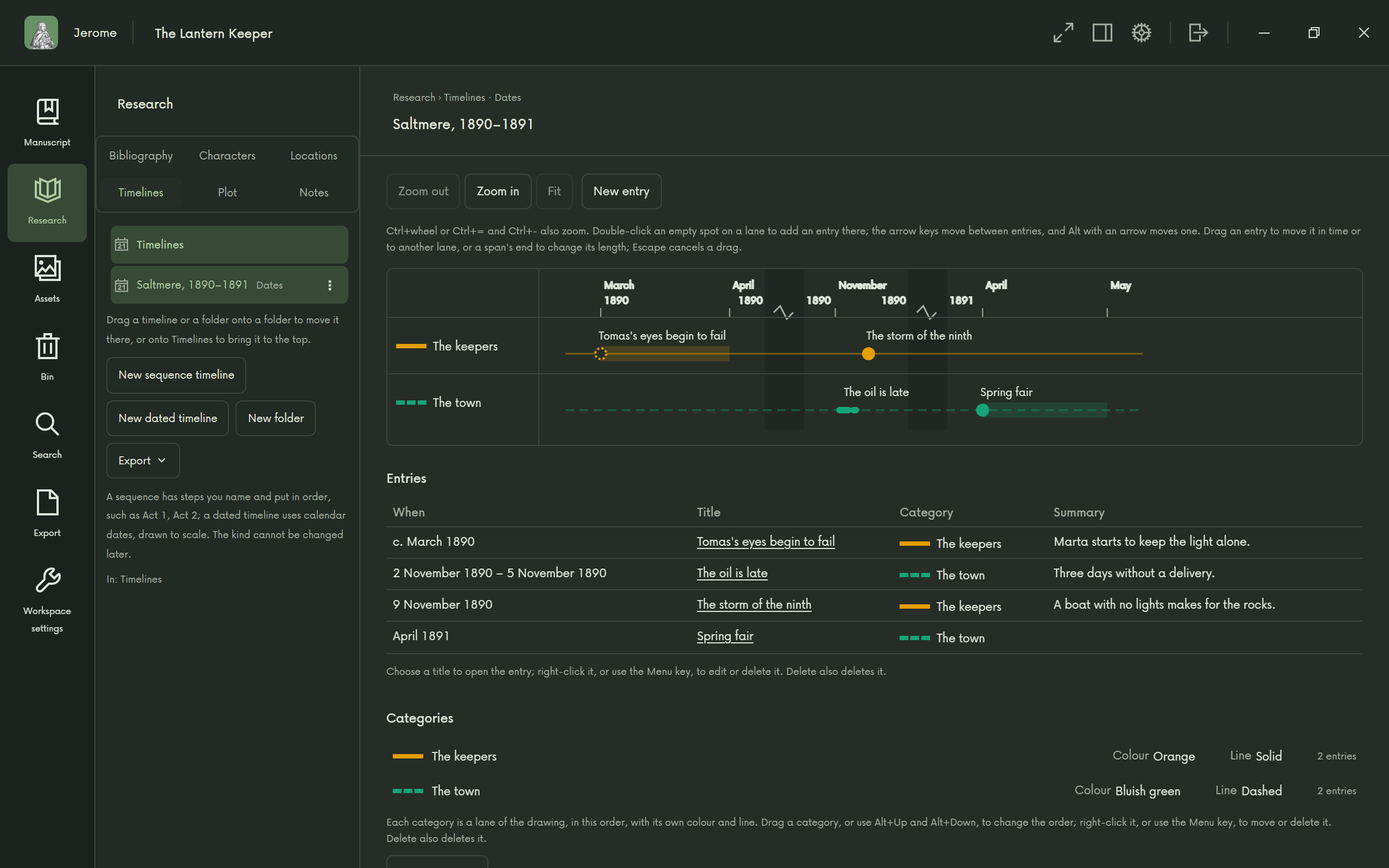
New entry adds an event, a single point or a span, with a title, a category, a summary and links to documents, characters or locations. Categories are coloured lanes. The page shows the timeline drawn across, with zoom, and a table of the entries below. Save a copy saves the drawing as a picture or the entries as a table.
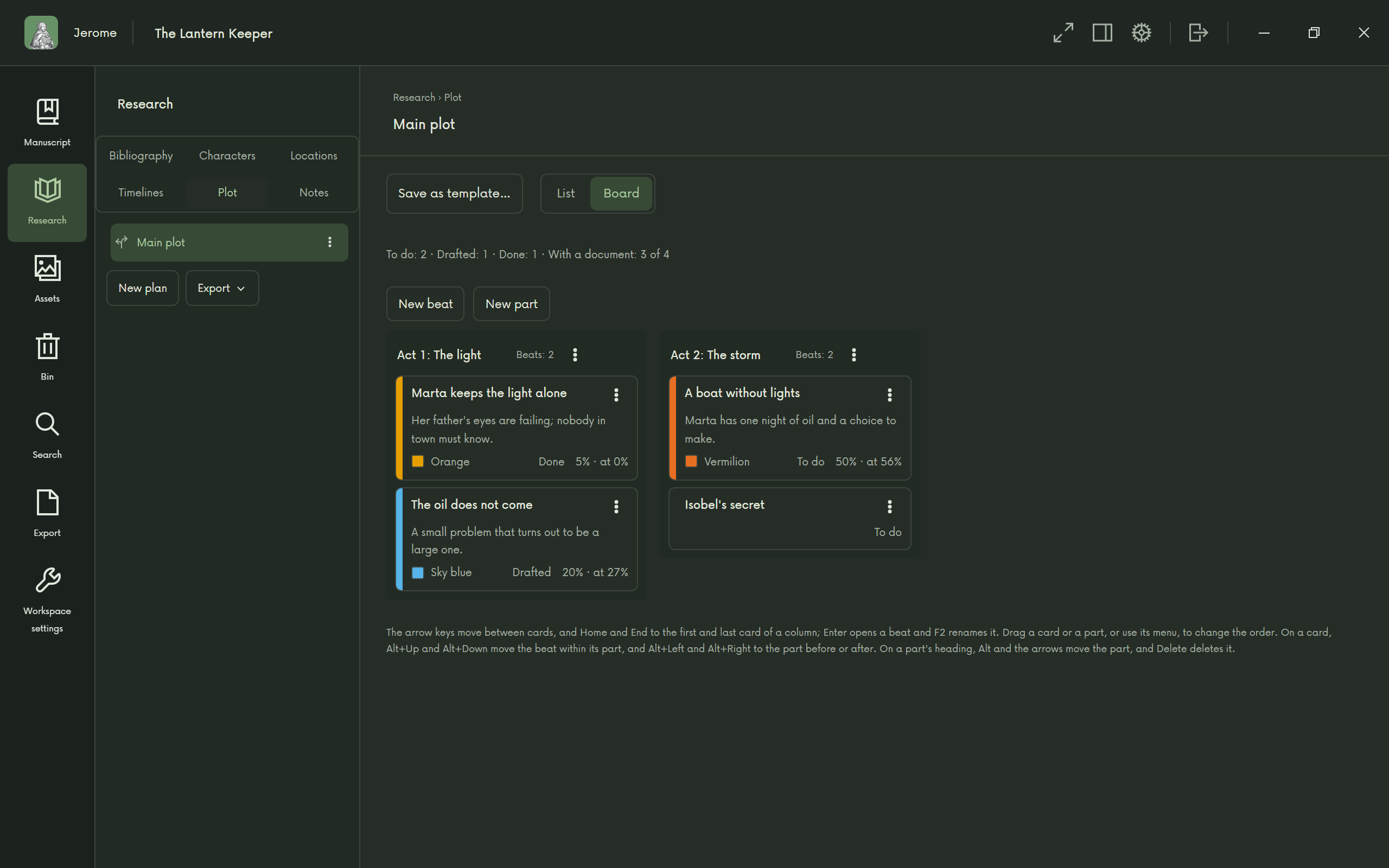
The plot board
Plot holds plans of your story. New plan starts from a template: Blank, Three acts, Freytag’s five parts, Kishōtenketsu or Hero’s Journey, or one you saved yourself with Save as template.
A plan is a list of beats, grouped in parts if you like. Each beat has a name, a summary, a status (To do, Drafted, Done), the point in the story where you want it, a colour and links to documents. Switch between List and Board. The board shows where each beat should fall and where it actually falls, such as “25% · at 31%”.
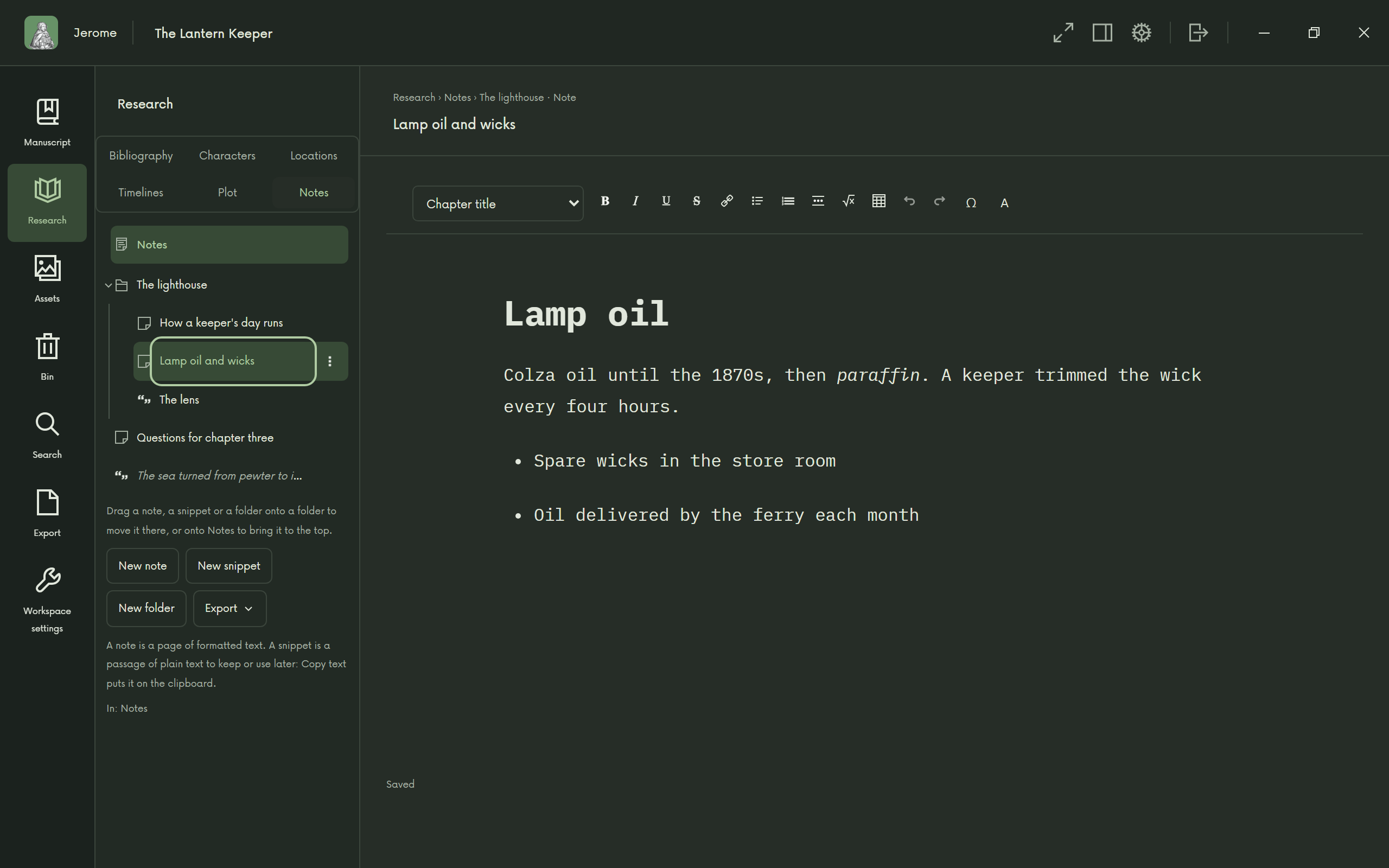
Notes and saved web pages
New note makes a note with a title. New snippet keeps a piece of text for later, ready to copy. With text selected in the editor, right-click and choose Save as snippet.
Web pages are kept in Assets: Save a web page… saves a readable copy of the page with its pictures, labelled with its address and date, and it opens without a connection. A page behind a login saves as its login page.
Bibliography and citations
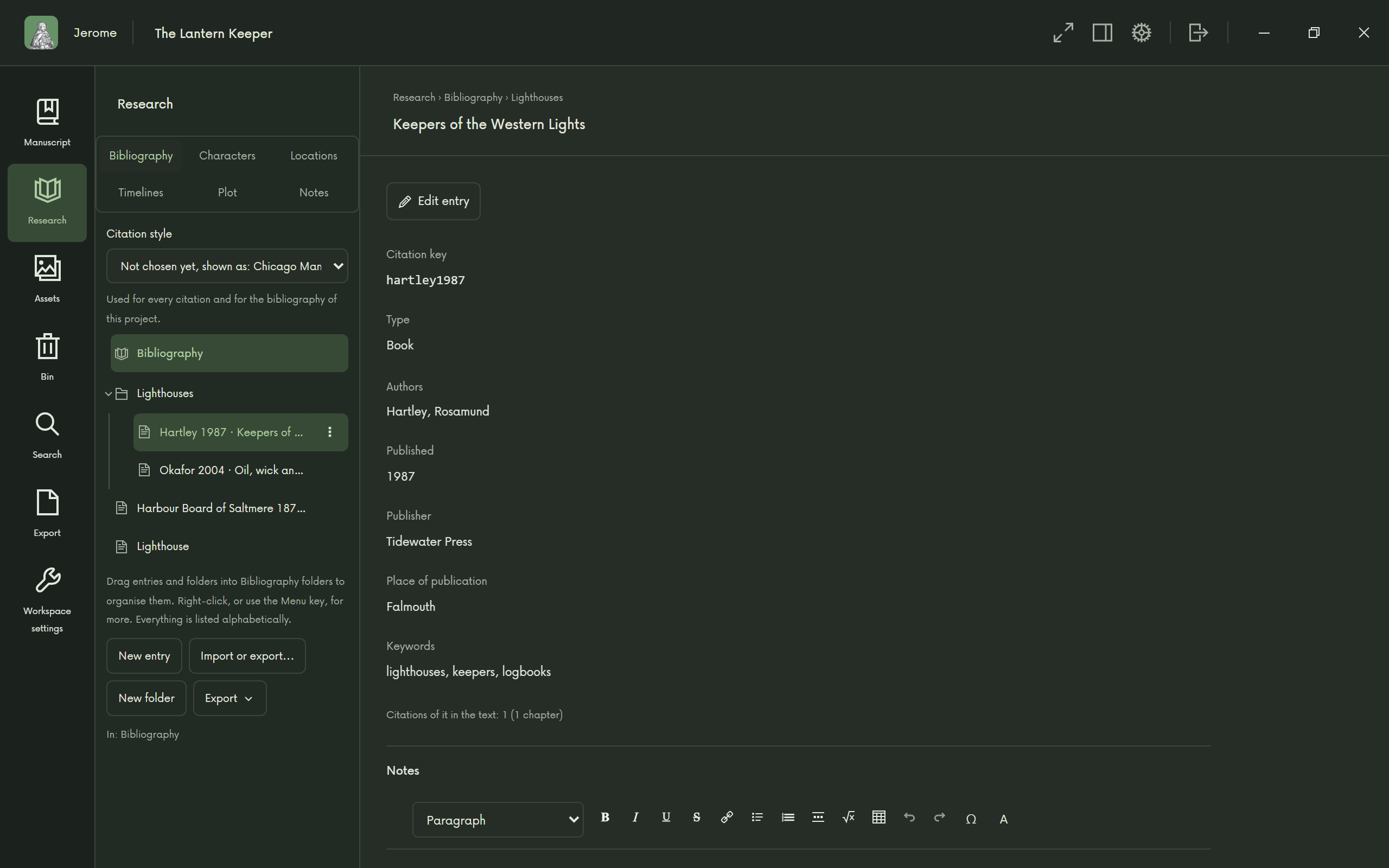
New entry opens a form for a source. Suggest a key proposes a short name for citing it, such as kuhn1962, and Find book details on Open Library fills the empty fields from an ISBN or a few words. An entry can have keywords, notes, an attached file and, with Save the web page, a saved copy of its page.
Import or export… brings in entries from BibTeX, RIS or CSL-JSON files, shows you which look like ones you have already, and lets you leave them out or merge them. It exports the same formats.
Citing as you write
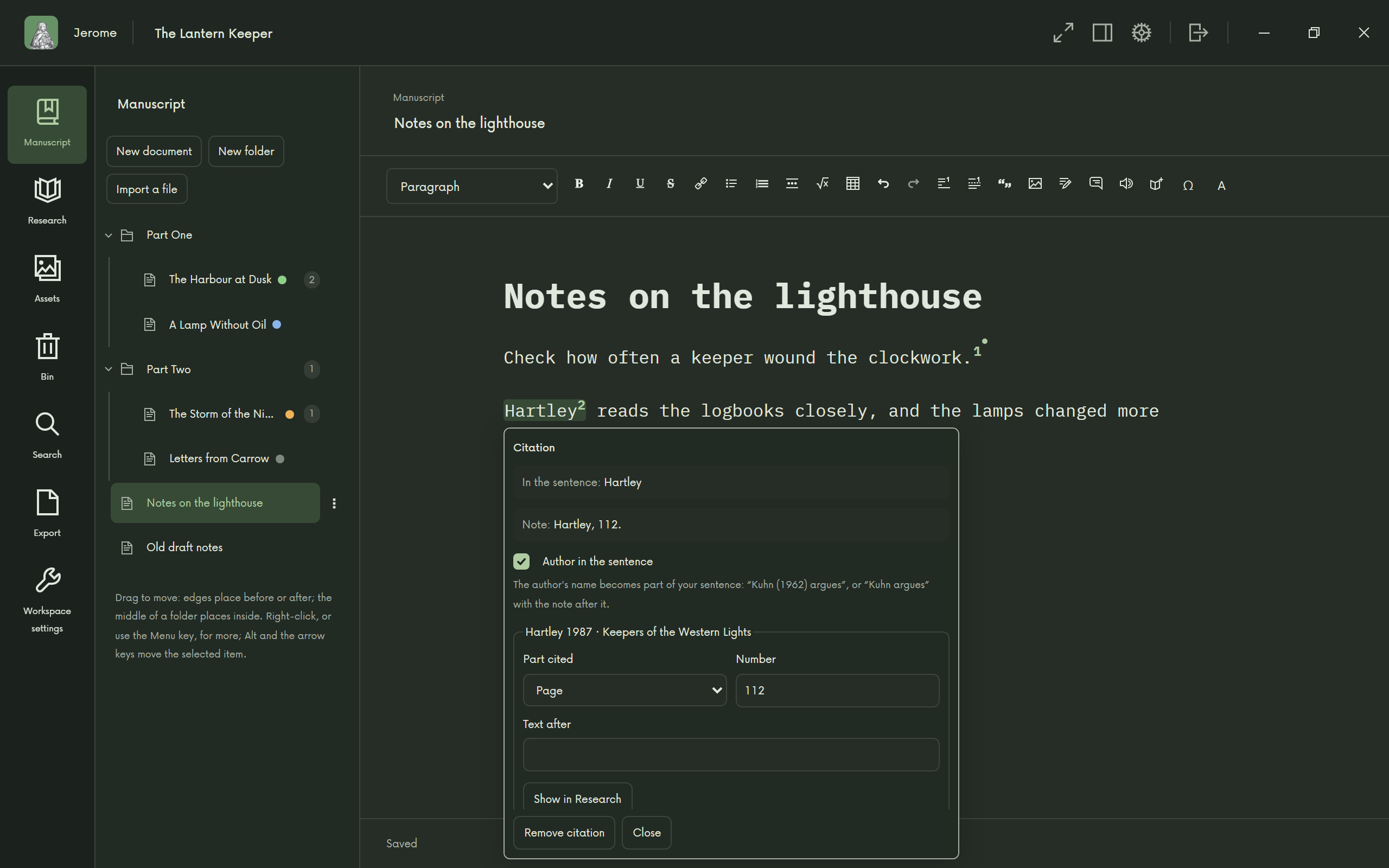
Type @ at the start of a word, or choose Cite in the toolbar, then pick the source with the arrow keys and Enter. Click a citation to add a page number, text before or after it, or another work. Choose the Citation style in the Research panel: Chicago, APA, MLA, Harvard, IEEE, MHRA, Vancouver and others.