
Transcription, glossing and poetry
Type out a scanned book beside its pages, annotate someone else's text, or write poems line by line.
Transcription
A Transcription project is for typing out the text of a scanned book or manuscript, such as a PDF from a library or archive. You read the scan on one side and type on the other. Jerome does not read the scan for you: the transcription is yours.
- In the New project dialog, choose Transcription and pick The PDF to transcribe. Jerome keeps a copy in the project and never changes it.
- Write your transcription in documents, as in a book: New text for the transcribed text, New Editor’s document for your own introduction or notes.
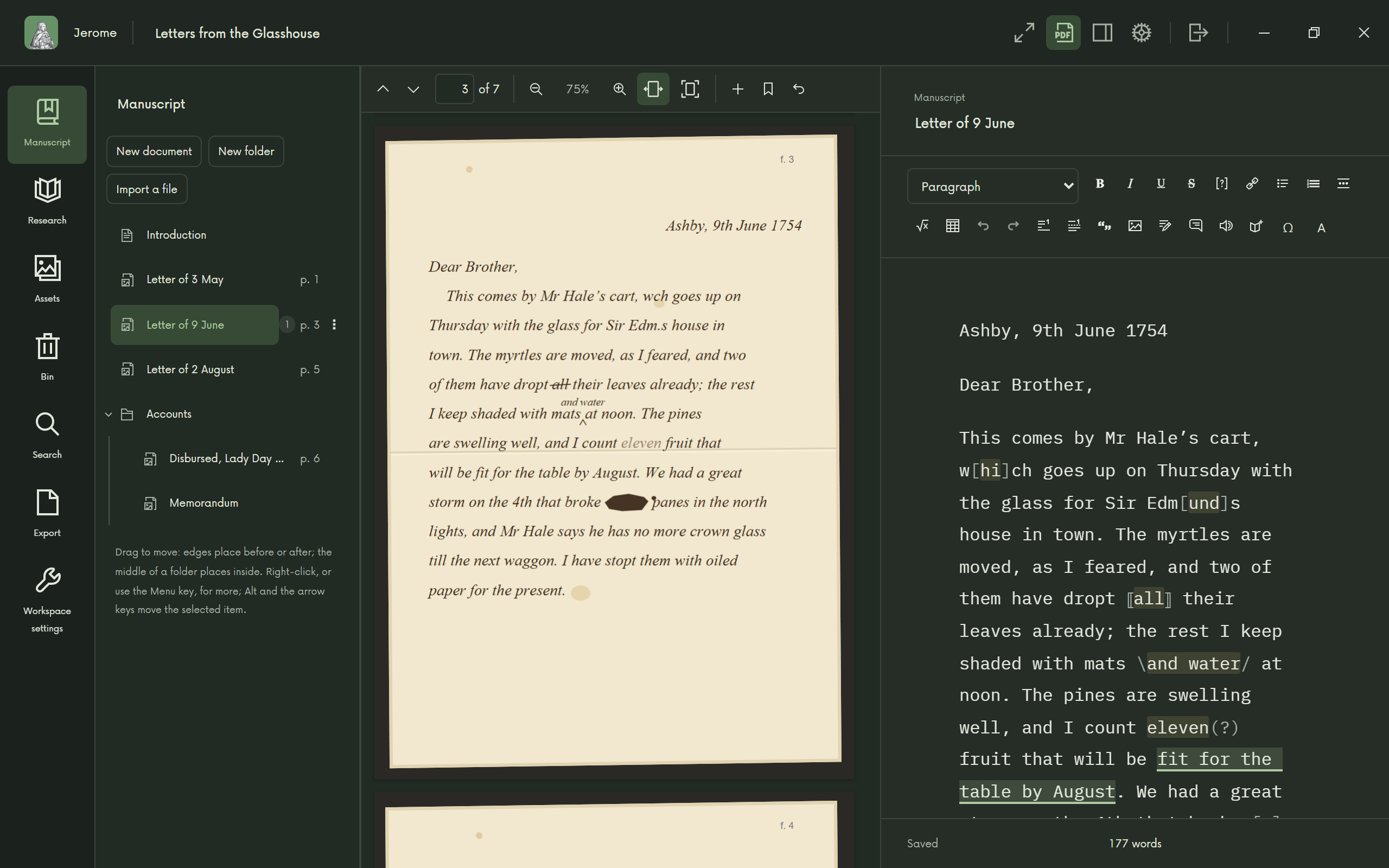
The scan beside the text
- Hide PDF and Show PDF (Ctrl+Alt+P) make room when you need it.
- Ctrl+Alt+Page Up and Ctrl+Alt+Page Down turn the scan’s pages without leaving the text.
- Fit width and Fit page size the scan; you can also zoom.
- Start this document here ties a text to its first page, so the scan turns to it when you open the text. New document from this page starts a new text there.
Marks
Marks (Ctrl+Alt+M) records what you see on the page: text that is Unclear, Supplied by you, Deleted or Added by the writer, and Gap… for something missing. They show in grey in the text, in the signs scholars use. When you export to Word, choose to keep the signs or leave them out for a clean reading text.
Glossing
A Glossing project is for an annotated edition of someone else’s text: a classic with notes on its words and passages, at the foot of the page or at the back.
- In the New project dialog, choose Glossing and pick The text to annotate: a Markdown, Word or EPUB file. The text’s own notes are kept as the author’s notes, and an empty Introduction is ready for you.
- The text opens locked, so you cannot change it by accident. You can still add glosses and notes, comment and search in it.
- Select the words you want to explain and choose Add a gloss (Ctrl+Alt+G). Jerome starts a note with those words, the lemma, followed by “]”, and you write the gloss after it.
If the text itself needs correcting, choose Edit the text: every change is tracked, and Lock the text locks it again.
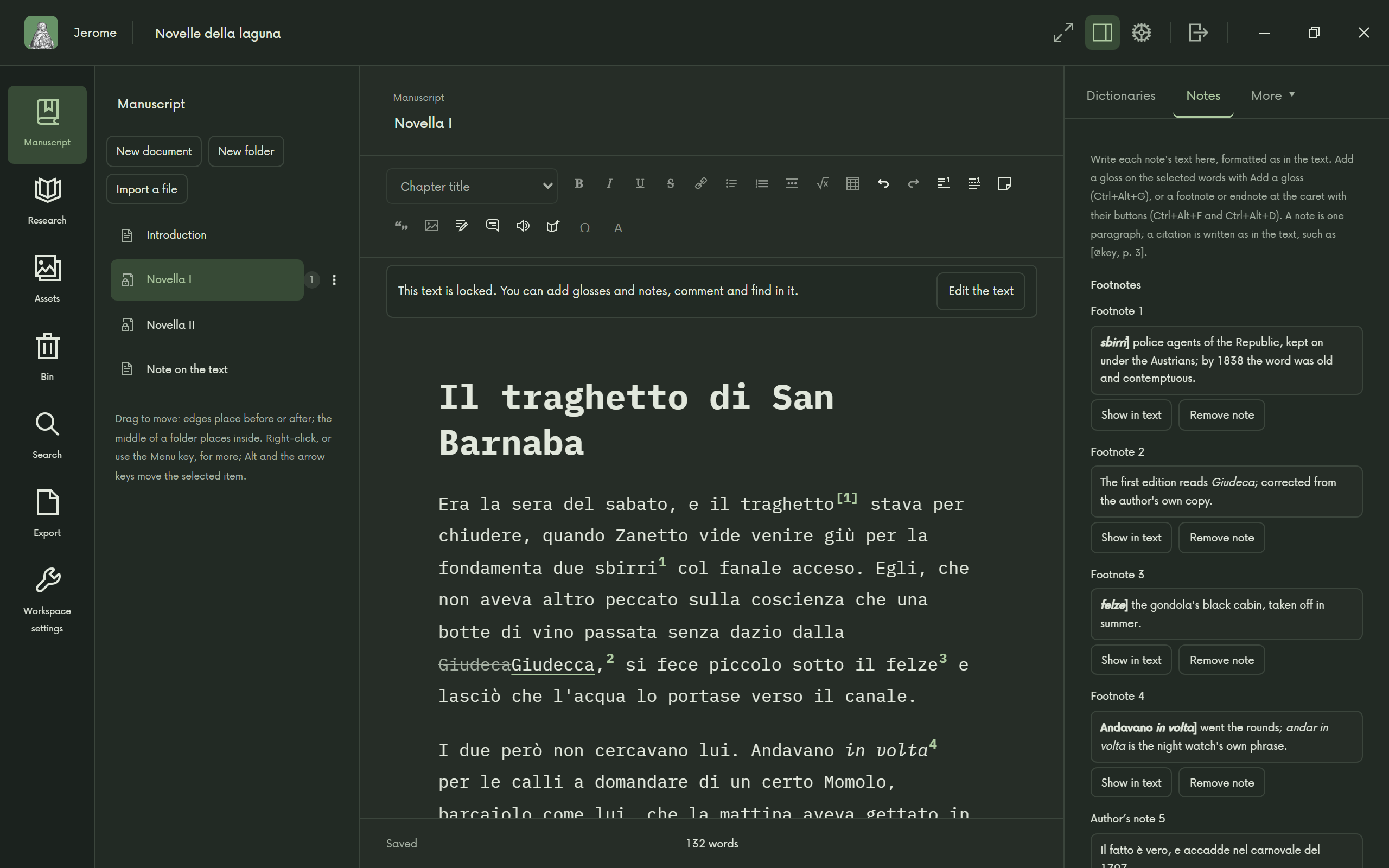
When you export to Word, choose whether the notes are footnotes, or endnotes at the end of each chapter or of the whole book, keyed by page and lemma.
Poetry
A Poetry collection keeps each poem’s lines just as you write them: Jerome never rewraps a line.
- New poem in the binder starts a poem; folders make the sections of the collection.
- Enter starts a new line. Enter on an empty line ends the stanza. Tab and Shift+Tab indent a line.
- A poem can have a title, a dedication and an epigraph.
- The status bar counts lines, stanzas and words.
- Number lines, in Workspace settings › Poetry, numbers every fifth line in the margin and in the exports.
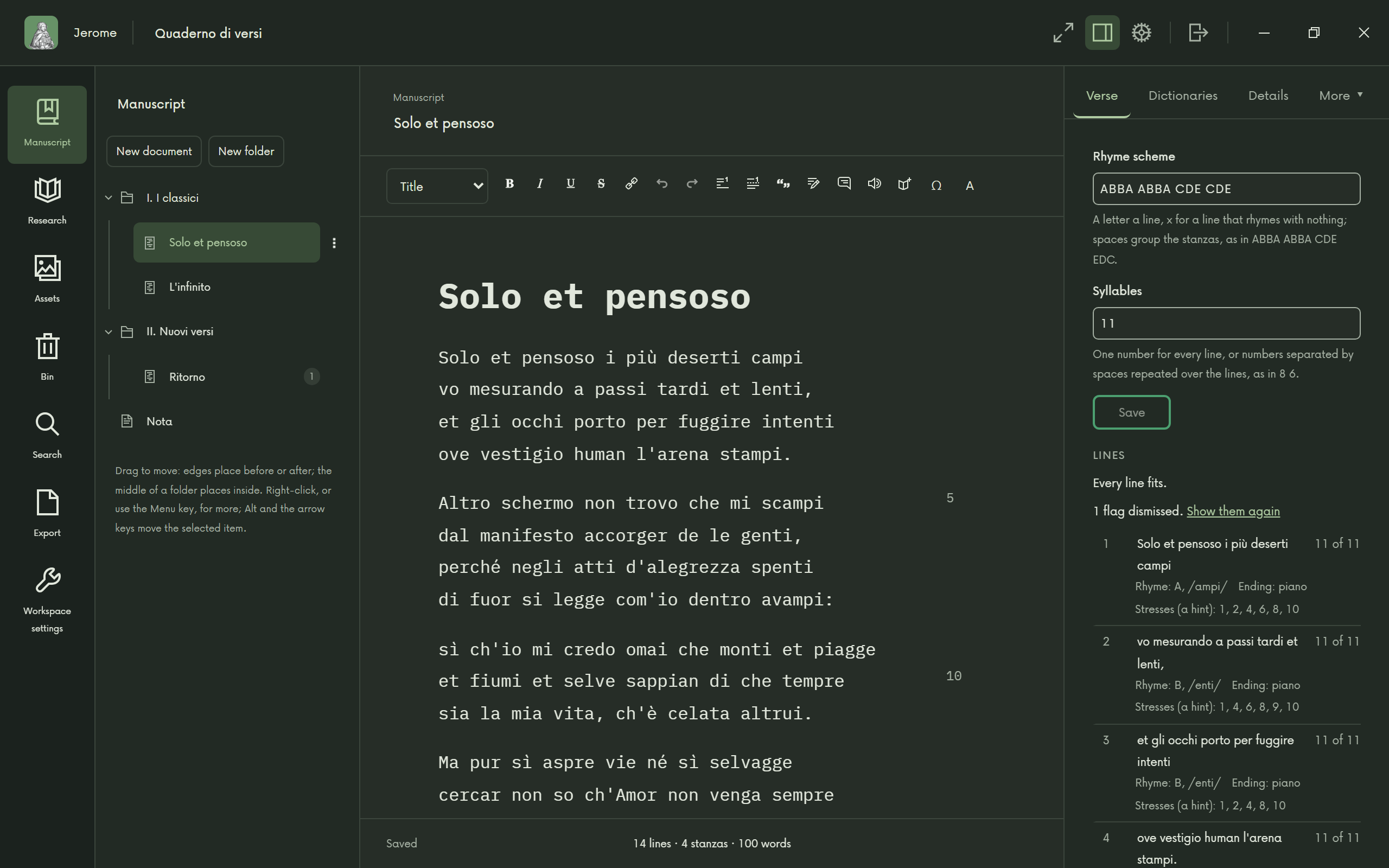
The Verse tab
If you write in a set form, give the poem a Rhyme scheme, such as ABBA, and the number of Syllables a line should have, such as 11. Jerome then marks the lines that do not fit, and the rhymes that are only near. Ctrl+Alt+Up and Ctrl+Alt+Down go from one marked line to the next; Dismiss a mark you are happy with. Syllables are counted in about fifty languages, with the rules of metre for Italian, Spanish, Portuguese, Catalan, French and Chinese verse.
A collection exports to Word, Markdown and PDF, the PDF on A5 or A4 pages.