
Scripts
Write a film, a stage play or a musical and let Jerome lay it out, then export it as a PDF or for Final Draft.
Choose Film script or Theatre script in the New project dialog. For a musical, choose Theatre script and switch on With music (a musical). Both choices are fixed once the project is made.
A play also asks for its Layout of the play: UK, US stage play, or Italian/European.
Comments, tracked changes and the spelling and grammar checks work in a script just as in a book.
Writing a film script
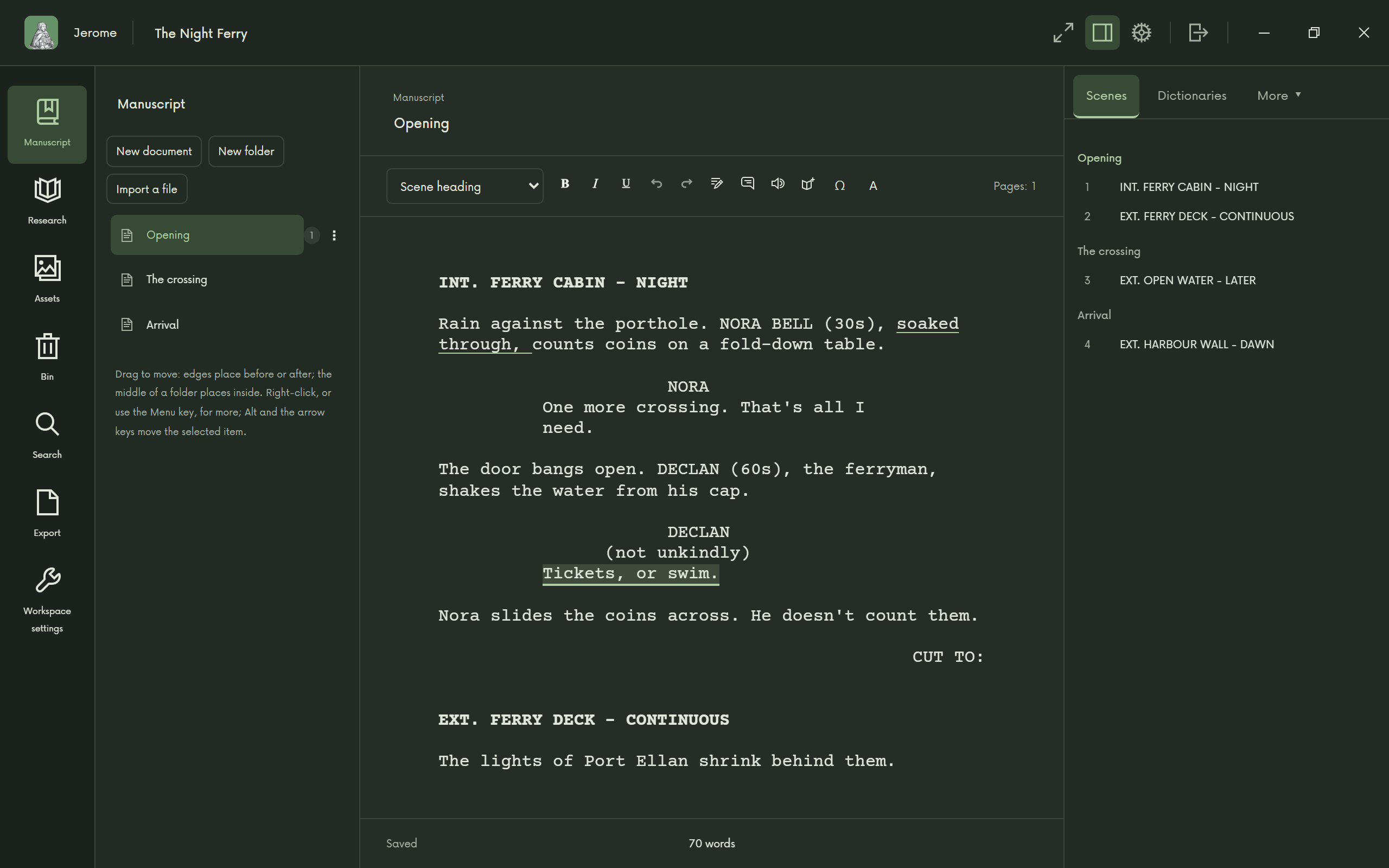
Each line of a script is an element: Scene heading, Action, Character, Parenthetical, Dialogue, Transition and a few more. The Element list in the toolbar shows the current one and changes it. You rarely need it, because Enter and Tab choose the next element for you:
| After | Enter gives | Tab gives |
|---|---|---|
| Scene heading | Action | Action |
| Action | Action | Character |
| Character | Dialogue | Parenthetical |
| Parenthetical | Dialogue | Dialogue |
| Dialogue | Action | Parenthetical |
| Transition | Scene heading | Scene heading |
On an empty line, Enter and Tab change the kind of line instead: an empty Action line becomes a Scene heading with Enter, or a Character with Tab. Typing “(” in dialogue starts a parenthetical, and Shift+Enter breaks a line without leaving it.
As you type, Jerome suggests INT. and EXT., the places and times of day you have used, and your characters’ names. Up and Down choose, Enter or Tab takes one.
Jerome estimates how many pages the script runs to and marks where each page would break. The Scenes tab in the inspector lists every scene heading; choose one to go there.
Writing a play
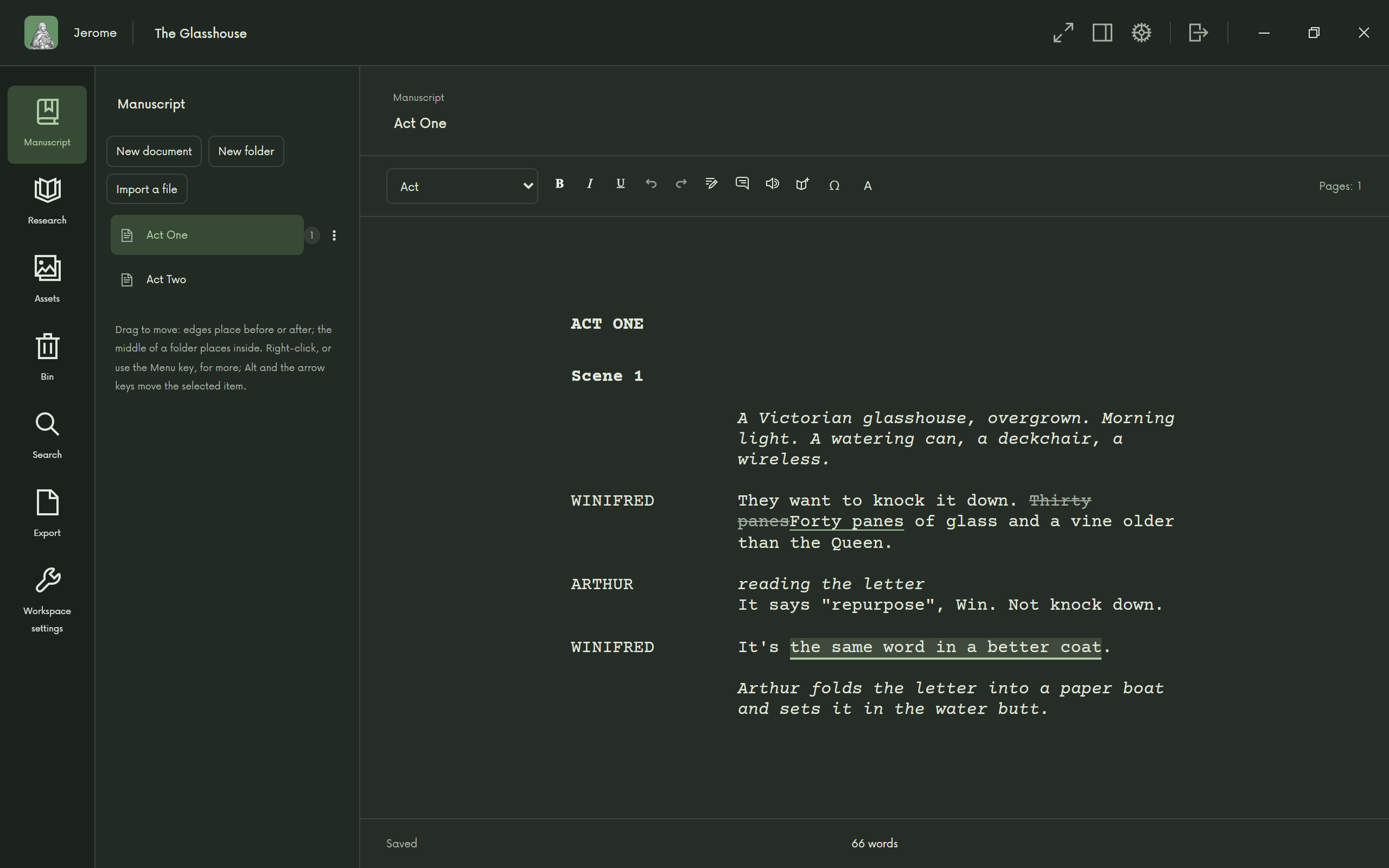
A play has Acts, Scenes, Stage directions, Characters, Dialogue and In-speech directions, with Enter and Tab moving between them in the same way: after a Character, Enter gives Dialogue; after Dialogue, Enter gives the next Character. Jerome also suggests the next act or scene title.
A musical
A musical adds Musical number, numbered for you through the whole show, and a Songs tab listing them.
- Music in the toolbar links a number to its music: recordings, MusicXML scores or PDF scores from Assets, or pieces you write in Jerome.
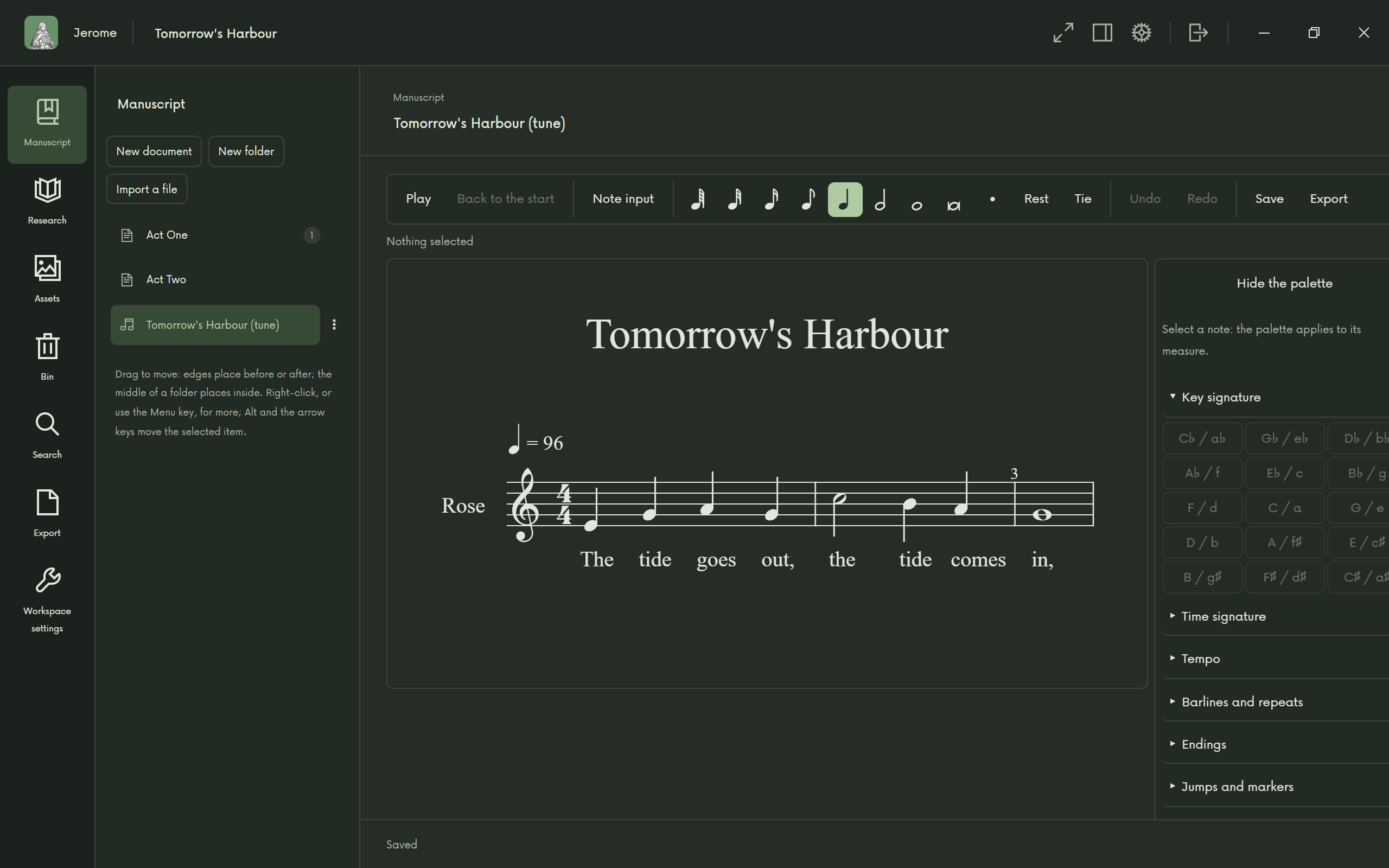
- New music piece, in the binder, starts a simple score of one melody: give it a key, a time signature, a tempo and a number of bars, then write the notes in Jerome.
- Play opens the music in a window of its own. Scores play with the soundfont, which you download in Settings › Music or with the other tools in Settings › Downloads.
A score can be exported as a PDF, a MIDI file or an SVG image.
The title page and the cast
Workspace settings has the Title page: title, credit (such as “Written by”), author, source, draft date, contact, copyright and notes. A play or a musical also has its Cast: add characters one by one, or with Add the characters in the script. The cast prints on a page of its own.
Export
Open Export in the rail.
- A film script exports as a PDF in the industry’s layout, on US Letter or A4, with the scenes numbered if you like. Export for Final Draft (.fdx) writes a file Final Draft can open.
- A play or a musical exports as a PDF. A musical’s PDF adds a list of its musical numbers, with who sings each.
Bring in a script you already have
Import a file in the binder takes Fountain files in every kind of script, and Final Draft files in a film script. If your project has no title page yet, the file’s title page fills it.