
Reviewing a manuscript
Open an author's Word file, suggest changes and comments, and send it back as a Word file they can read in Word.
A Manuscript review project is for editors: the author sends you a Word file, you work on it in Jerome, and you send back a Word file with your changes and comments in it, just as if you had worked in Word.
Open the author’s file
- In the New project dialog, choose Manuscript review and pick The author’s manuscript (Word).
- Under Parts, choose whether to split the manuscript at its headings, such as one part per chapter, or keep it as one document.
- Choose Create a project.
Jerome keeps the author’s original untouched. It also starts an Editorial letter, a document of your own for the notes you send with the manuscript.
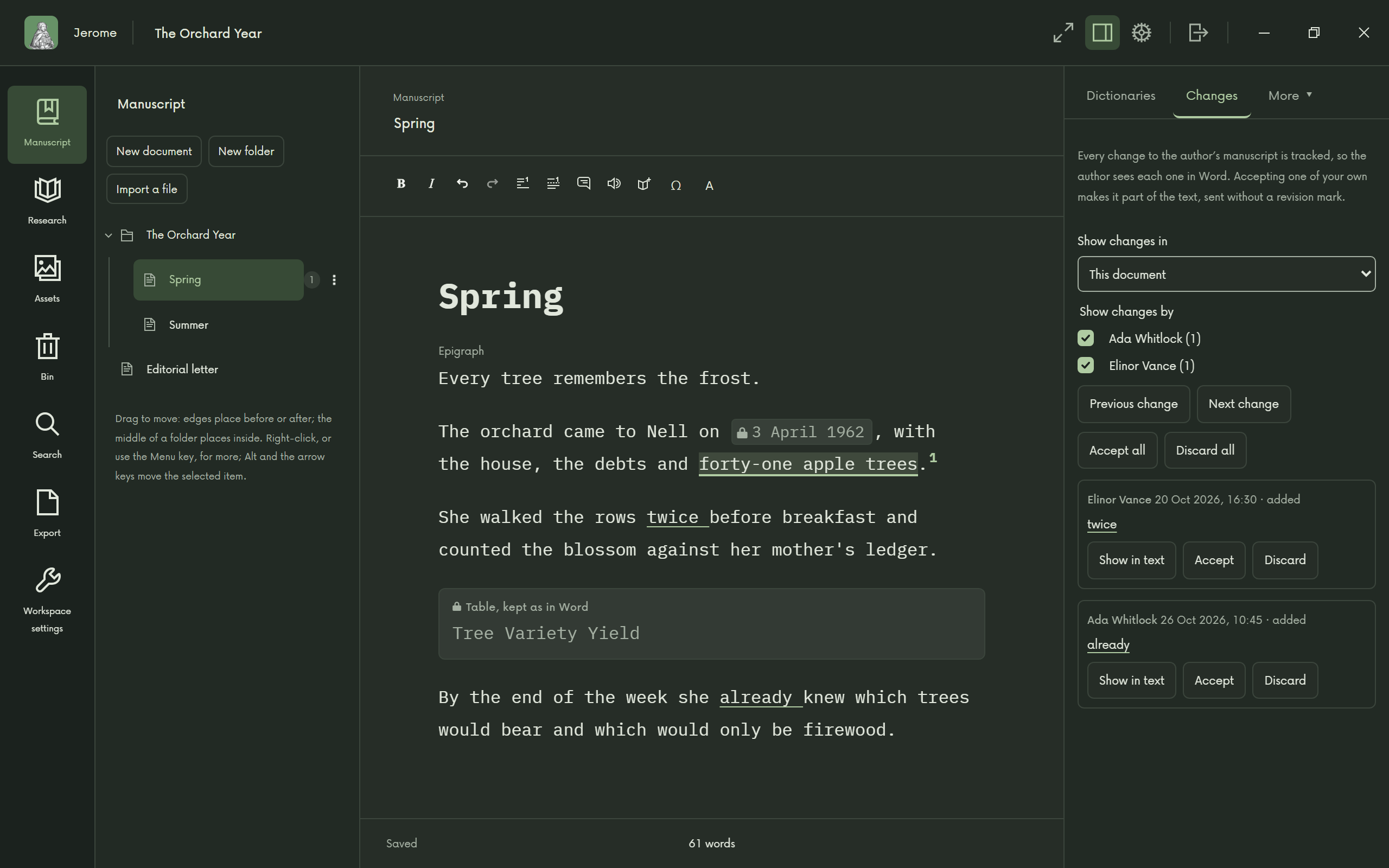
Suggest changes and comments
Every change you make is tracked; there is nothing to switch on. Before you start, add your name in Settings › Profile, so the author can see who made each change.
- Edit the text, bold and italic, footnotes and endnotes as you would in any document.
- Comment on any passage, and reply to the author’s own comments.
- The author’s own tracked changes can be accepted or discarded.
- Paragraph styles and lists stay as the author set them in Word; the name of each paragraph’s style shows in the margin.
- Tables, pictures and other things Jerome does not edit are kept exactly as in Word. They show as locked blocks, which you can delete but not change.
Send it back
Open Export in the rail. Under The manuscript, with your changes:
- Leave Track changes on when the author opens it switched on, unless you want otherwise.
- Choose Export the manuscript (Word)…. Jerome suggests a name with yours and the date.
Your pending changes arrive as Word’s tracked changes and your comments as Word comments. Everything you did not touch, including headers, footers and formatting, stays exactly as the author sent it.
Your editorial letter exports separately, as a Word file or as a PDF letter.
The next round
For another round of editing, choose Start the next round… in the manuscript folder’s menu. The parts of the earlier round stay in the project, read-only, for reference.