
Translation
Translate a text paragraph by paragraph, with its source beside you, a glossary, a memory of what you have translated and a machine draft when you want one.
Set up a translation
In the New project dialog, choose Translation. Give the project its Source language, the language you translate into, and the source texts: Markdown, plain text, Word or EPUB files. Each file becomes a document, and each chapter of an EPUB a document of its own. You can change their titles before the project is made.
To add another source later, choose New document in the binder.
The source is there to read: you cannot change it by accident. Spelling checks, comments and tracked changes apply to your translation only.
Translating
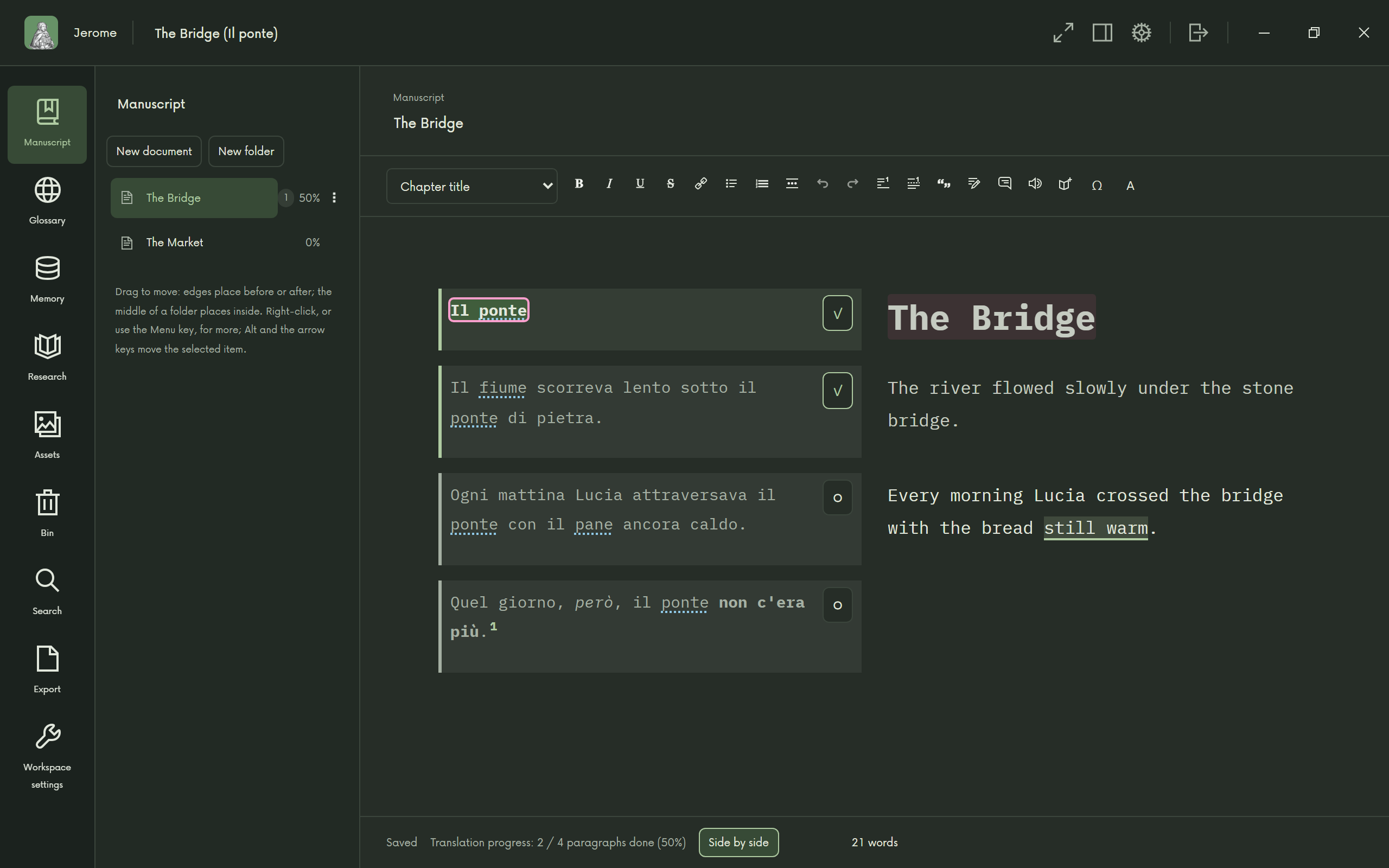
Each paragraph of the source sits above a box for its translation. Write the translation, then mark the paragraph done with its button or with Ctrl+Enter, which also takes you to the next one. A finished paragraph folds to a single line; Show source opens it again.
Side by side, in the status bar, puts each source paragraph beside its translation instead of above it. In Settings › Appearance you can choose whether the source is on the left or on the right. On a narrow window the paragraphs go back to being stacked.
Moving about by keyboard
| What | Keys |
|---|---|
| Next or previous paragraph | Alt+Down, Alt+Up |
| Next or previous paragraph not yet done | Alt+Shift+Down, Alt+Shift+Up |
| Mark done and move on | Ctrl+Enter |
| Take a numbered match from the memory | Ctrl+1 to 9 |
If you would rather Enter marked a paragraph done, switch on Enter confirms the paragraph and moves on in Settings › Translation editor.
Progress
The status bar shows how many paragraphs are done, such as “Translation progress: 42 / 120 paragraphs done (35%)”, and the binder shows each document’s progress.
In the current paragraph’s source, colours show where you are: green for the sentences you have translated, orange for those you have not, and the sentence you are on picked out in its own colour. Workspace settings › Segmentation chooses whether Jerome works by sentences or by whole paragraphs.
Correcting the source
Sources have typing errors too. Right-click a paragraph and choose Correct the source… to fix one. Edit sentences… splits a sentence where Jerome got it wrong, or joins two.
The glossary
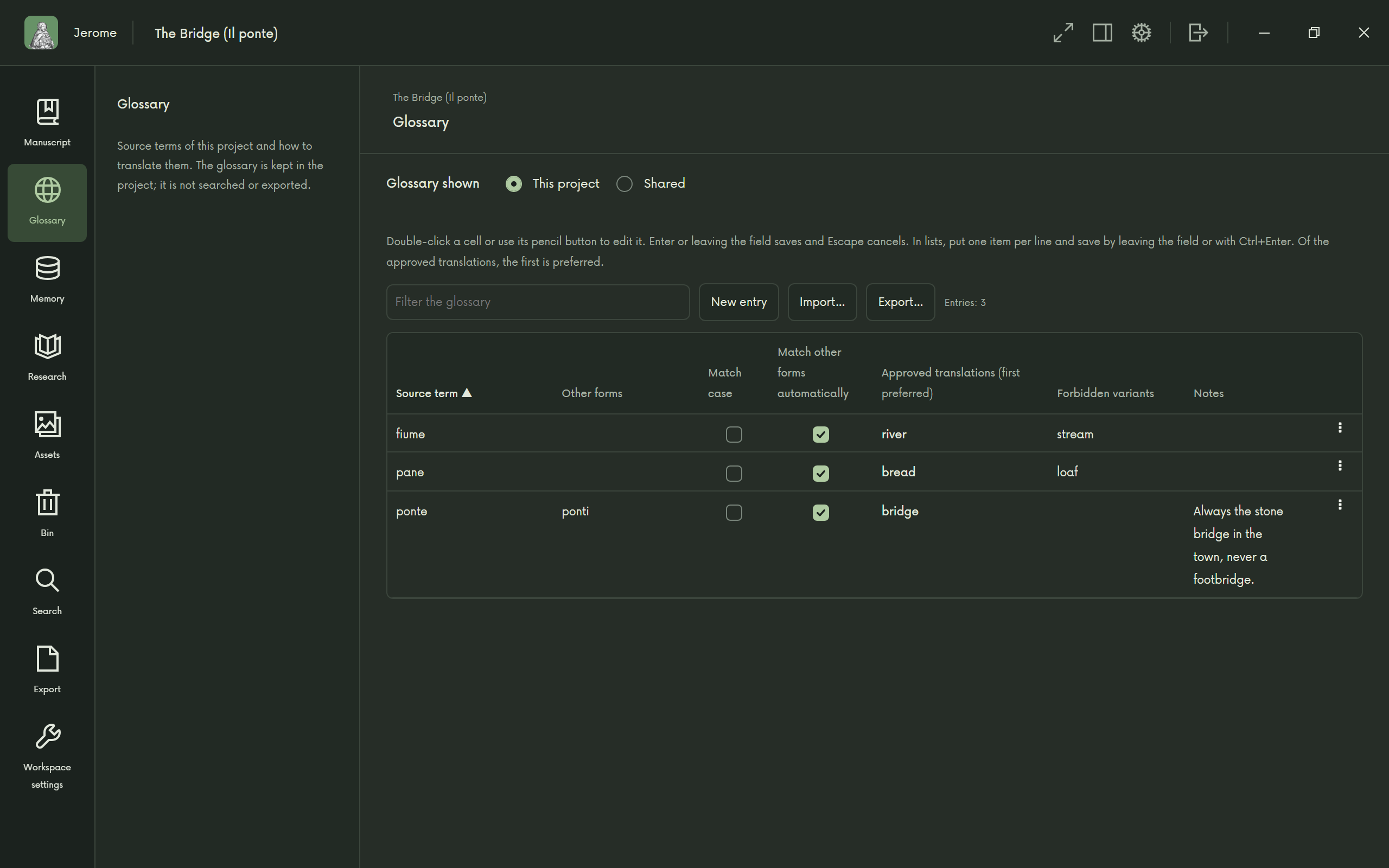
Glossary, in the rail, keeps your terms: the source term, its other forms, the approved translations (the first one preferred), forbidden variants and notes. Terms are underlined in the source, and the Memory tab lists those in the current paragraph, each with Insert.
When you mark a paragraph done, Jerome checks it against the glossary and tells you if a term is missing or a forbidden variant has slipped in. Glossaries can be imported and exported as TBX or CSV.
A glossary can belong to one project or be shared between your projects. Each entry can be copied from one to the other, and Workspace settings › Glossary sets whether a project uses the shared one.
Translation memory
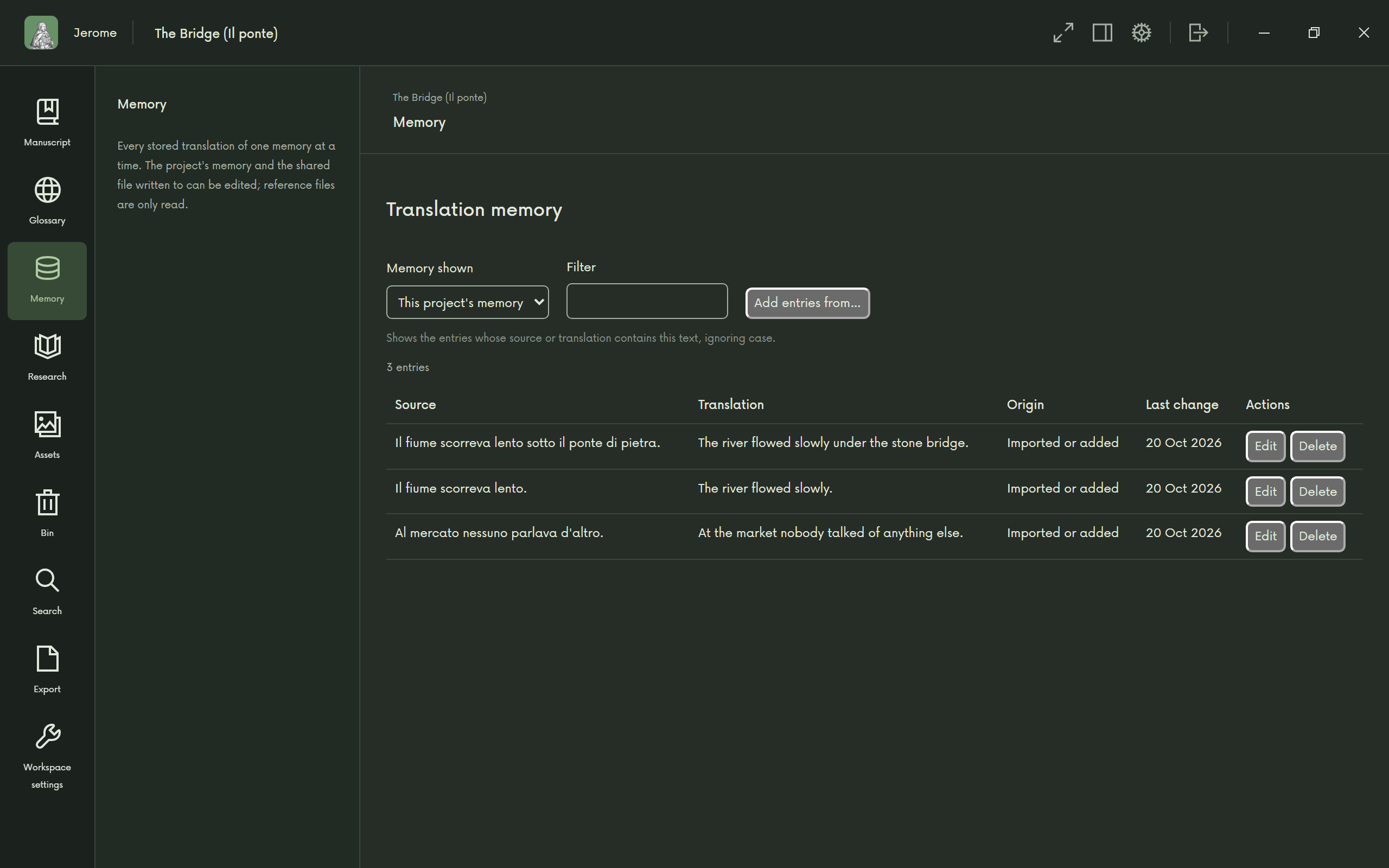
Every paragraph you mark done goes into the project’s translation memory. When a new sentence looks like one you have translated before, the inspector’s Memory tab shows the match with how close it is; Use this translation puts it in place. You can also search the memory yourself.
In Settings › Translation memory you can choose a shared memory folder, which your other projects can use as well. Memories are kept as TMX files, which other translation tools can read.
Machine translation
Jerome can suggest a draft of each paragraph from a translation model that runs on your own computer. Nothing you translate is sent anywhere.
- Open Settings › Machine translation and switch on Suggest machine translations.
- Download the models for your languages, or get them in a language pack from Settings › Downloads (see Before you go offline).
The draft appears in the Memory tab, marked “Machine translation”, with Use this translation. It is never put into your text unless you choose it. Languages are translated to and from English; a pair without English, such as Spanish to Italian, goes through English and needs both models.