
Before you go offline
Download everything once, while you have a connection, and then write anywhere, even on top of a mountain where no one can interrupt you.
Jerome does all its work on your computer. Your projects are folders on your own disk, the spelling and grammar checks run on your computer, and so do the dictionaries, the maps, the machine translation and the voice that narrates your audiobook. Some of these tools are not in the installer, though: they are downloaded when you ask for them, so you only take up space with what you use.
So, the first time, while you still have a good connection, get everything you are likely to need. After that you can unplug, go to the cabin, the train or the top of a mountain, and nothing in Jerome will stop working.
While you install (Windows only)
The Windows setup has a page called Optional downloads, so you can choose before Jerome even opens. It lists the same things as Settings › Downloads. Only the language pack for your computer’s language starts ticked, and the GPU runtime appears only if the computer has an NVIDIA graphics card that it can use. Language packs are in a closed group: open it with the small +. The boxes beside the three group names do nothing, so you tick each item by itself.
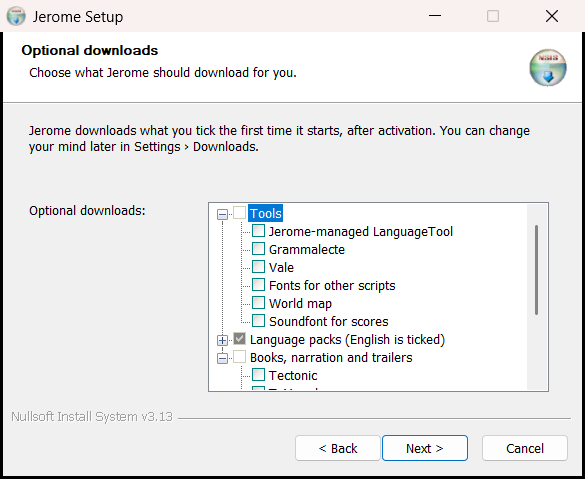
The setup itself downloads nothing. Once you have activated Jerome, it opens Settings › Downloads and fetches what you ticked. The installers for Mac and Linux have no such page, and neither does the Windows .msi: on those, and any time later, use Settings › Downloads.
Settings › Downloads
Open Settings and choose Downloads. Everything Jerome can download is listed there, in one place, with its size and whether it is already on your computer.
Downloads carry on while you do something else: go to another page of Settings or back to your book, and when you return to Downloads it shows how far they have got, with Cancel the downloads. They stop if you close Jerome; anything you ticked in the Windows setup then carries on the next time it starts.
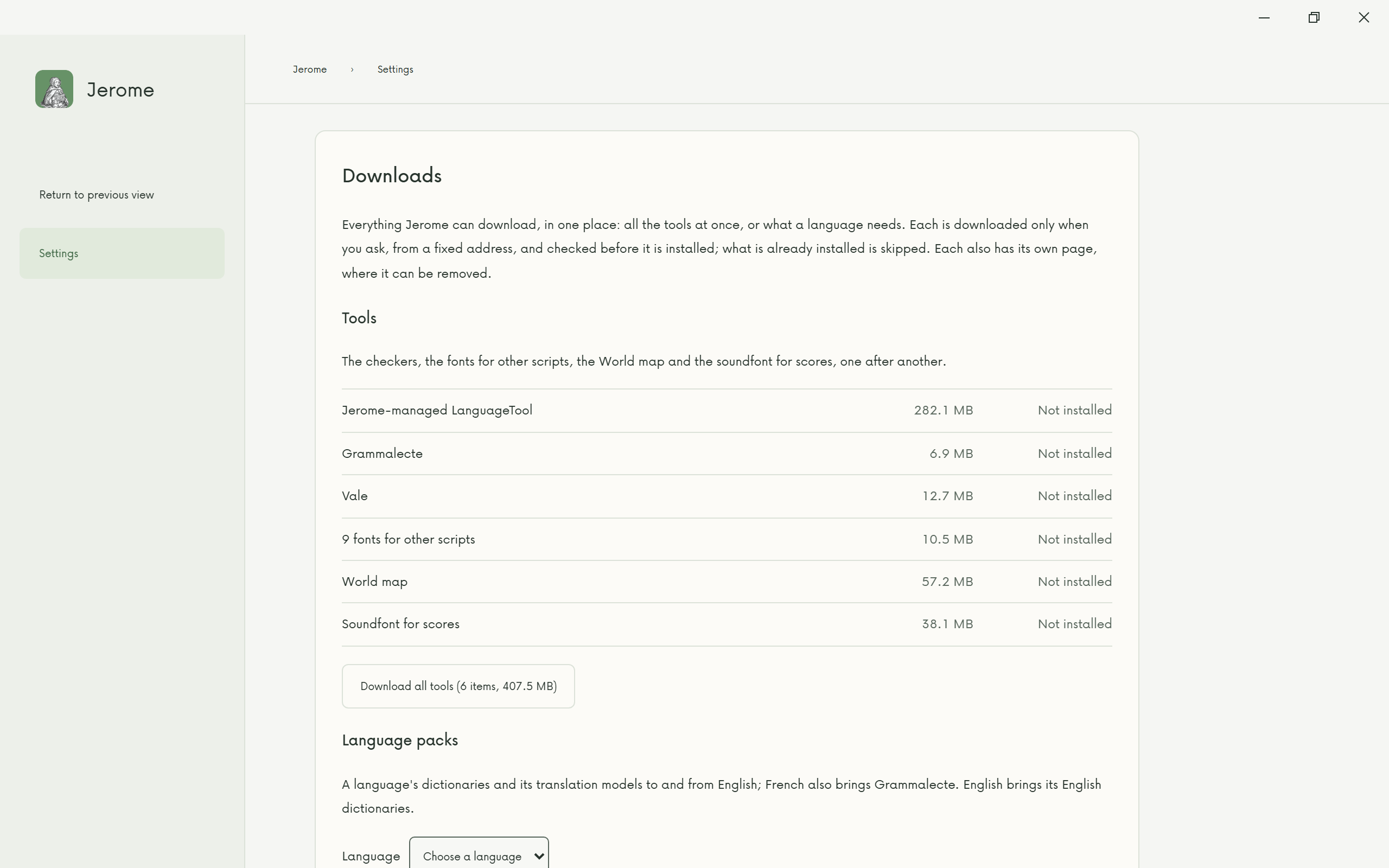
The tools
Download all tools gets them all at once; the button says how many there are and how much they come to, a few hundred megabytes, most of it LanguageTool. The list shows each one’s size.
| Tool | What it gives you |
|---|---|
| Jerome-managed LanguageTool | Thorough grammar and style checking in many languages (about 280 MB) |
| Grammalecte | Grammar checking for French |
| Vale | Checking your text against a house style |
| Fonts for other scripts | Fonts to show ancient scripts, symbols and the world’s other writing systems |
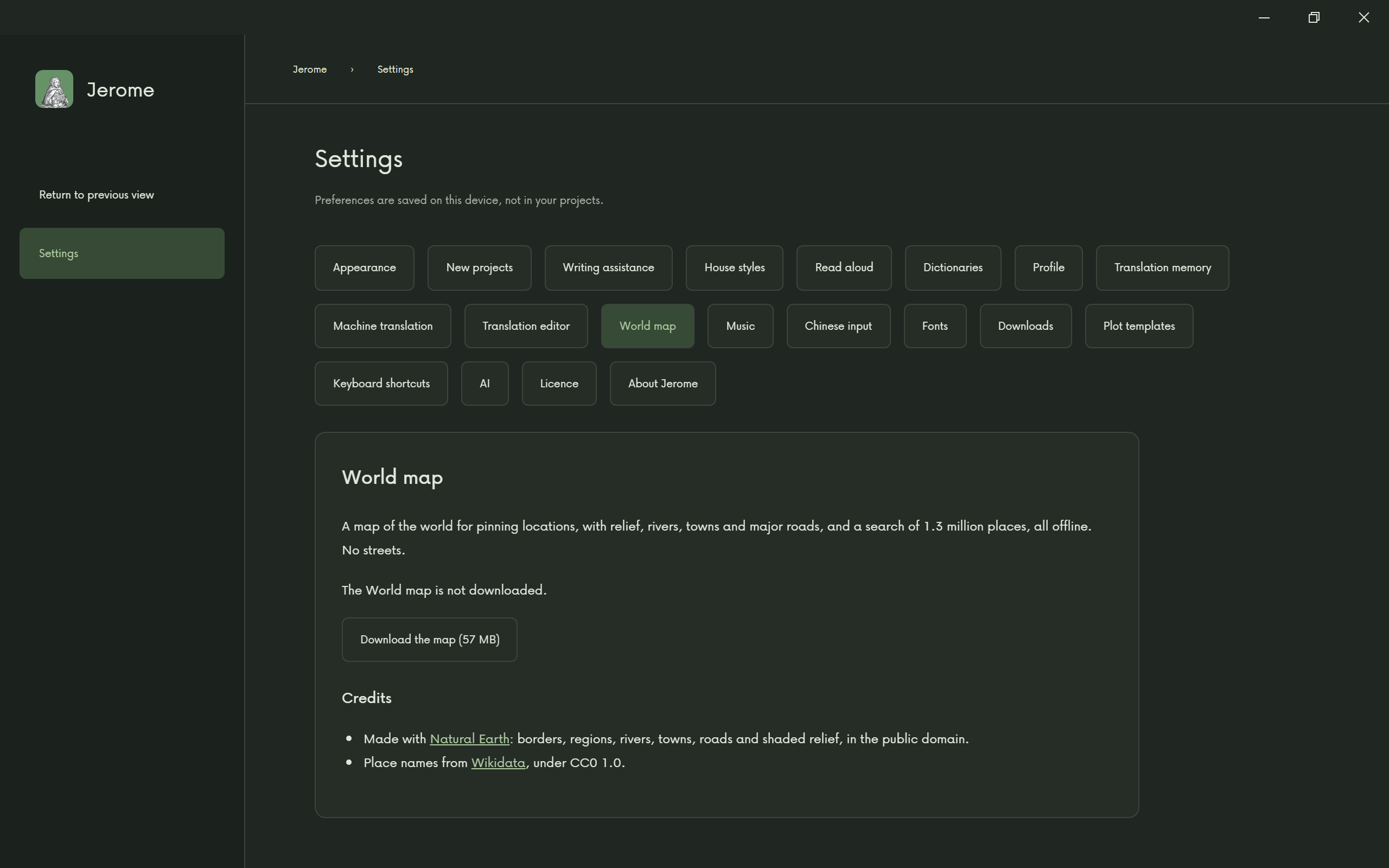
| World map | A map of the whole world for your research, with no streets (about 57 MB) |
| Soundfont for scores | The instruments that play the music scores in a musical |
The Jerome-managed LanguageTool can be installed on Windows (64-bit) for now. On other computers the list says so; you can still check your writing with Jerome’s built-in checker, which comes with the app, or connect a LanguageTool server you run yourself (in Settings › Writing assistance, choose Existing local server).
Language packs
Below the tools, choose a language and download its pack. A pack brings that language’s dictionaries, its dictionaries to and from English, and its machine translation models to and from English. The French pack also brings Grammalecte. Download a pack for each language you write or translate in.
Books, narration and trailers
At the bottom of the page is what making a book, narrating it and making a trailer need. Download all tools leaves these out. Each line has its own Download and, once installed, Remove. Download for books gets the first four at once; FFmpeg, the GPU runtime and the trailer music come only from their own lines, because you may well not want them. Cancel the downloads stops what is under way, and nothing half-downloaded stays behind. While a trailer or a narration is being made, what it runs on can be neither downloaded again nor removed.
| Download | What it gives you |
|---|---|
| Tectonic | Typesets PDFs (about 18 MB) |
| TeX cache | What Tectonic needs to typeset without a connection (about 25 MB) |
| Book fonts | The typefaces of EPUBs and PDFs (about 110 MB) |
| Speech model (Kokoro) | Reads a book aloud for its narration, and a trailer’s scenes (about 335 MB) |
| FFmpeg | Makes the audio and video of narrations and trailers (about 110 MB on Windows) |
| GPU runtime | Lets the speech model use an NVIDIA graphics card, on 64-bit Windows only; on any other computer the line says it is not available (about 1.5 GB, 2.3 GB once installed) |
| Trailer music | A library of tracks by mood for trailers |
There is no FFmpeg to download on a Mac: install it yourself and put it on your PATH, and the line says Jerome is using it.
Then check each page
Downloading is the first half. Each tool also has its own page in Settings, where you choose how it is used. Look at them before you leave.
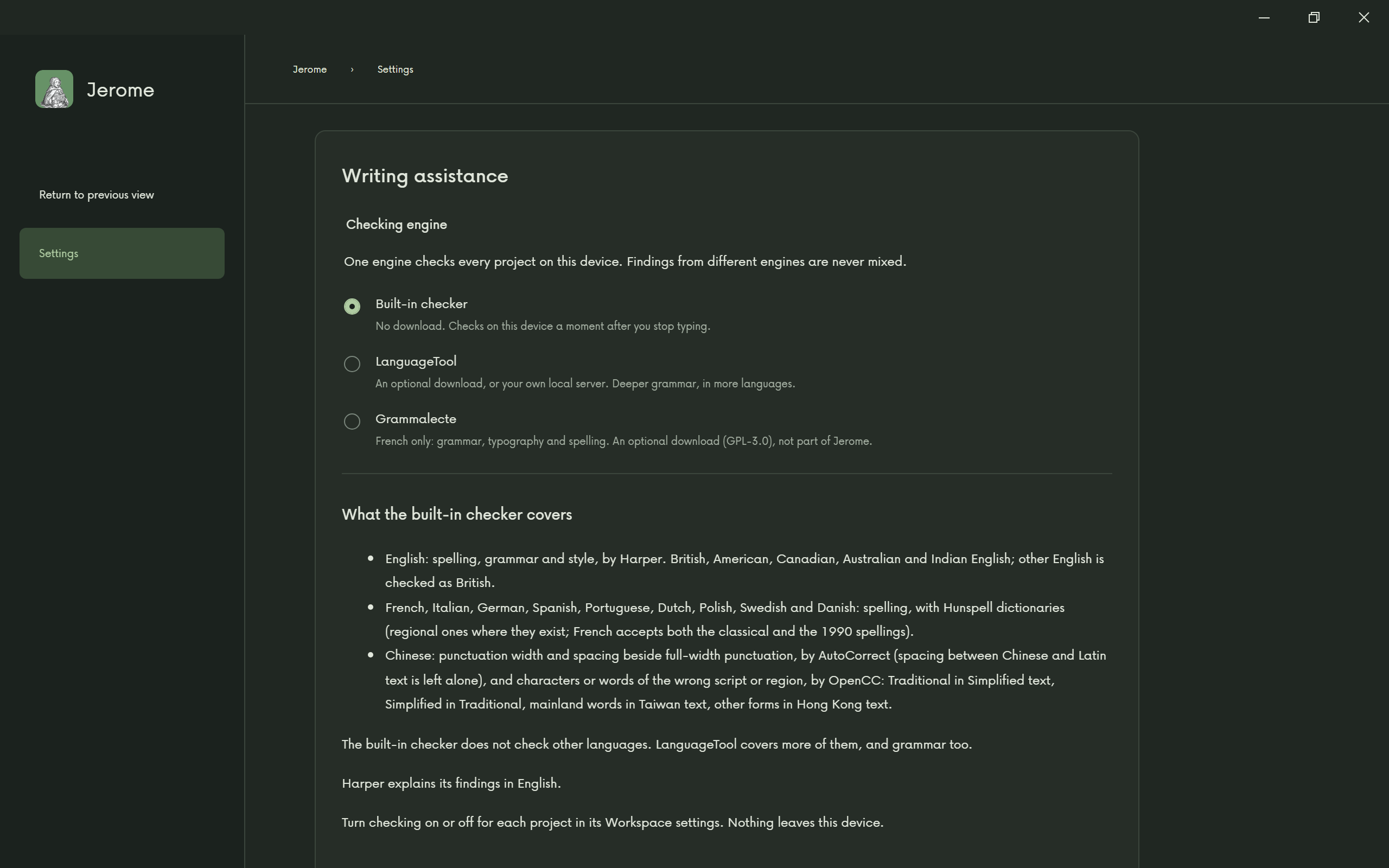
Writing assistance
Choose the checker that reads your spelling, grammar and style: the built-in checker, LanguageTool or, for French, Grammalecte. Then, in each project, turn checking on in Workspace settings › Writing assistance.
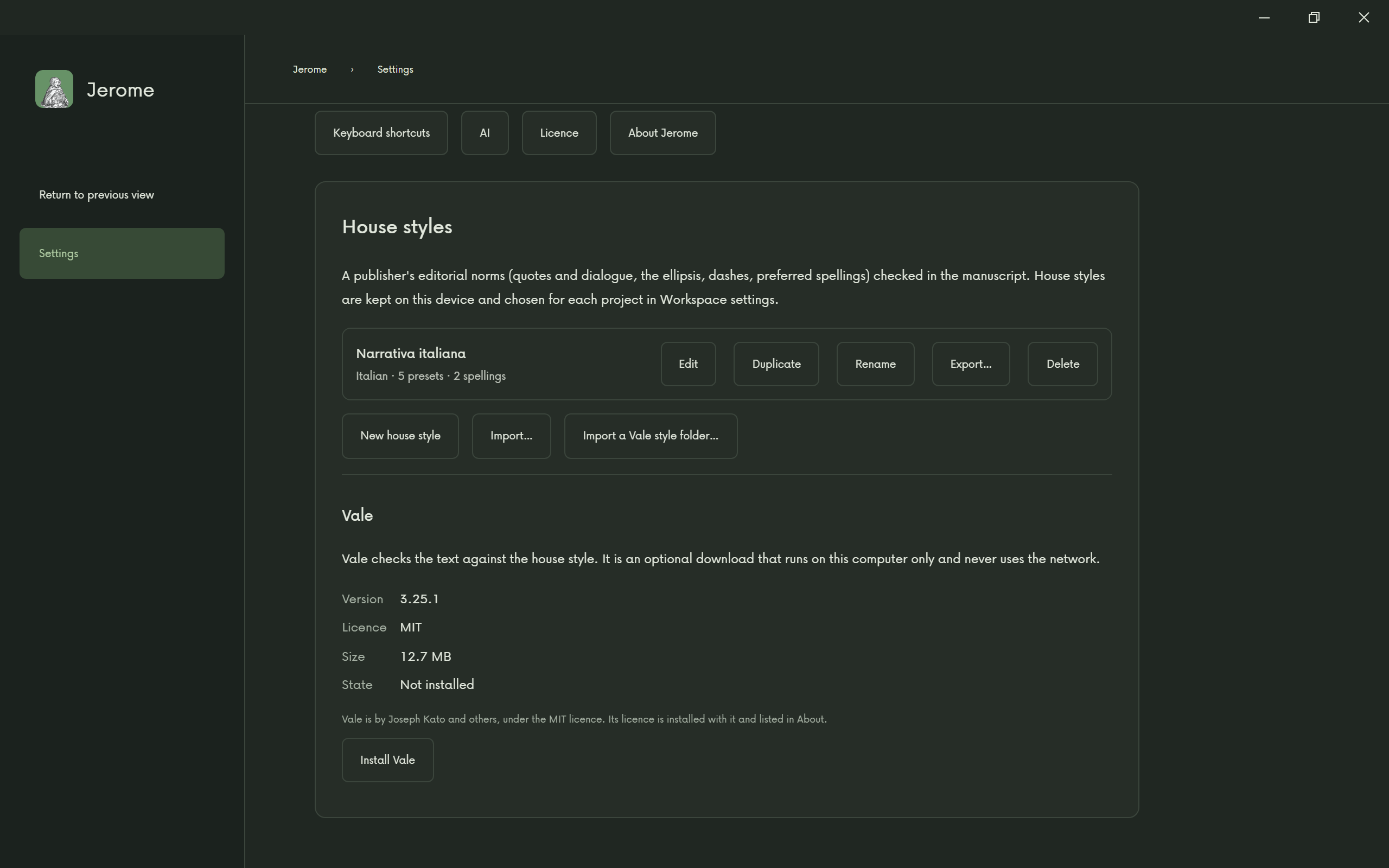
House styles
If you follow a publisher’s rules for quotes, dashes and spellings, set up the house style here. In each project, choose it in Workspace settings › Writing assistance and switch on Check the text against the house style.
World map
Check that the map shows as installed. You can pin your story’s real places on it and search for a place, all without a connection.
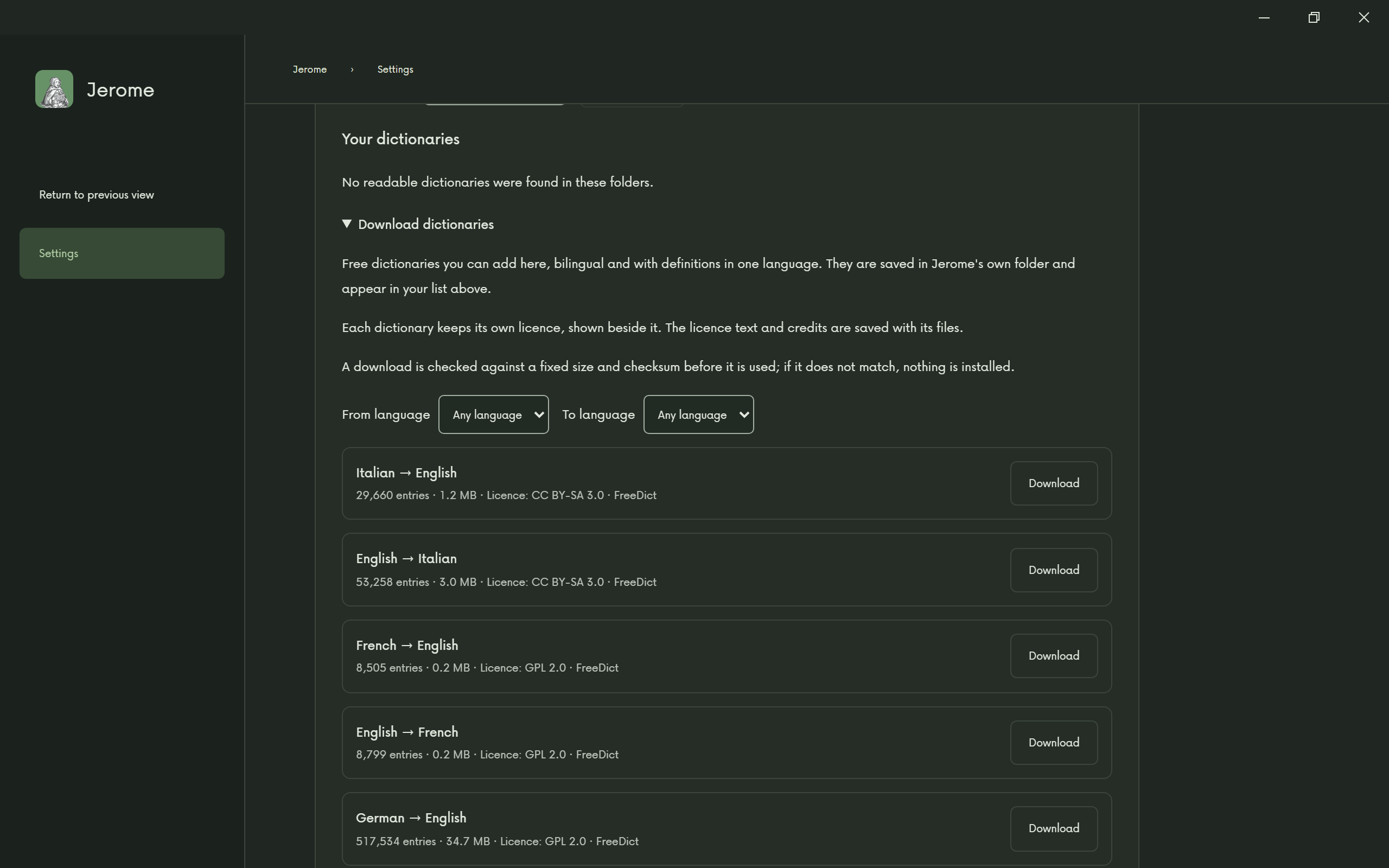
Dictionaries
The dictionaries you downloaded are listed here. You can also add dictionaries you already have, in the GoldenDict formats, from a folder on your computer.
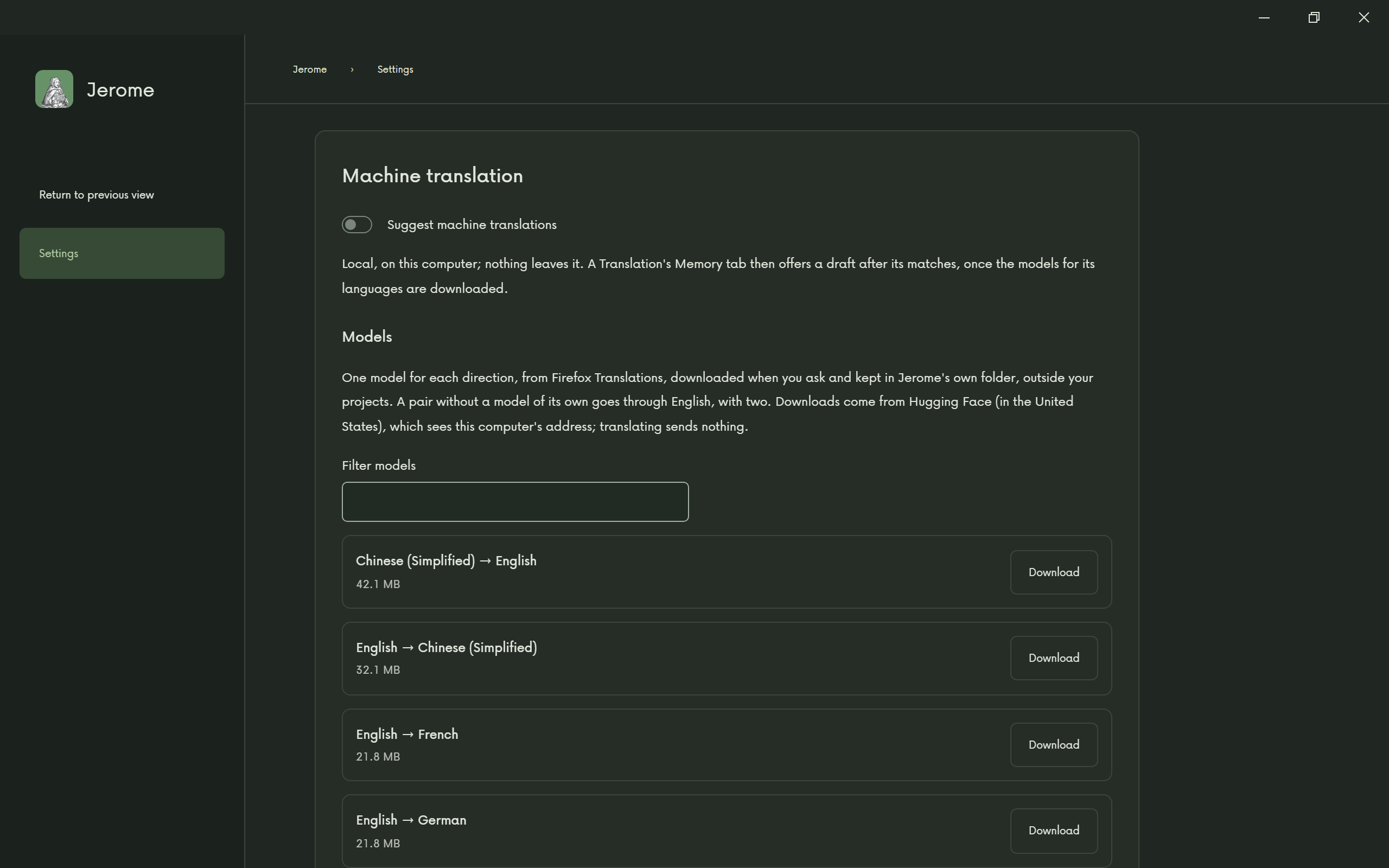
Machine translation
If you translate, switch on Suggest machine translations and check that the models for your languages are listed as downloaded. A pair without English, such as French to Italian, goes through English and needs both models.
What else to know
- Your licence. Once Jerome is activated, it keeps working offline with no time limit.
- Read aloud (not an audiobook’s narration, which uses the speech model above) uses the voices already installed on your computer. Some voices on Windows need the internet and are left out; if you want Jerome to read in a language, install that language’s voice in your system’s settings before you go.
- Web pages you want for research can be saved into the project, with Save a web page… in Assets. The saved copy opens without a connection.
- AI help, if you use it, needs a connection to a provider, unless you run a model on your own computer. See AI help.
Checklist
Before you leave the connection behind:
- Settings › Downloads: Download all tools.
- A language pack for each language you write or translate in.
- Settings › Downloads: Download for books, and FFmpeg, if you will make a book, an audiobook or a trailer.
- Settings › Writing assistance: the checker chosen.
- Settings › House styles: your house style, if you use one.
- Settings › Machine translation: switched on, if you translate.
- In each project’s Workspace settings › Writing assistance: checking switched on.
- The web pages you need, saved into the project.
Then switch off the Wi-Fi and write.