
Marketing
Make trailers and a website for your books, in projects of their own, and put them online yourself.
Marketing is for what goes around a finished book: a short trailer to share, and a website to send readers to. What you make there stays in folders of your own.
Find it, or hide it
Marketing is on the Projects page, beside Settings and About. If you do not need it, switch off Show Marketing in Settings › Appearance. That only hides it: nothing is deleted, and switching it on again brings it back.
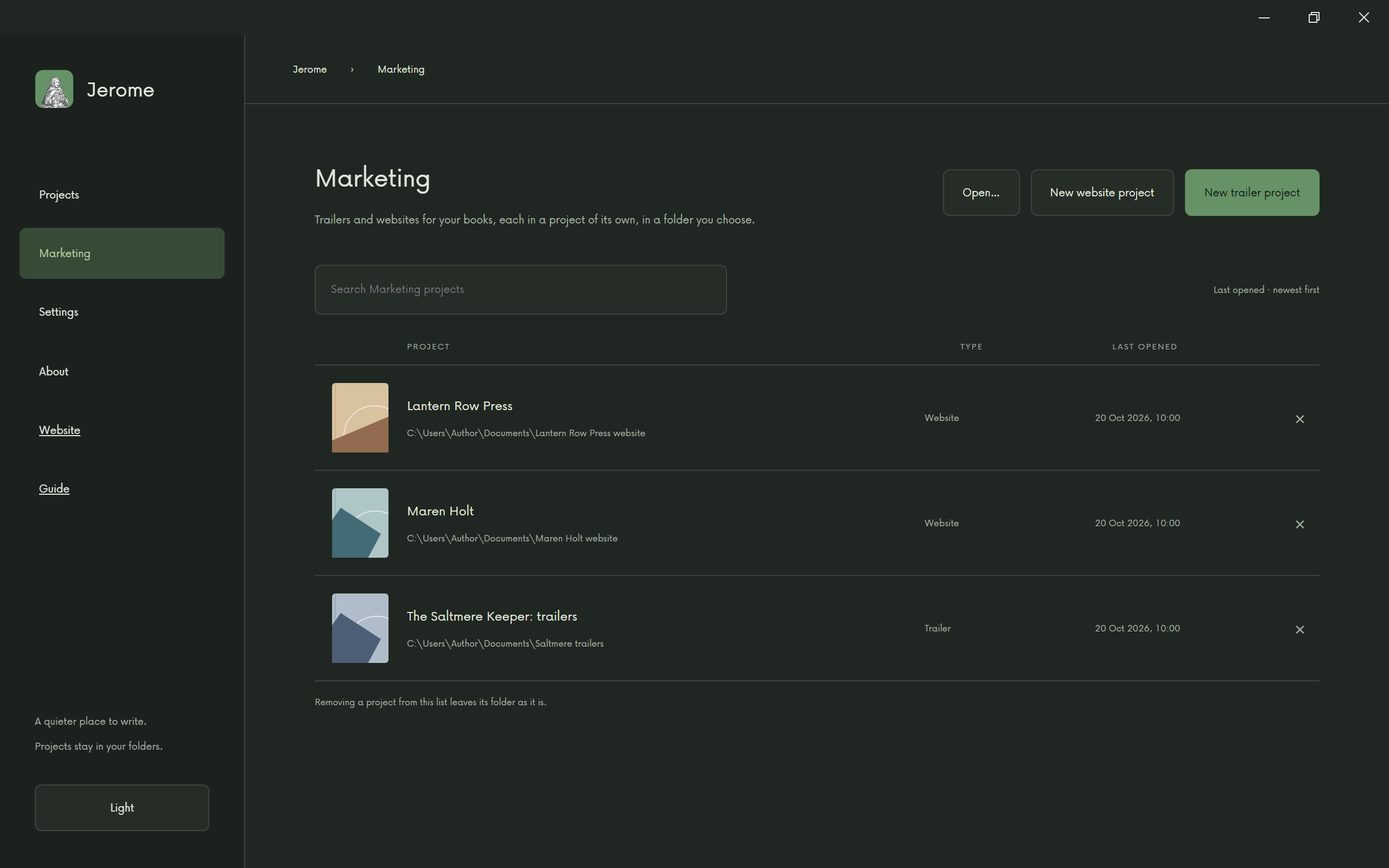
Two kinds of project
A Marketing project is not a writing project, and is not linked to one: you type or paste what it needs. Choose New trailer project or New website project, give it a title and choose where its folder goes. Open… opens one you already have; a folder without a marketing.json is not a Marketing project, and Jerome says so.
- A Trailer project holds as many trailers as you like.
- A Website project holds one website, with as many books as you like.
Each saves as you work, and Show files opens its folder. Removing a project from the list only takes it off the list: its folder stays where it is. If marketing.json changes on disk while the project is open, Jerome saves nothing and offers to read it again, so nothing is overwritten.
Make a trailer
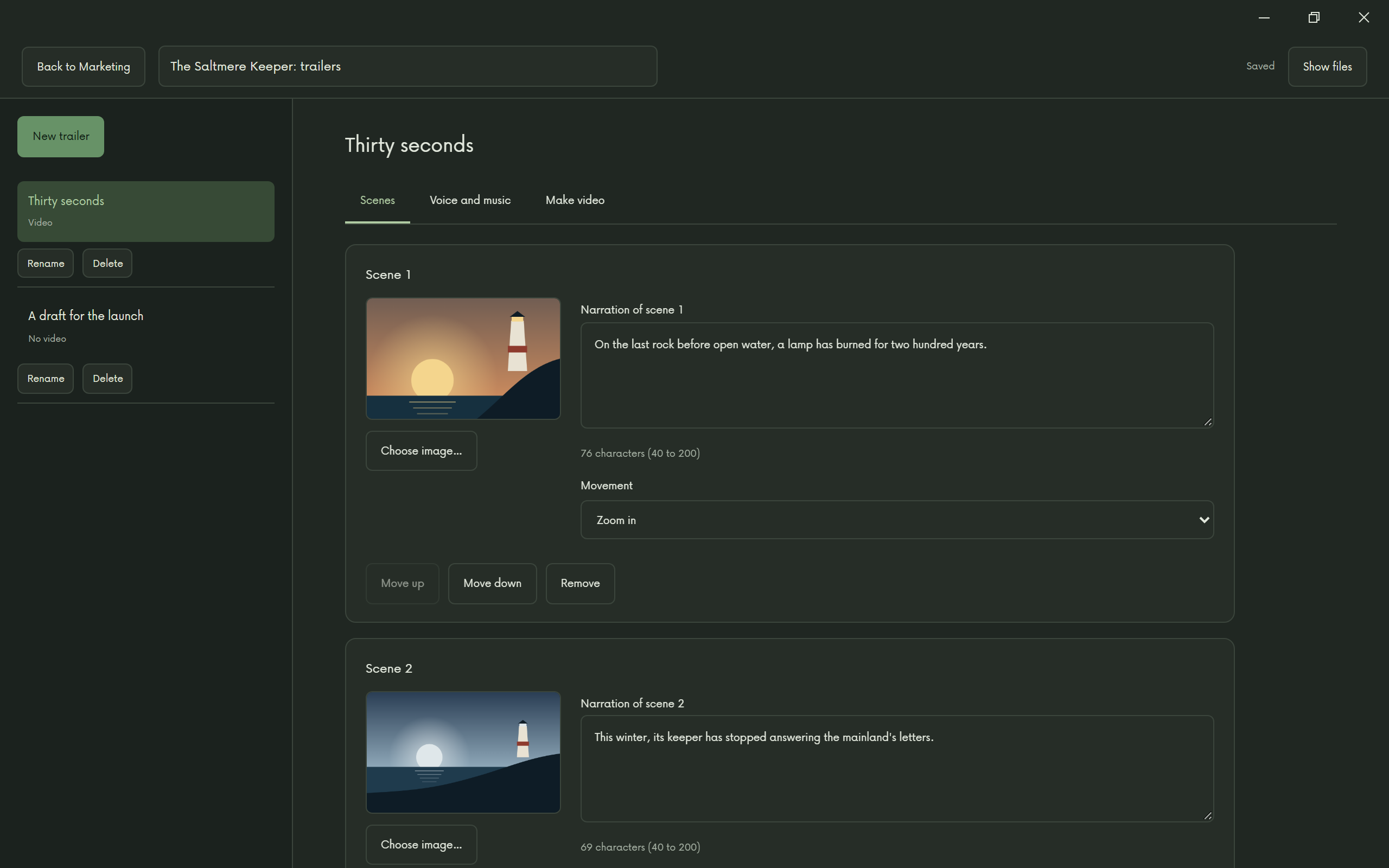
Make a trailer with New trailer. It has three tabs.
Scenes. Each scene is a still, some narration of 40 to 200 characters and a movement: zoom in, zoom out, left to right or right to left. The count beside the text says when a scene is too short or too long.
Voice and music. Choose the language, and Choose a voice… opens the same dialog as for an audiobook: each voice has a recorded sample to hear, and Read aloud tries it on a sentence of your own in the trailer’s language, at the speed you set. Changing the language keeps the voice; if it was not trained on that language, the dialog warns you of its accent. Set its speed, and how long the picture dips to black between scenes. For music, choose None, From the library or Your own file, and then its volume and how much of the trailer it fades in and out over.
The library is a download of its own, in Settings › Downloads (Before you go offline lists it); until you have it, the tab has a button that takes you there. Each track has Listen, which becomes Stop while it plays; starting another track stops the first. Check you may use your own file.
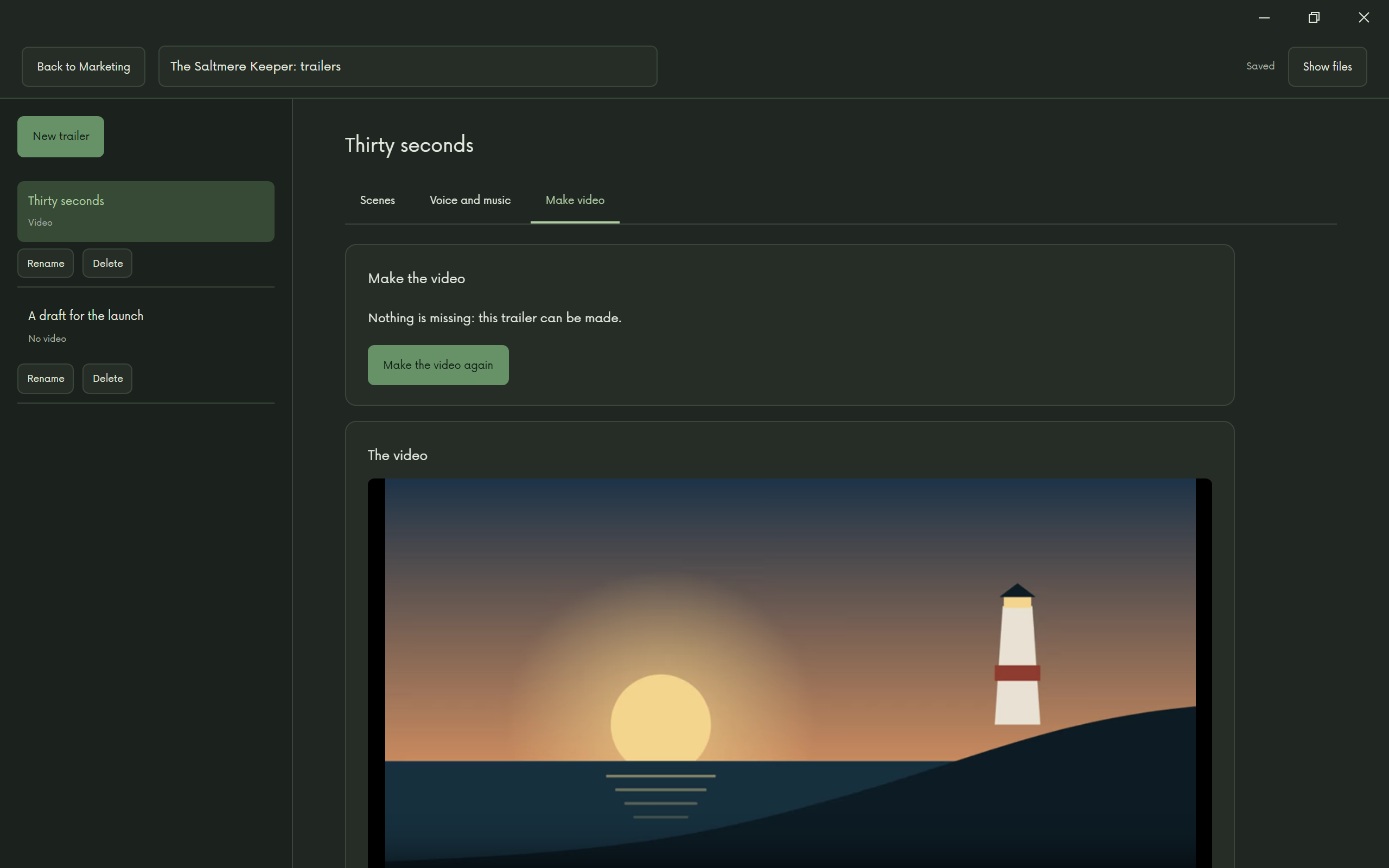
Make video. This needs FFmpeg and the speech model, the same ones narrating a book uses. If either is missing, the tab says which, and Open Settings › Downloads takes you to where it downloads, once; after that they work offline. About lists both, with their notes. There is no FFmpeg download for macOS for now: install it yourself and put it on your PATH, and Jerome uses it.
The tab then lists anything a scene still needs, by scene. Make video shows how far it has got and can be cancelled. When it is done you can watch it here and Save a copy… wherever you want it.
Make a website
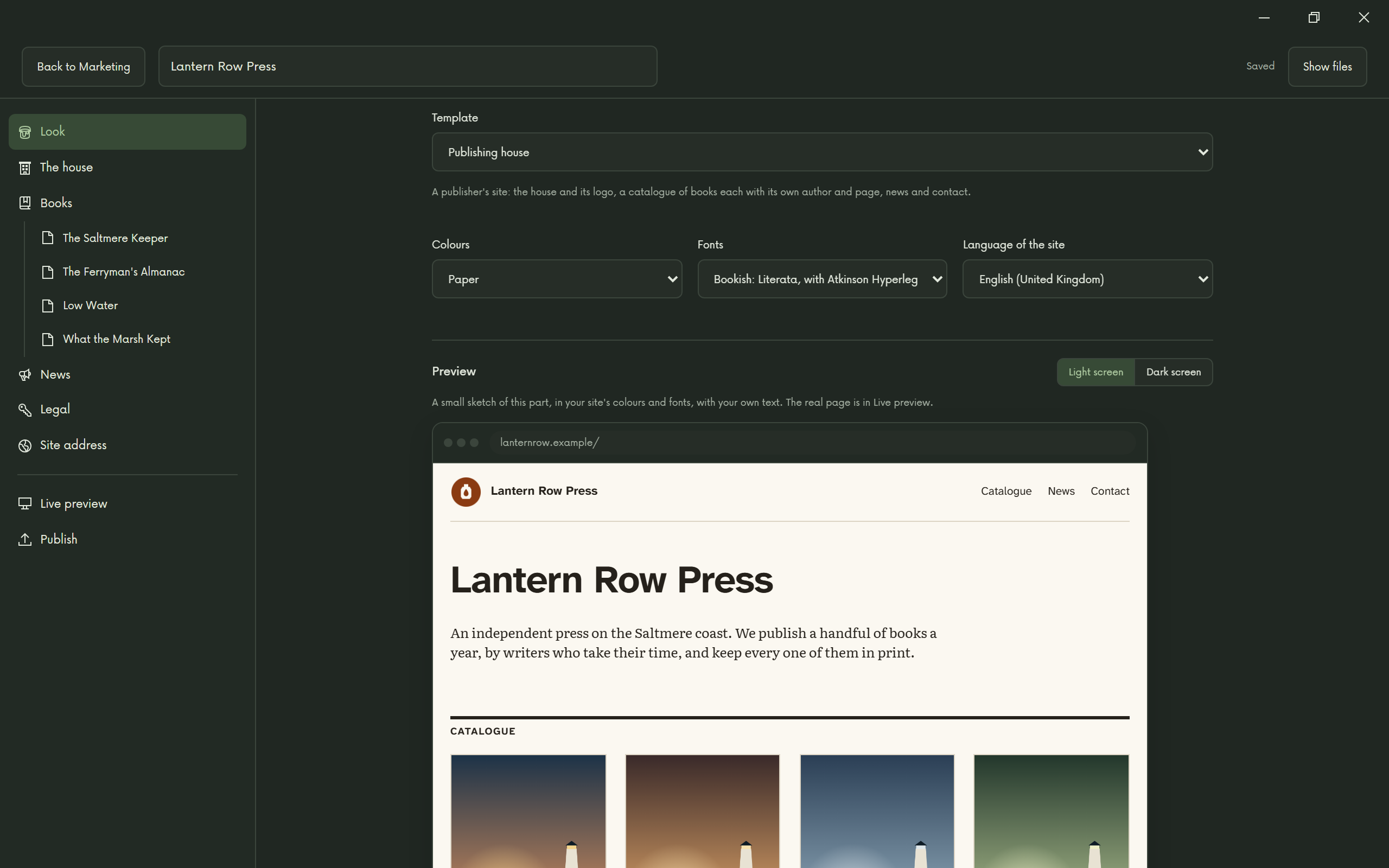
On the left is a binder with the parts of your site. Choose one and its fields open beside it, with a small preview underneath that follows what you type. It is a sketch of that part in your colours and fonts, with your own text, not the finished page: for that, see Live preview below. Use a palette with a dark variant and you can see it on a light or a dark screen, as your readers may. On a narrow window the binder’s rows are above the fields.
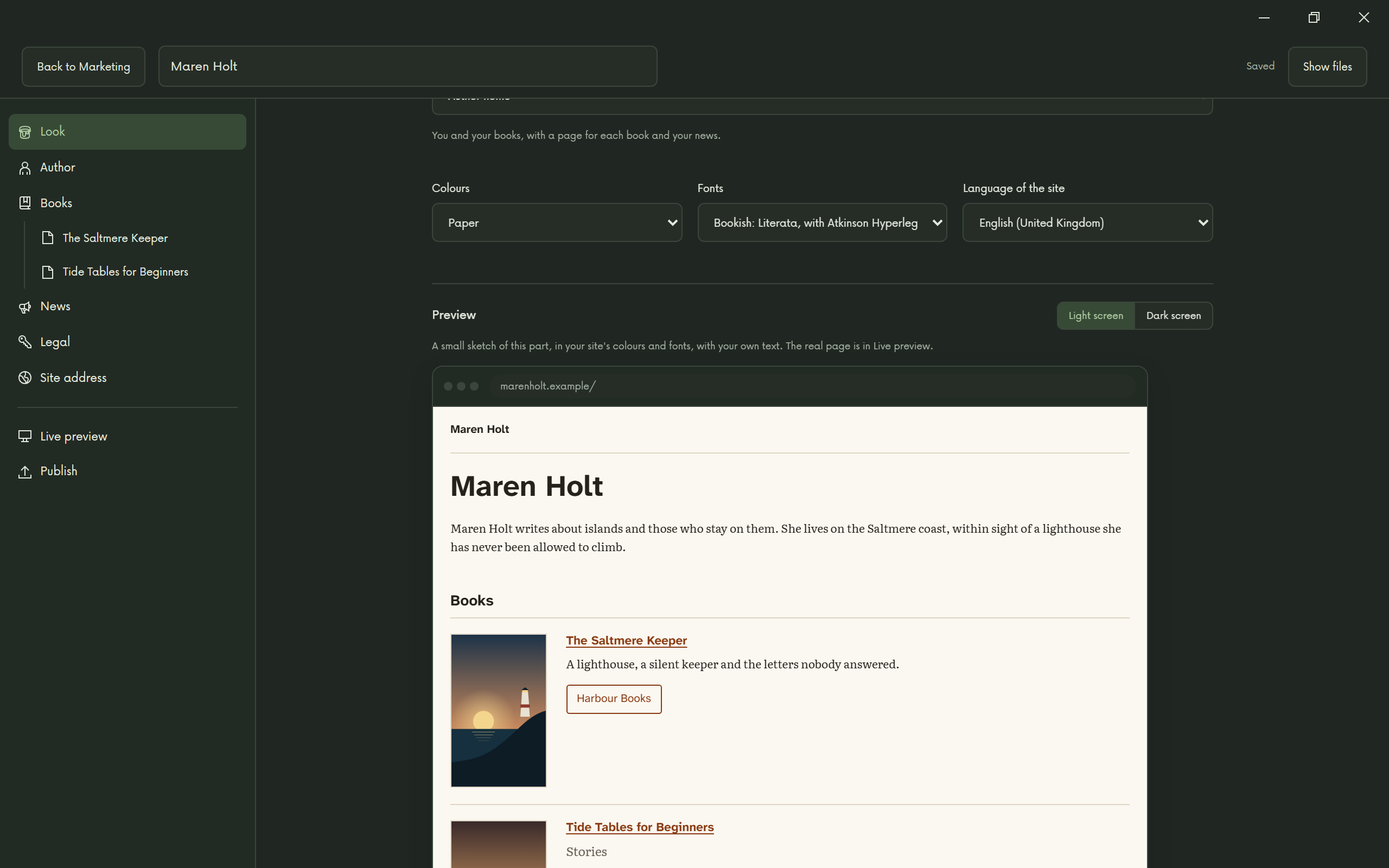
Under Look, choose one of six templates, as well as colours, fonts and the language of the site:
- Single book: one page for one book.
- Author home: you and your books, with a page for each and your news.
- Series: a series and its books, in order.
- Coming soon: one page announcing a book before it is out.
- Scripts and rights: scripts for producers and agents, with logline, cast, productions, rights and a sample PDF.
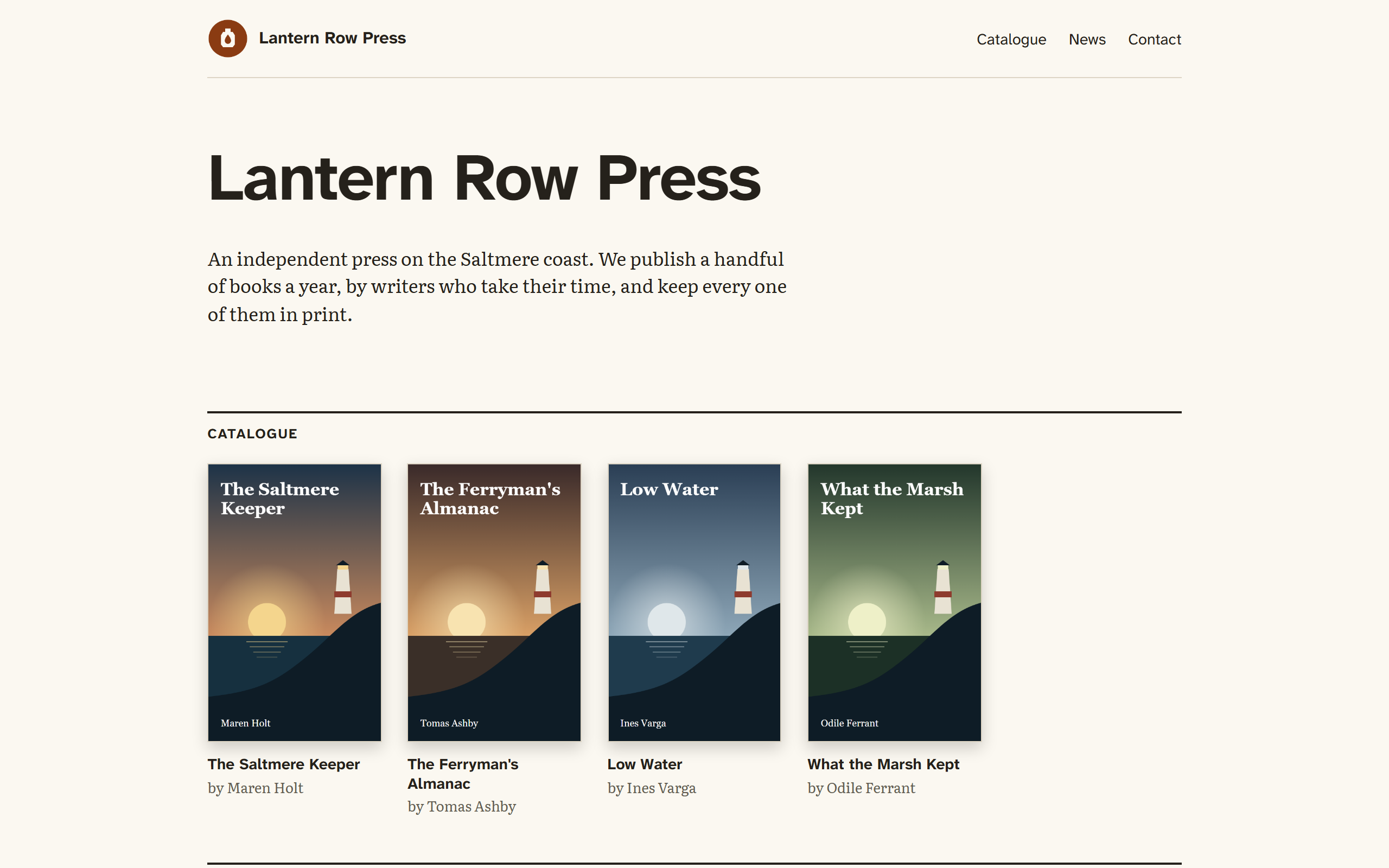
- Publishing house: a publisher’s site, with your logo and about text, a catalogue of books each with its own author and page, news and contact.
The language sets the words Jerome writes for you, such as Buy and Page not found. They exist in English, Italian, French, Spanish, German, Portuguese, Dutch, Catalan, Polish, Czech, Slovak, Hungarian, Romanian, Croatian, Slovene, Swedish, Danish, Norwegian, Finnish, Greek, Russian, Ukrainian, Bulgarian, Turkish, Chinese (Simplified and Traditional), Japanese, Korean and Indonesian. With any other language those words are in English. Your own text stays as you wrote it.
The other parts follow from the template: Author, Books, Series, News, Coming soon, Legal and Site address. Books adds, reorders and removes books, and each book has its own row under it. Single book and Coming soon show only the first book in the list, and say so.
On a publishing house, The house takes the place of Author: the house’s name (the same as the project’s title), its logo, a few words about it, and the address and newsletter link. Each book has an Author field of its own. The site’s menu goes to the catalogue, the news and how to get in touch, and a book without a cover appears in the catalogue as a plain plate with its title.
The site is plain HTML and CSS, with no JavaScript, cookies, analytics, forms or requests to anyone else. Its images must be PNG or JPEG.
Write a date as 2026-10-12 or 2026-10 and the site shows it in its language: “12 October 2026” and “October 2026” in English, “12. Oktober 2026” in German. A year, or anything else you write, such as “Spring 2027”, appears just as you typed it.
Chinese, Japanese and Korean text, and Greek and Cyrillic headings, use the fonts on your reader’s device, as the fonts Jerome includes do not cover them.
Live preview
To see the real site, every page and link of it, choose Live preview in the binder and press Start, then Open in browser. Jerome makes its own copy of what you have saved and shows it to your browser, at an address such as http://127.0.0.1:4780.
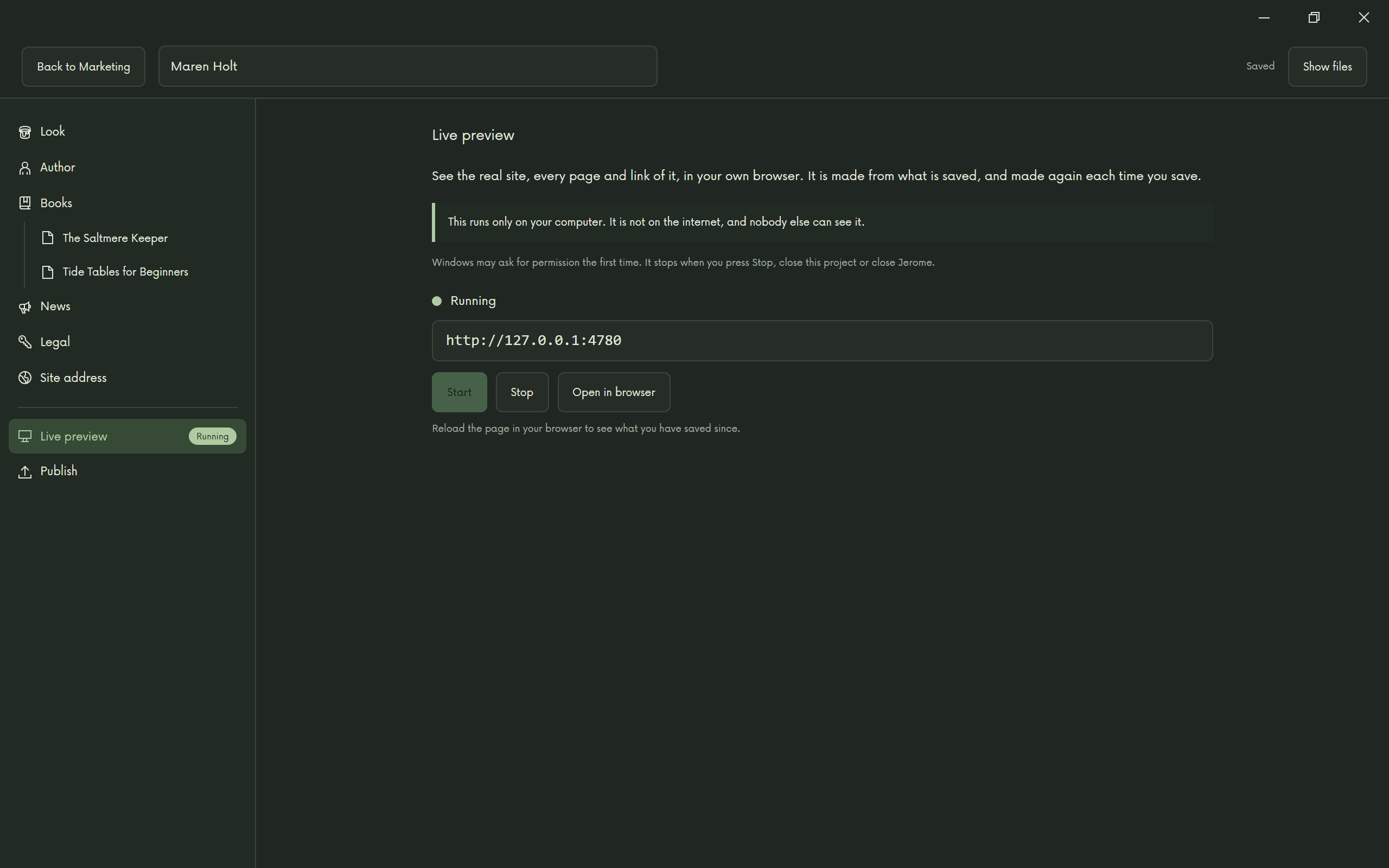
This runs only on your computer. It is not on the internet, and nobody else can see it. Windows may ask for permission the first time.
Each time you save, the copy is made again: reload the page in your browser to see it. If something stops it, such as a link with no name, Jerome lists what is wrong and your browser keeps the last version that worked. If something stops it starting, the same list tells you what to fix. You do not need a site address for this. It stops when you press Stop, close the project or close Jerome.
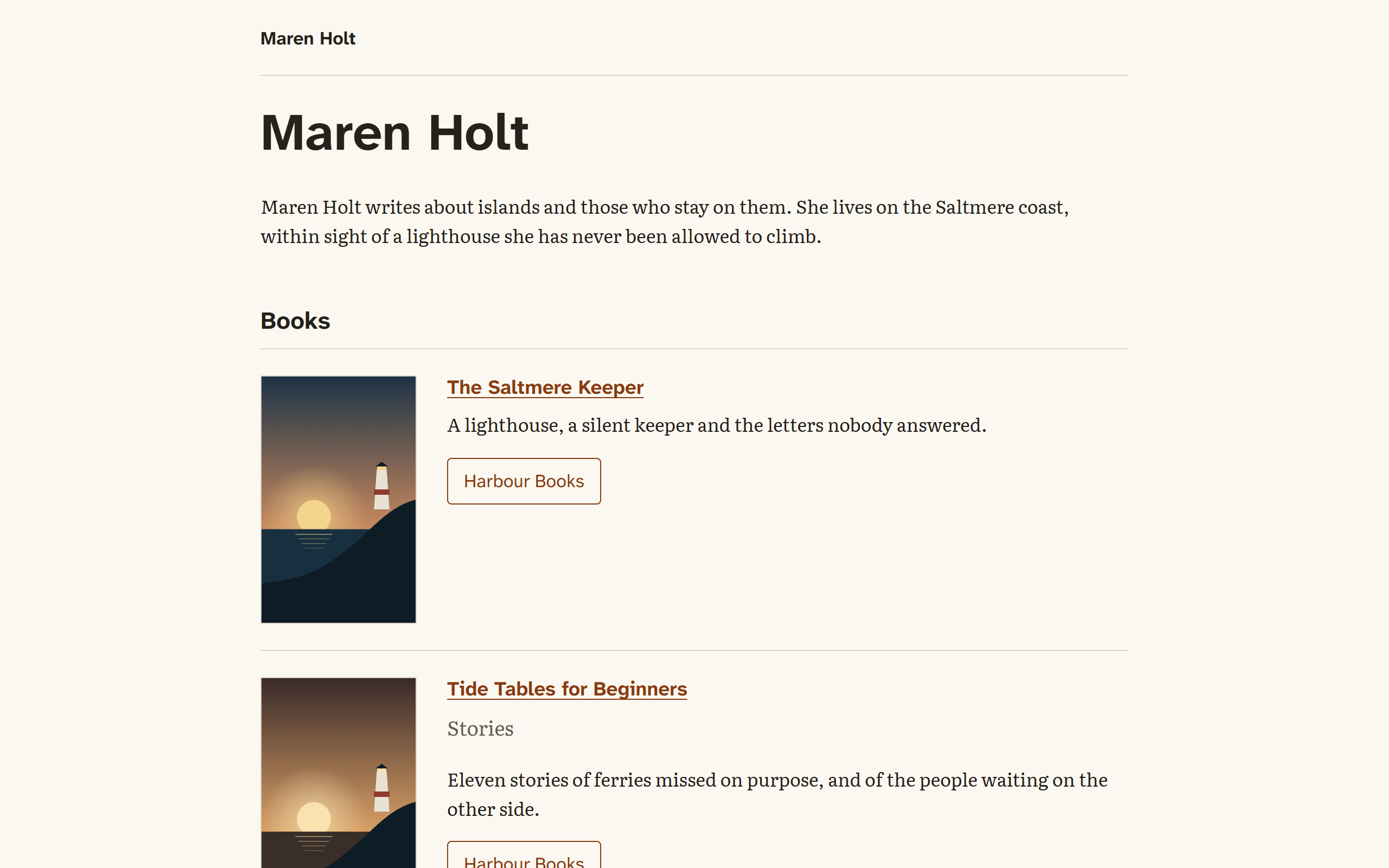
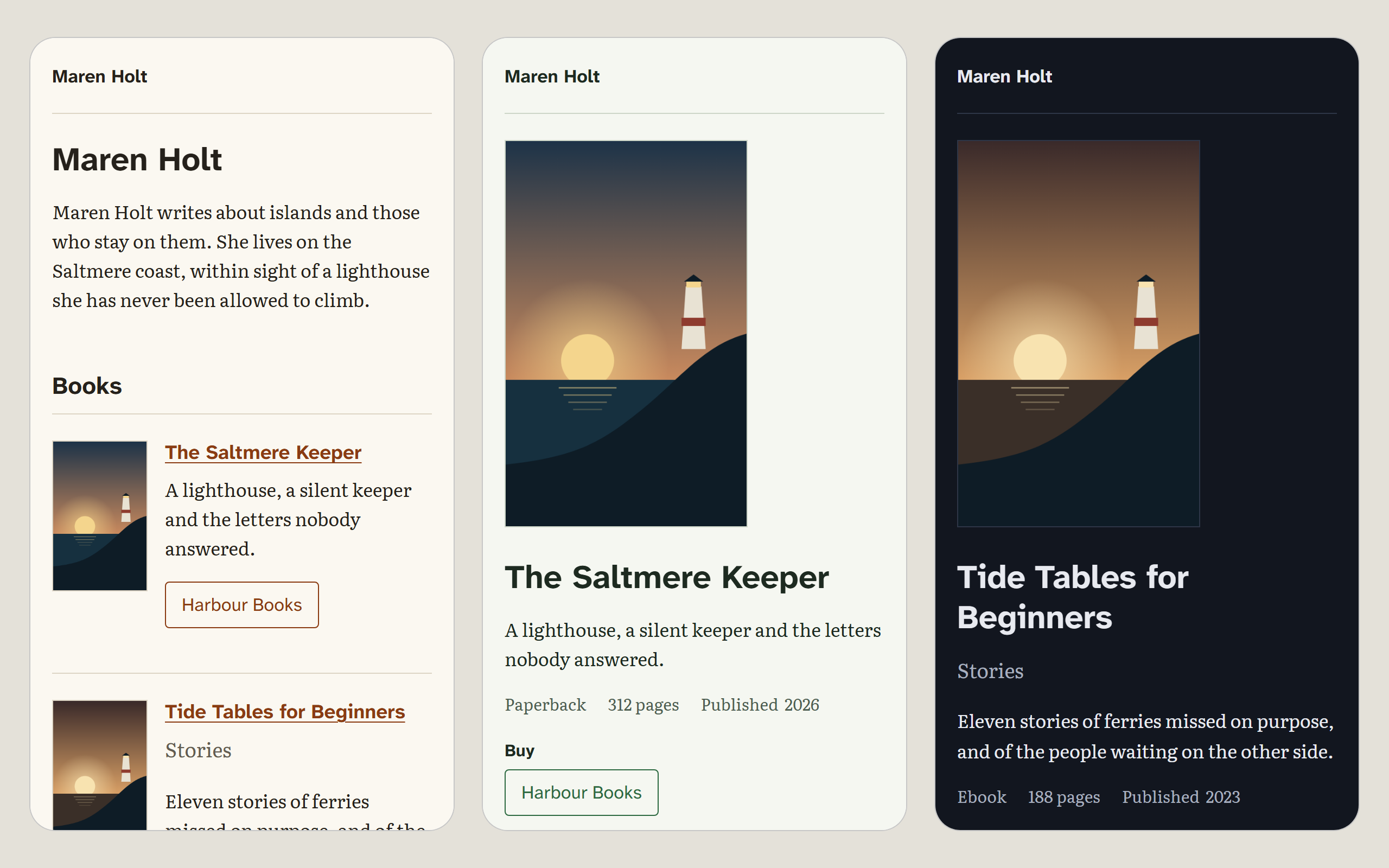
The finished site looks like this. An author’s home page in the Paper colours:
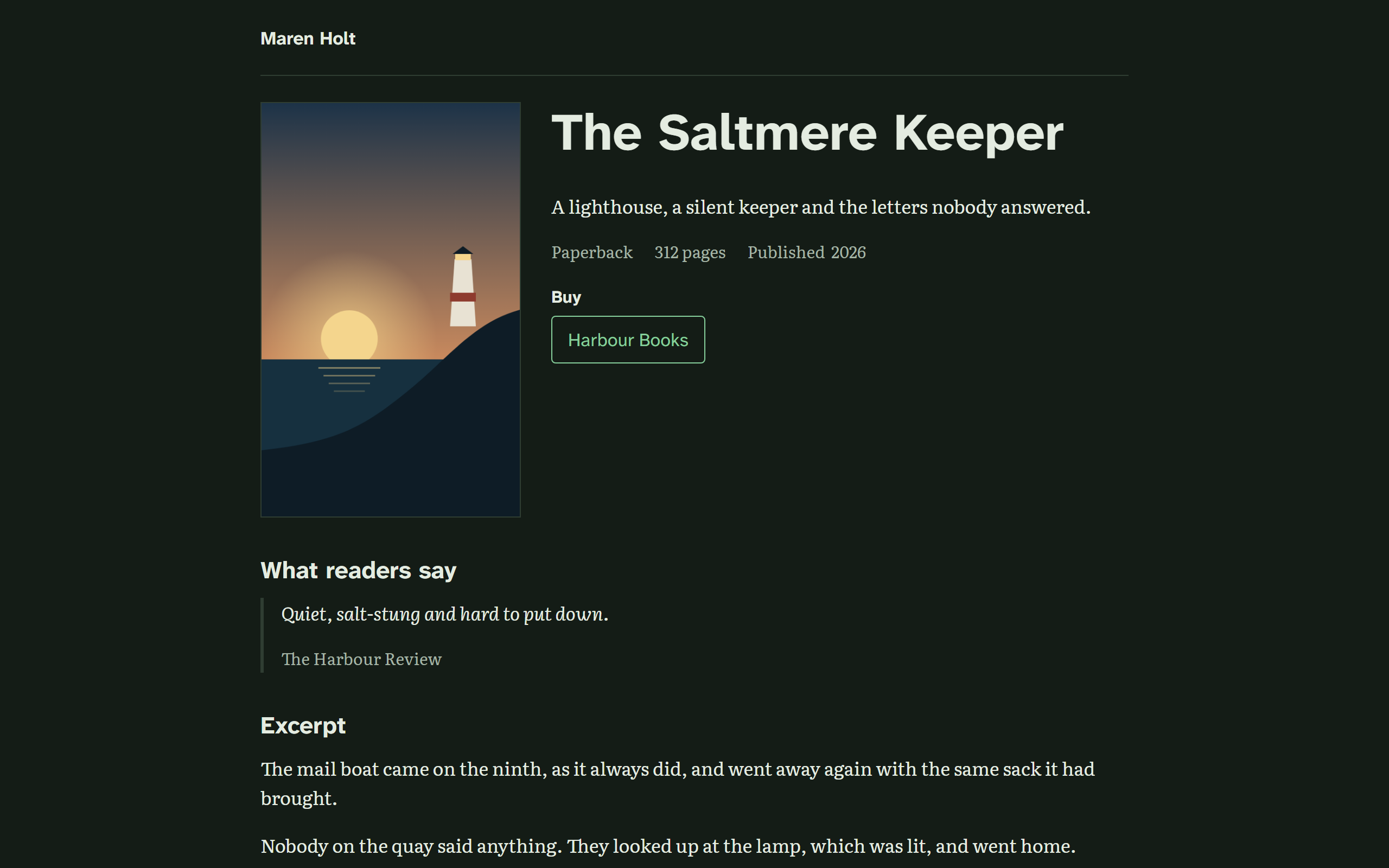
A book’s own page, in the Forest colours on a dark screen:
And the same site on a phone:
A publishing house’s home page, in the Paper colours:
Publish
Build website, under Publish in the binder, lists whatever still stops the site being built. Otherwise it writes the site to out/site and a zip of it to out/site.zip, both inside the project’s folder, and Save the zip… copies the zip wherever you want it.
Where everything goes
Both kinds of project keep what they make in their folder’s out folder: a trailer’s video, or the built site and its zip. Making it again replaces it. Back up or share the whole project folder and it all goes with it.
Put the site online
Jerome does not publish anything for you. Upload what you built to a host of your choice. For two of them:
- Cloudflare Pages takes the zip or the folder.
- Netlify’s drag-and-drop takes the folder.
Check their own instructions, as these things change.
Before you publish
Jerome gives you no legal text, and this page is not legal advice: what your site must say depends on where you live and what it does.
- Imprint. What you write here is published. Many authors work from home, so an imprint can publish your home address. Think about that first.
- Privacy. Whoever hosts the site sees its visitors’ IP addresses. Your privacy page is yours to write.
- Other people’s work. Check you may use the stills, the music and the quotes you add.