
Settings, licence and moving computers
Make Jerome look and read the way you like, and move your licence to a new computer.
Settings, from the Projects page or the top bar of a project, holds Jerome’s own preferences. They are saved on your computer, not in your projects. A project’s own settings, such as its typography or its title page, are in Workspace settings, in the project’s rail.
Appearance
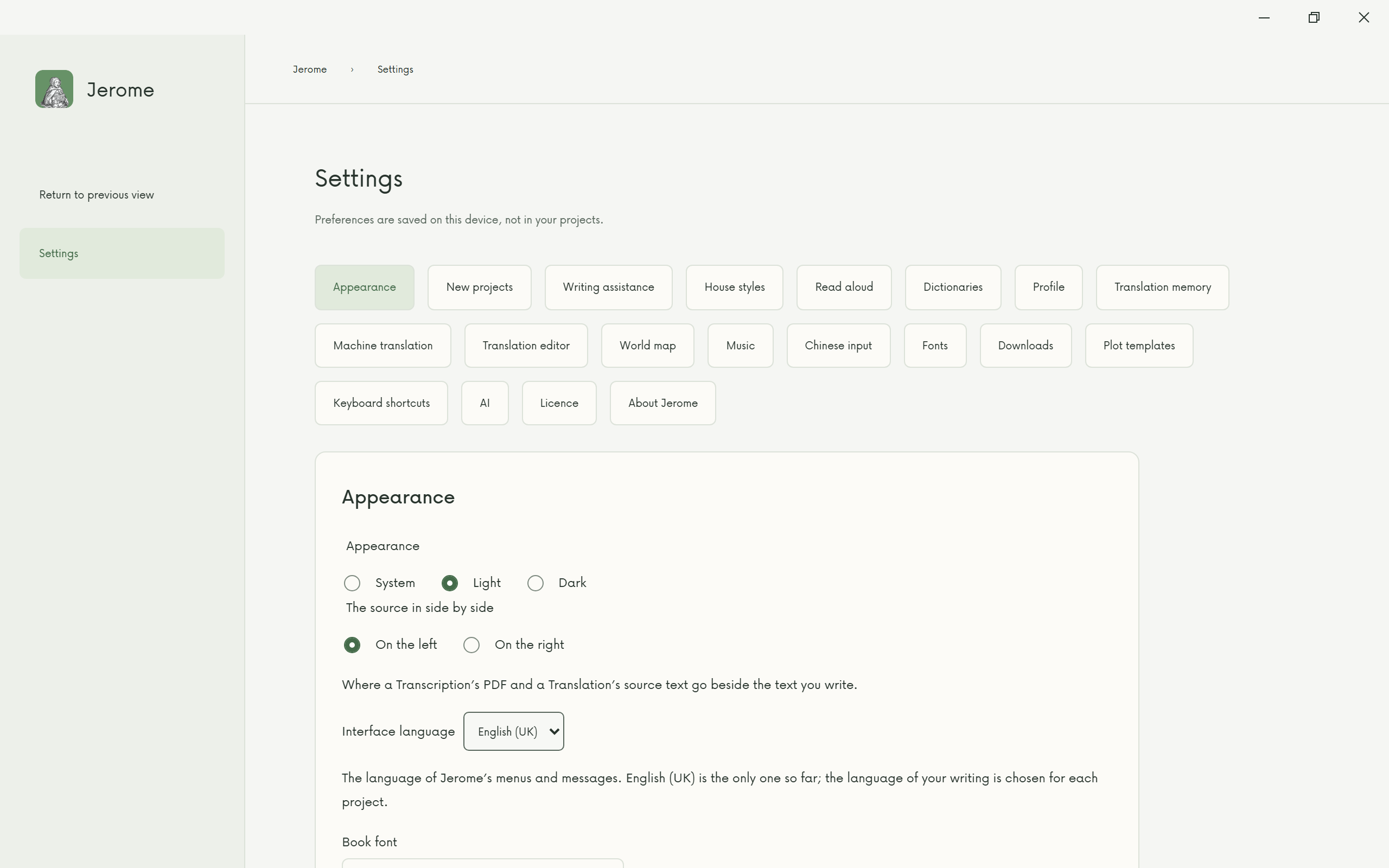
- Appearance: System follows your computer’s light or dark setting; Light and Dark fix it.
- Book font: the font your text is written in, such as IBM Plex Mono, Atkinson Hyperlegible Next, or a serif: Source Serif 4, Literata, EB Garamond, Lora or Alegreya.
- Reading size: how large your text is. Ctrl+= and Ctrl+- change it while you write.
- Line height: how far apart the lines of your text are, from 1 to 2, as in a word processor (2 is double spaced). It changes only what you see in the editor, never your exports.
- Interface text size: how large Jerome’s menus and buttons are.
- The source in side by side: whether a translation’s source, or a transcription’s PDF, sits on the left or the right.
- Inspector tabs and Editor toolbar: put the inspector’s tabs and the toolbar’s buttons in the order you like, and hide the buttons you do not use.
- Show Plan: see Planning.
- Show Marketing: on unless you hide it; see Marketing.
Other pages worth a visit
- New projects: the folder and the language new projects start with.
- Profile: your name, which marks your comments and tracked changes. It starts as the name of your account on the computer; change it here if you want another name in your projects.
- Read aloud: a voice for each language, with Test.
- Writing assistance, House styles, Dictionaries, World map, Machine translation and Downloads: see Before you go offline. Downloads also holds what making a book, narrating it and making a trailer need, and nowhere else does.
- Keyboard shortcuts: every shortcut in Jerome.
- AI: see AI help.
Your licence
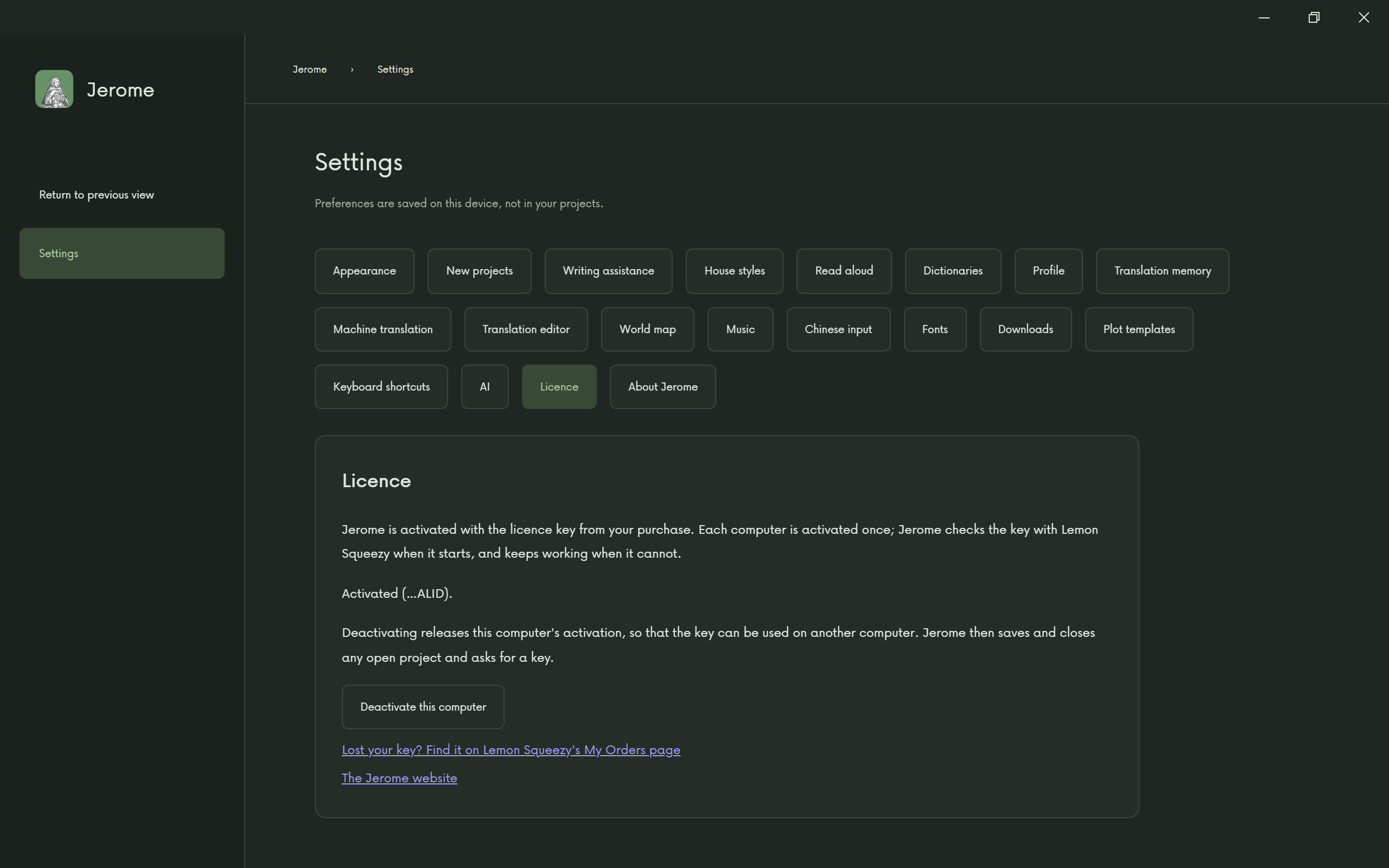
Settings › Licence shows the key this computer is activated with and when it was last confirmed online.
Moving to a new computer
- On the old computer, open Settings › Licence and choose Deactivate this computer. Jerome saves and closes any open project and frees the key.
- Copy your project folders across, as you would any other folders.
- Install Jerome on the new computer and activate it with the same key.
If a key is refused when you activate it, Jerome says why.
A lost key
Your licence key is in the email you received when you bought Jerome, and in your order on Lemon Squeezy. If you cannot find it, see Retrieve my key.